👋 Introduction
Windows Backup for Organizations is a business-class feature that makes it easier to refresh and upgrade devices. It makes sure that users have the same experience with their Windows settings and Store apps. It does this by securely synchronising settings every 8 days and offering a seamless restore process during OOBE (Out-Of-Box Experience). This feature is designed to help you transition to a cloud-first device approach.
- Reduce migration overhead: Streamline Windows 10 to Windows 11 transitions
- Minimize user disruption: Minimize downtime during device changes
- Strengthen resilience: Confidently reset devices with backup & recovery
- Reduce IT efforts: Users restores preferred settings independently
INFO
The complete feature is disabled by default and needs to be enabled by the admin.
Specifically the restore setting applies tenant-wide and is either disabled or enabled. But restore will only be available if the user made at least one backup before.
So no reason to worry about turning it on, even if you want to pilot first. Without the backup policy, users won`t see the restore option.
Requirements
- Backup
- Windows 10 22H2
- Windows 11 22H2 and later
- Must be Microsoft Entra joined or Microsoft Entra hybrid joined
- Restore
- Windows 11 22H2 and later
- The user needs at least one backup
- If Autopilot is used, it needs to use user-driven mode
- Microsoft Entra joined
IMPORTANT
If device needs to be updated to a build older than July 2025.
🔧 Configuration
Restore Configuration
- Sign in to the Intune admin center -> Devices -> Enrollment and select Windows Backup and Restore.
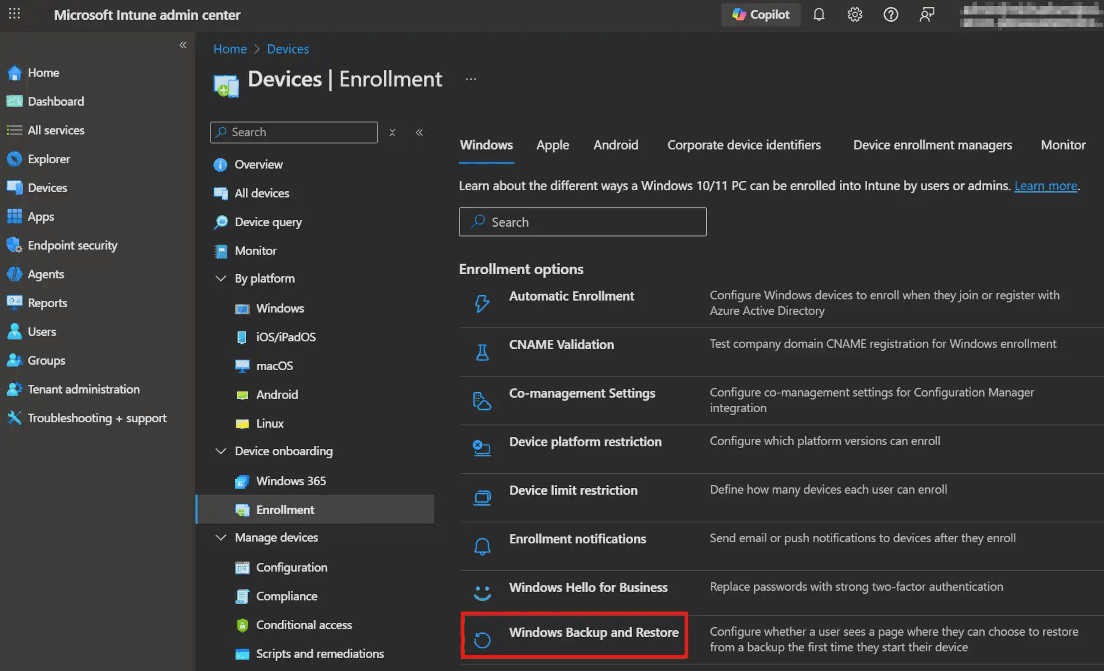
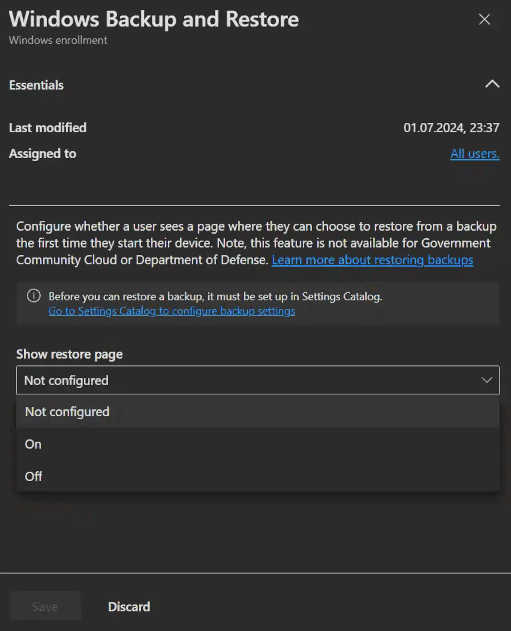
- Now, a side panel opens on the right. Select
Onunder Show restore page and then selectSave.
Backup Configuration
- Sign in to the Intune admin center -> Devices -> Configuration and select
+ Create->+ New Policy. - Now select Windows 10 and later as platform and Settings catalog as profile type and click
Create. - Next you enter your Name and Description for the profile and click
Next. - Now you click on
Add settings, select Administrative Templates\Windows Components\Sync your settings\Enable Windows Backup and set it to Enabled.
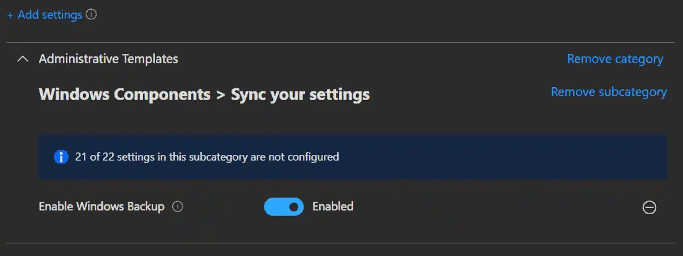
- On the next page, add scope tags if needed. On the page after that, assign the profile to your desired groups. Lastly go tho the Review + create page and click Create.
Reporting
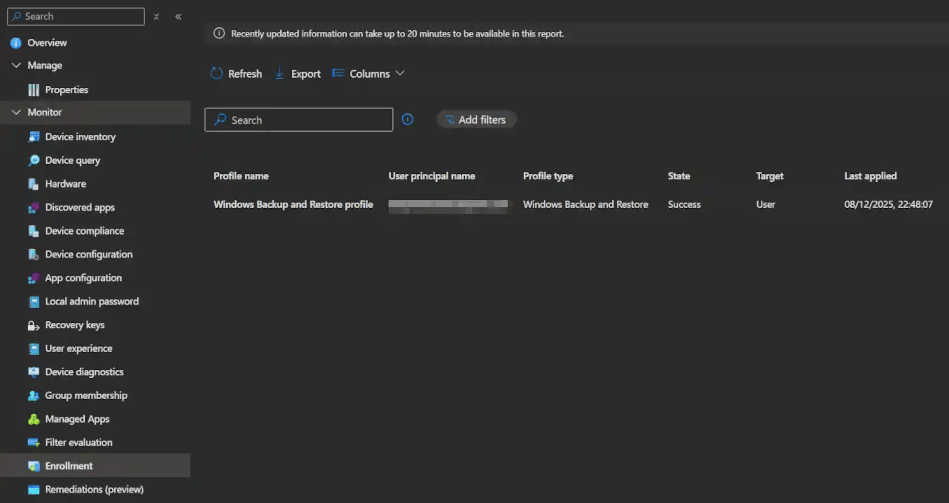
To view reporting on device restores, sign in to the Intune admin center, navigate to Devices, select the device that used the restore option during OOBE and you will be able to see the restore status in the Enrollment section.
👤 User Experience
Backup Process
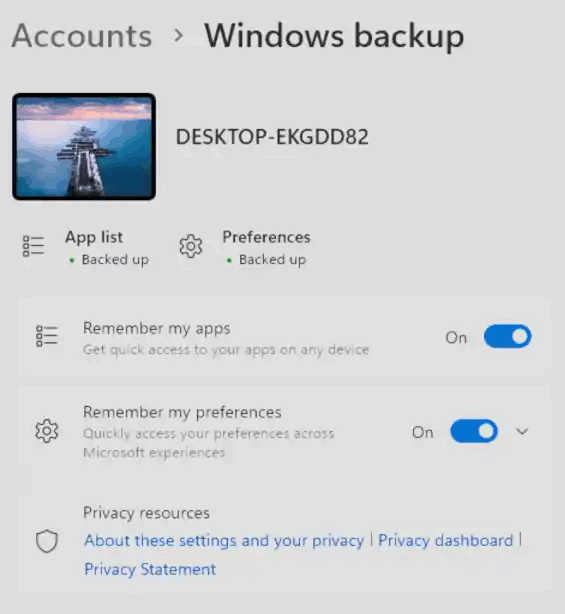
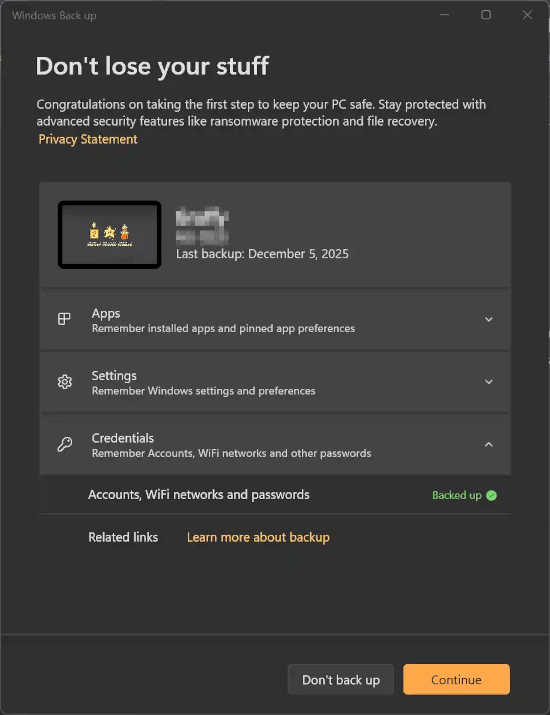
After an administrator configures the backup policy, Windows automatically backs up user settings, preferences, and installed Microsoft Store apps every eight days through a scheduled task. The user does not need to do anything and will not take notice of the backup happening.
You can see the backup status in the Windows Settings app under Accounts -> Windows backup.
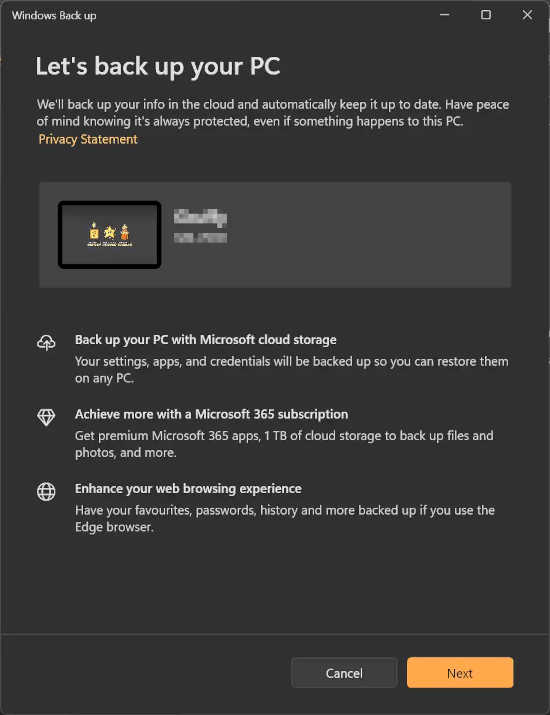
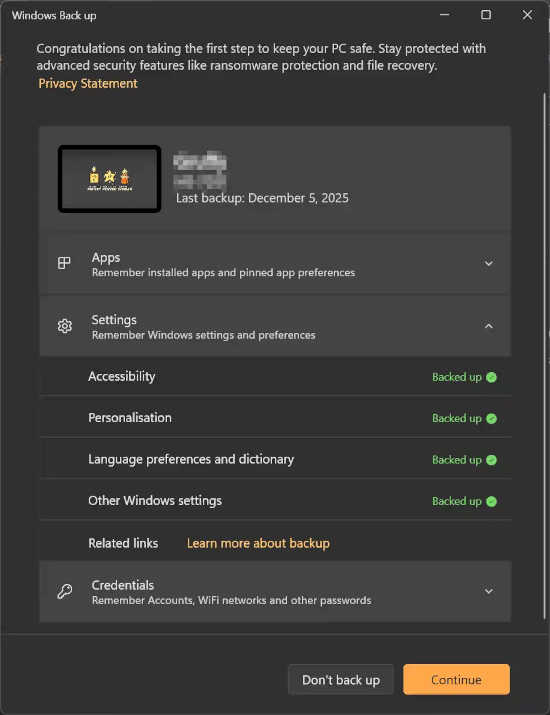
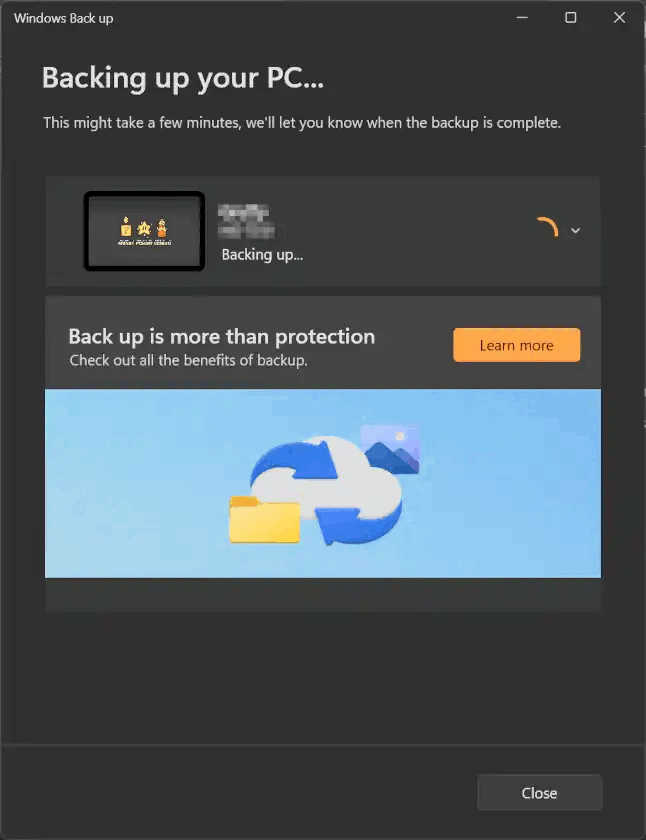
Users can also initiate a manual backup by opening the Windows Backup app and following the prompts.
 |  |  |
|---|
Restore process
During OOBE, the restore process follows these steps:
- Sign in with your Microsoft Entra ID account (the same work or school account used during backup).
- The restore page appears after sign-in.
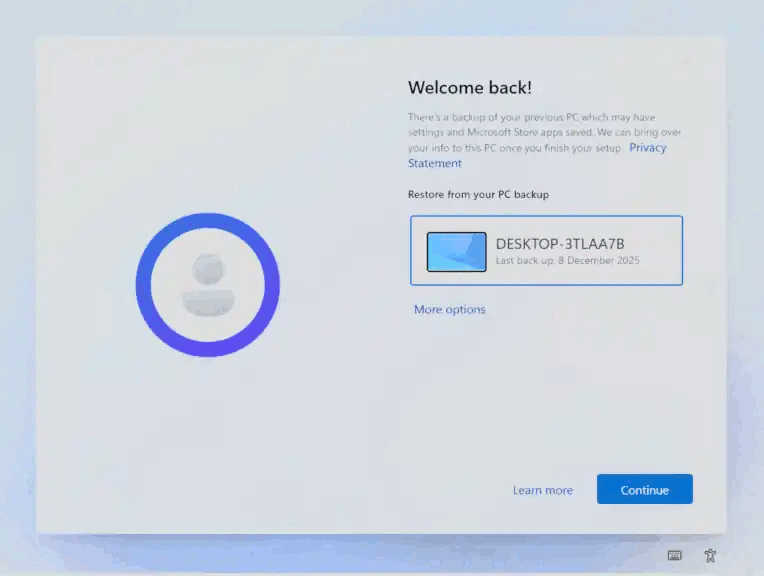
- Select a device to restore settings from (you will see a screenshot of the backed up desktop) or choose to configure the device as new (To configure as new, you need to select
More optionsfirst.).
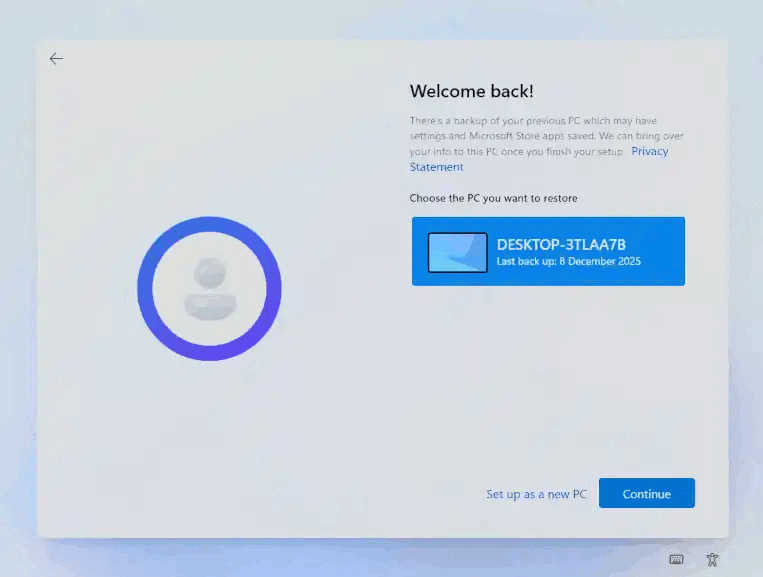
- Select Continue to restore backed-up user settings and Microsoft Store apps.
- Complete the remaining OOBE process as normal.
- Once you reach the desktop, your previously backed-up settings and apps are automatically restored.
INFO
If you find your Conditional Access policies interfiering somehow in the process, you can find more information about that here.
💡 Conclusion
Windows Backup for Organizations lets you keep user settings and store apps backed up in the cloud, which makes it easier to refresh and restore devices. It is the perfect companion to OneDrive, with the first one holding settings and the second one the data. With this combination you can offer a painless cloud-first device replacement experience. With this, you could even argue that resetting a device remotely is so painless, that it's much quicker and easier than any troubleshooting IT can do, especially for remote users.
Try it out with a few people, tell end users about the new backup screen and then roll it out bit by bit. It's basically risk-free and the only thing that changes for the user is that they get their settings back when they get a new PC.