👋 Introduction
WARNING
Be aware that this Feature is currently in Public Preview (April 2026).
Microsoft Entra Backup and Recovery is a built-in solution that helps restore important Microsoft Entra directory objects to a previous, known good state after accidental changes or security incidents. It supports a wide range of objects, including users, groups, applications, service principals, Conditional Access policies, named locations, authentication method policies, and partial authorization policies. Agent ID is also supported, as it is made up of user and service principal objects with specific types and characteristics.
Supported object types:
- User
- Group
- Conditional access policy
- Named location policy
- Authorization policy
- Authentication methods policy
- Application
- Service principal
- Organization
WARNING
Be aware that backup & recovery only applies to the supported properties and does not do a full 100% rollback. Microsoft continues to expand support for additional objects and properties.
You can find a full list of recoverable objects and their properties on the Microsoft Learn site here.
How Entra Backup and Recovery works
Microsoft Entra Backup and Recovery automatically backs up supported objects daily and keeps five days of history, helping restore your tenant to a secure, productive state.
Backups are created automatically and are available only to authorized administrators. No user or app can disable, delete or alter them, even with the highest admin privileges. All backup data stays securely within the same geo‑location as the Entra tenant.
If you use a hybrid identity, you can view changes to your last backup, but you cannot recover anything to your on‑premises AD.
INFO
If you want to learn more about the mentioned data residency of Entra, click here.
Soft Delete
Entra Backup and Recovery builds on soft deletion, which keeps deleted objects recoverable for 30 days to protect against accidental or malicious deletions. These backups are managed by Microsoft, so you don’t need to care for your own backup infrastructure.
This approach avoids problems like:
- Objects losing their IDs
- Broken dependencies
- Manual reconfiguration of access or policies
The difference between soft and hard deletion:
| Deletion type | What happens | Recoverable |
|---|---|---|
| Soft delete | Object is retained in a deleted state | ✅ |
| Hard delete | Object is permanently removed | ❌ |
IMPORTANT
Entra Backup and Recovery never hard‑deletes customer objects during recovery and can’t restore anything that was hard‑deleted.
Prerequisites
- Entra ID P1 or P2 licenses
- Entra roles:
- Backup Reader: View backups, compare changes and review recovery history.
- Backup Administrator: All Backup Reader permissions, can run difference reports and trigger recovery for changed objects.
- Global Administrator: All Backup Administrator permissions.
- External ID and Azure AD B2C tenants aren't supported.
🖥️ Admin experience
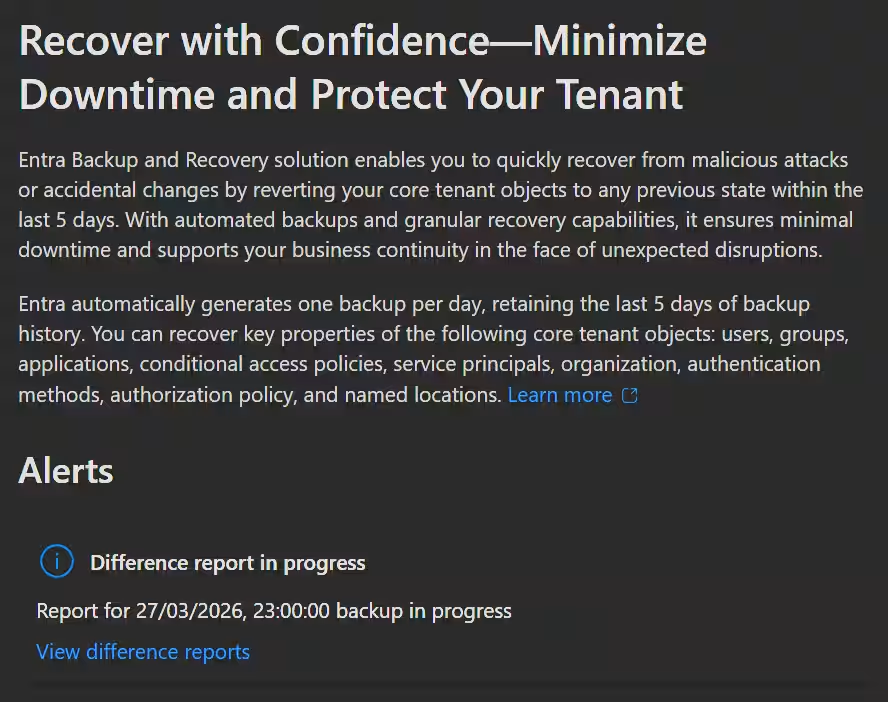
To get started, open the Entra admin center and select Backup and recovery from the navigation on the left.
Overview
On the Overview page, you can currently only see the status of the last backup operation you performed, displayed as an alert and a few links.
Backups
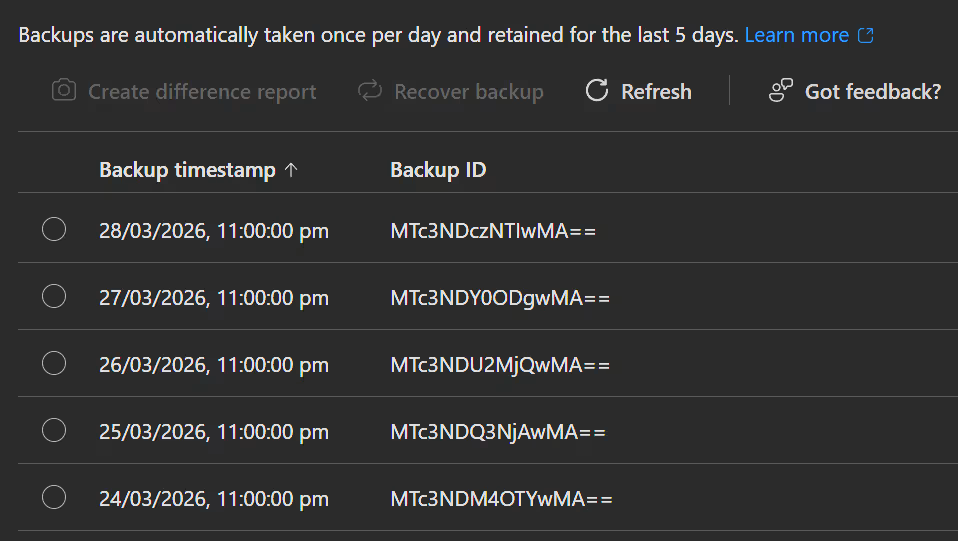
On the Backups page, you will find a list of backups from the last five days. Clicking on one of these opens a details page where you can start a recovery or generate a difference report.
Difference Reports
Create and review reports that compare the current tenant state with a backup. This function is really useful for understanding what has changed in your tenant since the backup was taken. To create a new difference report, select a backup and click on Create difference report. You can also start a recovery from here.
Difference report statuses:
| Status | Description |
|---|---|
| Loading data | The system loads the data from your backup. |
| In progress | The system compares the backup with the current tenant state. |
| Completed | The difference report is ready. |
| Failed | The difference report couldn't be generated because of an error. |
| Cancelled | The difference report was cancelled before it could be finished. |
After starting the difference report, you can select what you want to compare.
- all objects
- specific object types
- specific object IDs
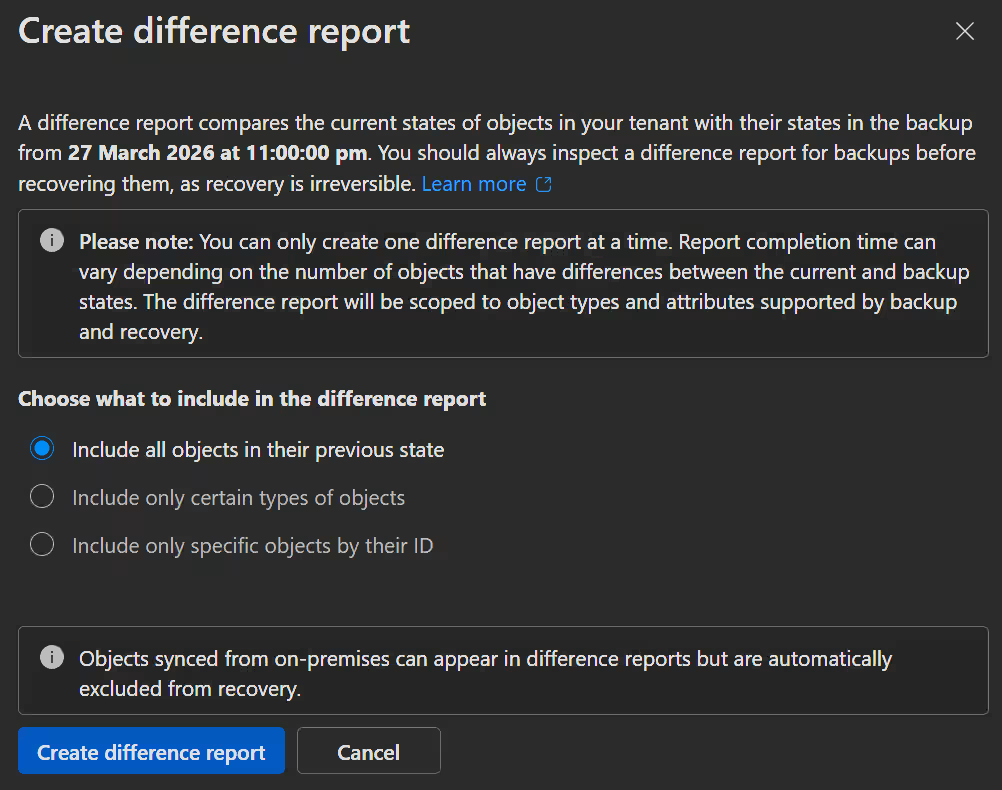
After that it takes a while for the data to be collected and the report to be generated.
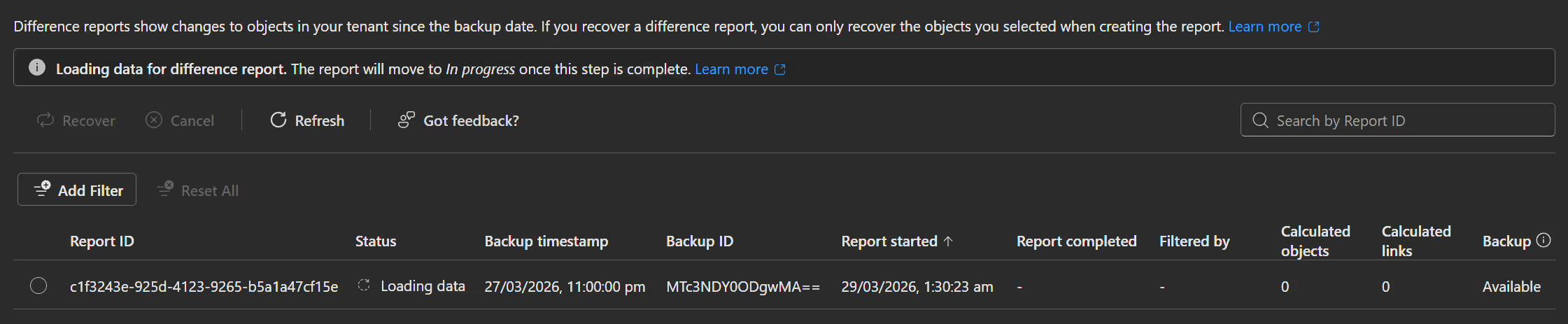
When the report is ready, the status will say Completed and you will be able to see directly in the overview how many differences were found.

When you open the report, you will get an overview of all the specific differences that were found.
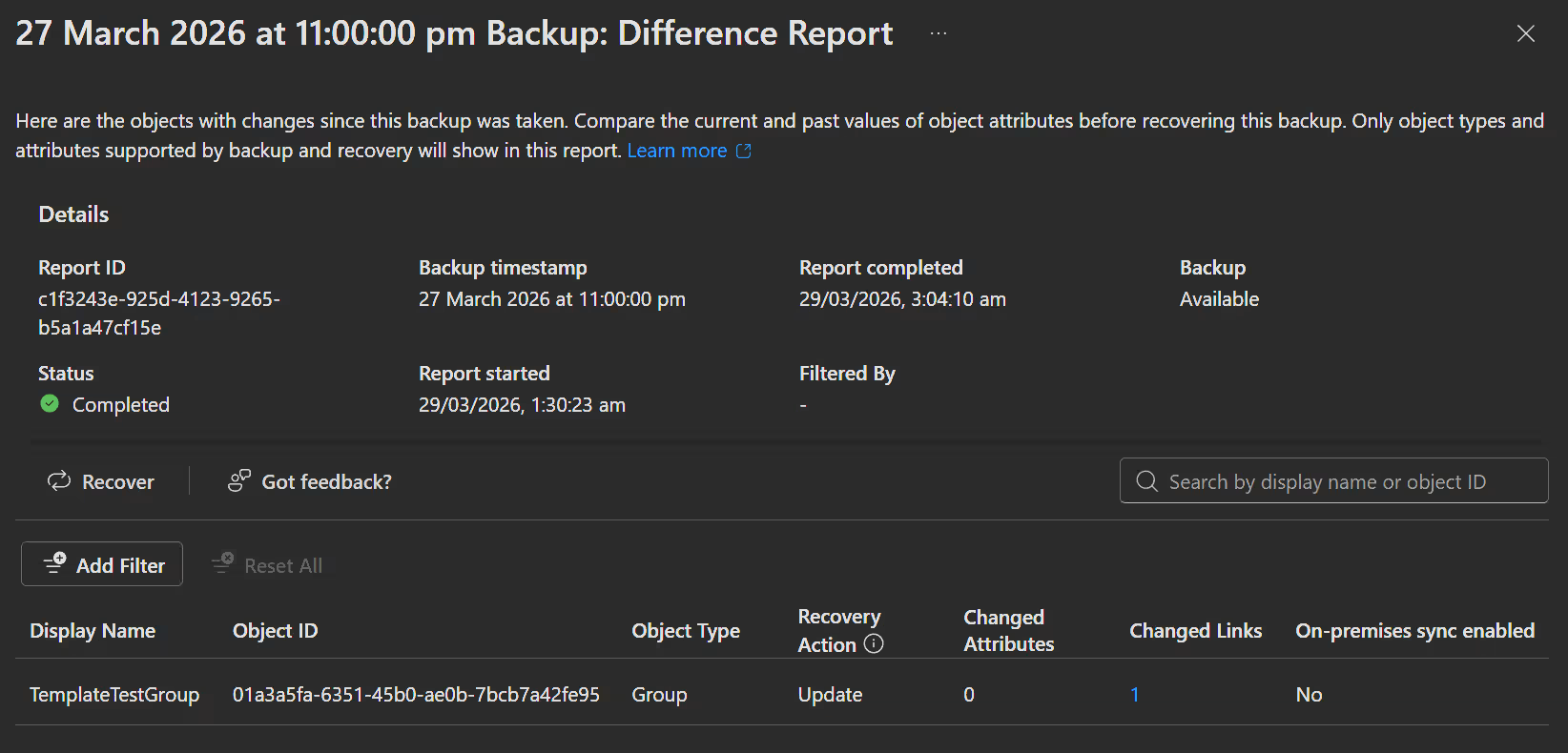
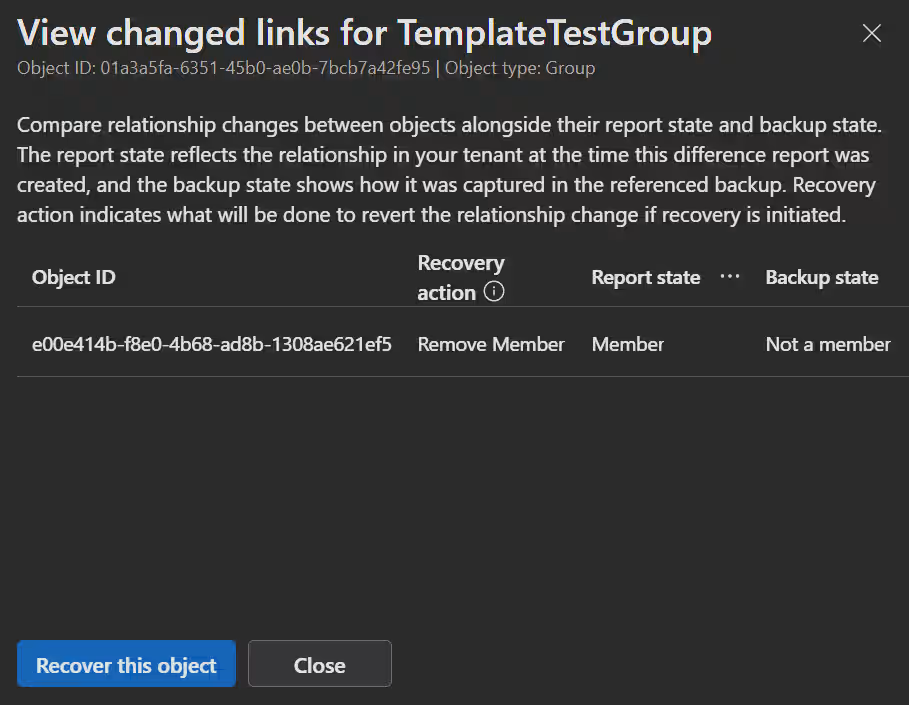
When you click on a specific difference you get a detailed view where you can start the recovery.
Recovery History
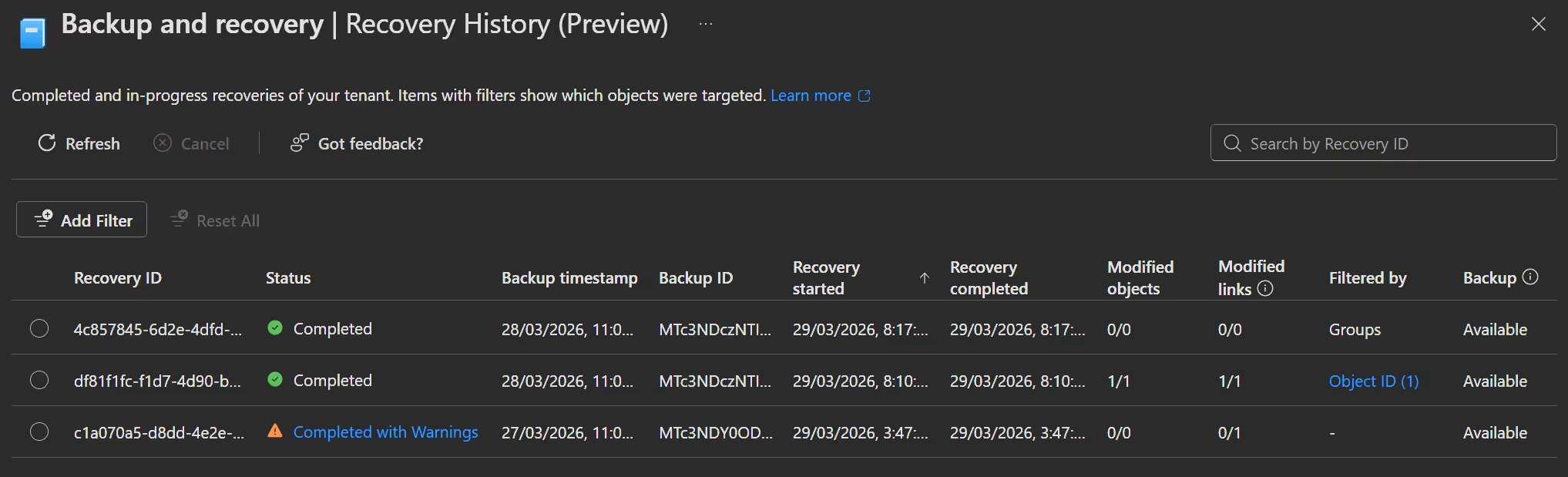
On the Recovery History page, you will find a list of recoveries you made in the last five days. Anything shown in blue is clickable and will show a details page of the recovered items.
Recovery Statuses:
| Status | Description |
|---|---|
| Loading data | The system is loading the selected backup data in preparation for recovery. |
| In progress | The system is performing recovery actions to restore the objects to their backup state. |
| Completed | The recovery was completed successfully. |
| Completed with warnings | The recovery completed, but some changes couldn't be applied. |
| Failed | Recovery could not be completed due to an error. |
| Canceled | Recovery was canceled before completion. |
INFO
- The recovery job records all changes in audit logs.
- The system automatically removes the recovery history after 5 days.
How to start a Recovery
You can start a recovery from two different points.
- Either on the Backups page you can start a recovery by selecting a backup and clicking
🔁 Recover backup - or in the Difference Reports by selecting or opening the difference report and clicking
🔁 Recoverthere.
- In the recovery window you select what you want to recover and click
Recover. There is no second window and no confirmation screen.- All objects
- Specific object types
- Specific object IDs
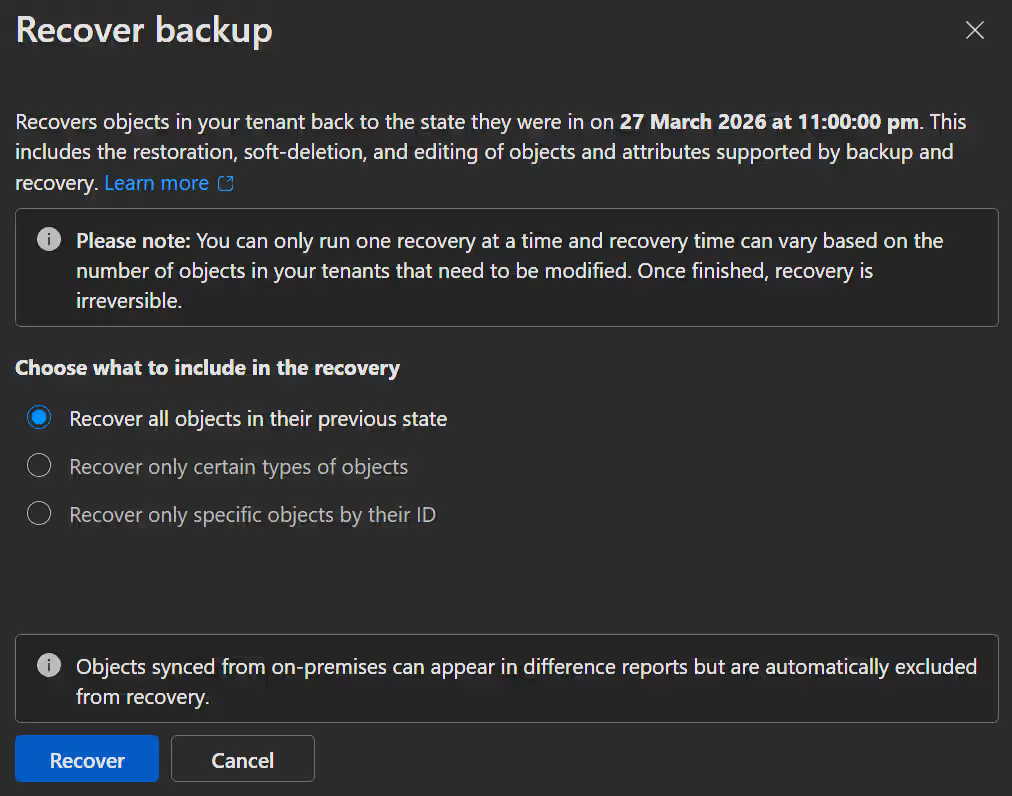
- After the recovery is done, you can see the result in the Recovery History.

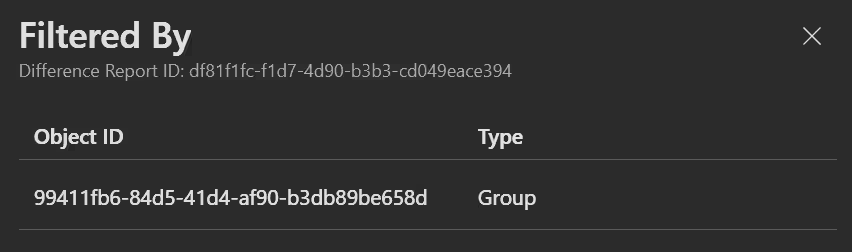
- If you click the blue link you will see the details of the recovery, in this case that a Group got reverted / recovered.
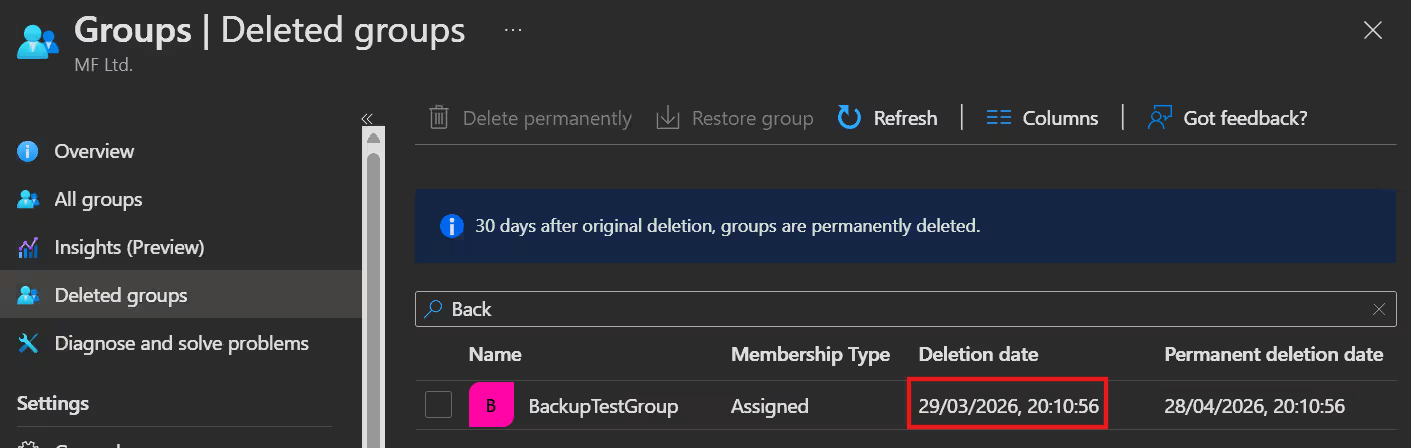
- And here in the Deleted groups you can see that the group got reverted / deleted back to its previous state, which means that the group is now deleted again. This is because in the backup the group was already in a deleted state, I recovered it manually and then the covery put it back to the deleted state. And like I mentioned before, Recovery will never hard-delete objects, so you can always get it back again.
Recovery Limitations
- The first access to a backup requires a data-loading step proportional to the entire backup’s size, not the amount of data being recovered.
- Entra Backup can not restore hard‑deleted objects
- Entra Backup can not restore objects managed by Active Directory (synced objects)
💡 Conclusion
Microsoft Entra Backup and Recovery can be a core component of your cloud backup strategy. With automatic daily backups retained for five days and granular recovery capabilities, it helps administrators to respond quickly to deleted objects, may they be accidental or malicious. In combination with soft delete, Backup and Recovery provides a robust, low-cost addition to your protection with minimal overhead.
There is literally no reason not to use it. If you use M365 you have already got an Entra P1 or P2 license and it is already enabled by default.
Important Resources