👋 Introduction
System-preferred multifactor authentication (MFA) prompts users to sign in using the most secure method they have registered.
Device-preferred credential, is an option of system-preferred authentication that evaluates from which device the user is signing in and prompts for the strongest method. Instead of defaulting users to the sign-in method they last used, device-preferred credential is a sign-in enhancement that checks for the best available method on the current device.
As usual with cloud services, device-preferred credentials are scoped to users rather than devices.
WARNING
Be aware device-preferred credential is currently in Public Preview (April 2026).
Device-preferred credential selects the highest available sign-in method on the user's device from this list:
| Rank | Credential | Category | Meets requirement for |
|---|---|---|---|
| 1 | Temporary Access Pass (TAP) | Recovery | 1FA + MFA |
| 2 | Passkey | Phishing-resistant | 1FA + MFA |
| 3 | Certificate-based authentication (CBA) | Phishing-resistant | 1FA or 1FA + MFA |
| 4 | Microsoft Authenticator notifications | Passwordless | 1FA + MFA |
| 5 | External multifactor authentication (MFA) | — | MFA |
| 6 | Time-based one-time password (TOTP) | — | MFA |
| 7 | Telephony | — | MFA |
| 8 | QR code | Frontline worker | 1FA |
| 9 | Password | — | 1FA |
INFO
- The order of authentication methods gets updated by Microsoft as the security landscape changes.
- The system-preferred MFA also applies for users that are enabled through legacy MFA policies.
- Administrators don't need to configure credential priorities per user or device, because the device-preferred credential system automatically selects the best available sign-in method.
- The user can still choose his preferred sign-in method, but the default for next sign-in will not change.
- MFA methods required by conditional access take precedence over system-preferred MFA.
- System-preferred MFA is Microsoft managed and enabled for all users by default.
- If you use MFA through NPS, the system-preferred MFA will not work.
If you want to learn what NPS is or how it works with MFA, click here.
⚙️ Configuration
Because system-preferred multifactor authentication is enabled by default, you do not need to do anything to use it. If you want to get started with device-preferred credential or change the default settings, you can start like this:
- Sign in to the Entra admin center -> Authentication methods -> Settings.
- Ensure that under System-preferred multifactor authentication, the State is set to
Microsoft managed. When this is set, you’ll see a toggle appear labeld Apply to both primary and multifactor authentication. Turn this toggleOnto activate the device-preferred credential logic.
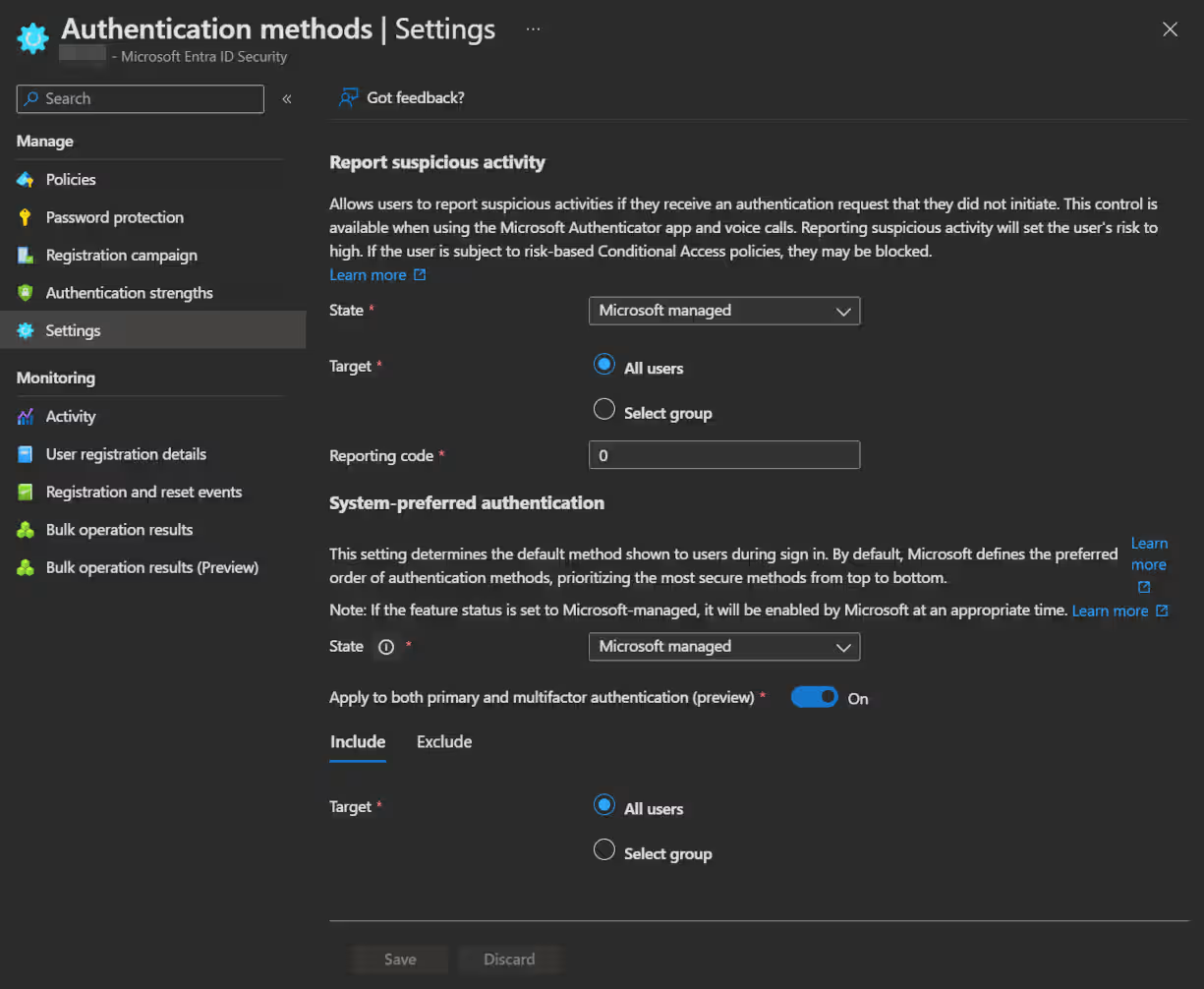
- You can optionally restrict the setting to specific groups underneath and then select
Save.
👨💼 User experience
When you set up device-preferred credential, the user experience changes based on the device and methods available to the user.
In the screenshot below, you can see that the system dynamically selects the best available method, which is a Microsoft Authenticator passkey.

Signing-in with the same account on PC, the system uses dynamically the passkey from the available password manager.
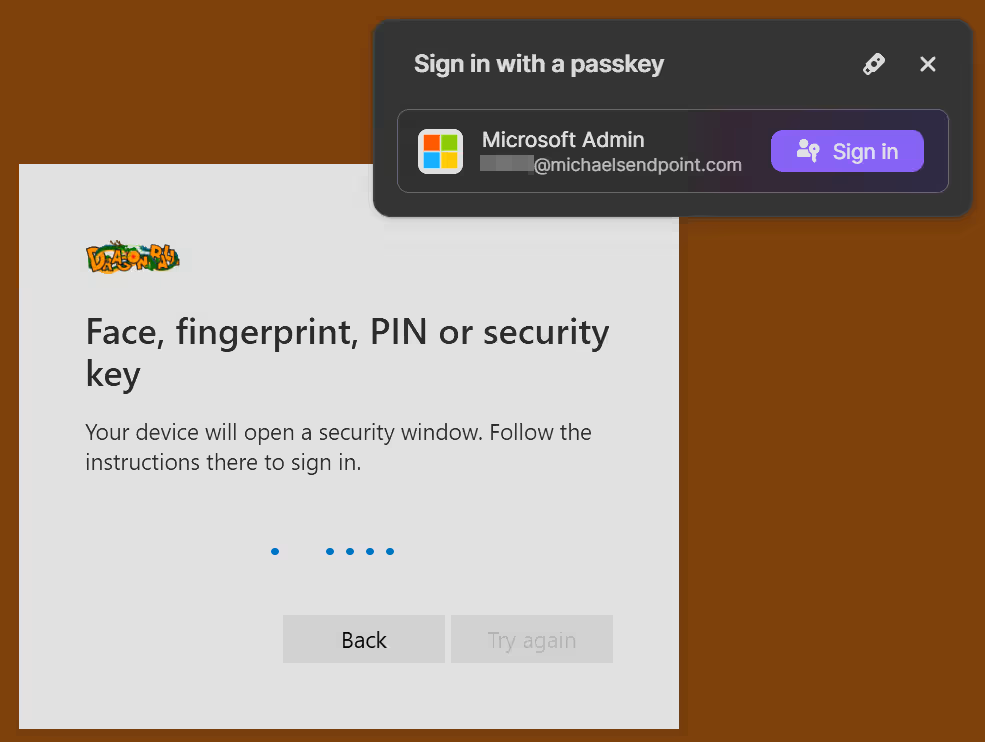
So as advertised, without user or admin intervention, the system automatically presents the most secure method available to the user.
💡 Conclusion
Using System-preferred authentication and letting Microsoft manage it is in general a great idea. You always get the best / most secure method available to a user without the need to make individual configurations. This is also a good method for nudging your users to use more secure authentication methods.
Device-preferred credential goes even further and improves the user-friendliness. So I also recommend using it in general, so that your users only get the authentication methods shown that are actually available on their current device. By automatically selecting the best method, it also enhances the security greatly and keeps the user experience seamless.
Important Resources