👋 Introduction
Windows lets you connect remotely to devices joined to Entra ID using RDP. The Remote Desktop app (mstsc.exe) also supports single sign-on with an Entra authentication.
Prerequisites
- Host and client OS:
- Windows 11
- Windows 10 20H2 or later
- Windows Server 2022 or later
- Enable Connect to and use this PC from another device using the Remote Desktop app option in the Windows Settings.
- To allow other users to connect to a PC you registered in Entra ID, add them to the Remote Desktop Users group.
- Turn off Remote Credential Guard.
- You need to be able to resolve the hostname of the remote PC.
- Remote Desktop needs to be allowed through the firewall.
- The remote PC must be Microsoft Entra joined or hybrid joined, but the local device doesn’t need to be.
⚙️ Admin experience
Enable Remote Desktop
- Open the Intune admin center -> Devices -> Configuration and click
➕ Create. - Enter a Name and Description and click
Next. - Click
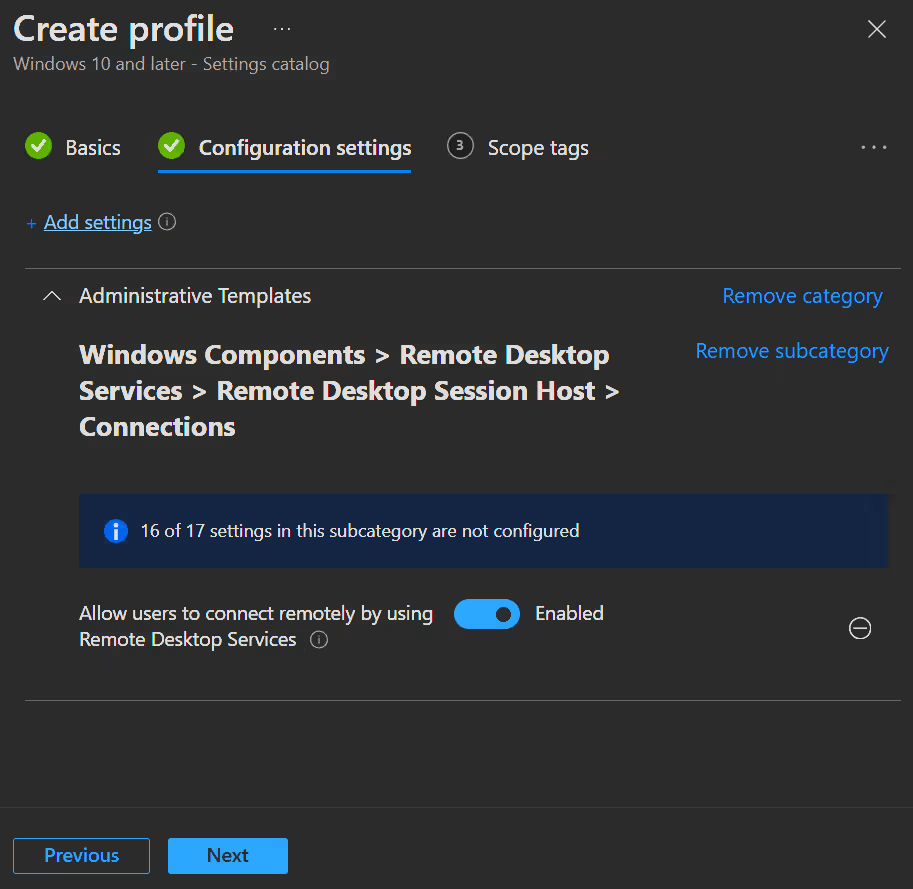
➕ Add settingsand search forAllow users to connect remotely by using Remote Desktop Services, select and enable it.
- Click
Next, assign the profile and create it.
Allow Remote Desktop through the firewall
- Open the Intune admin center -> Endpoint security -> Firewall and click
➕ Create Policy. - Select Windows as platform and Windows Firewall Rules in the flyout window, then click
Create. - Enter a Name and Description and click
Next. - Then click
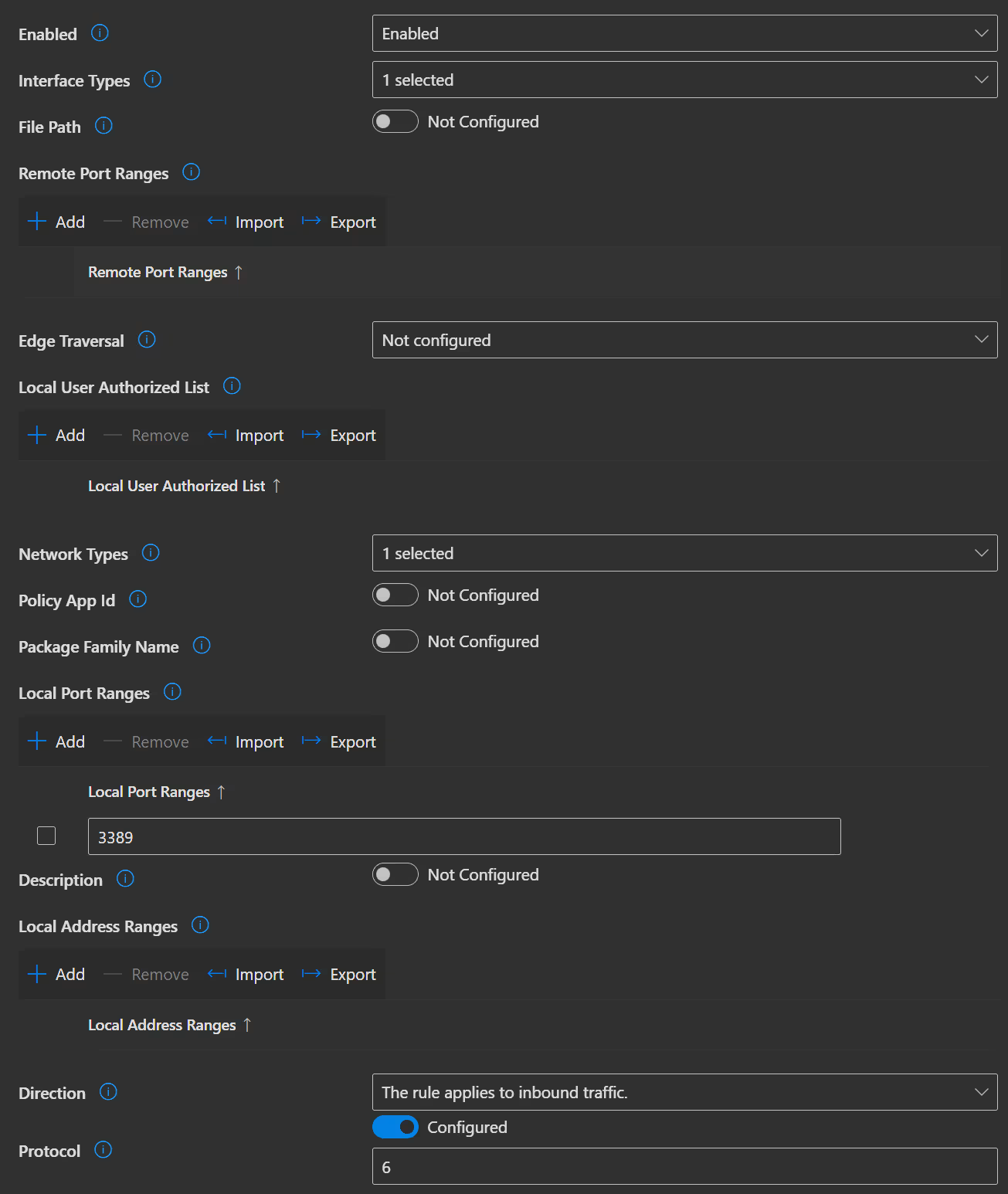
➕ Addto add a new rule, rename it, selctAllowas Action and clickEdits instance. - Configure the first rule as follows:
- Enabled: Enabled
- Interface Types: All (Or whatever interface type you want to apply the rule to)
- Network Types: FW_PROFILE_TYPE_ALL (Or whatever profile type you want to apply the rule to)
- Local Port Ranges: 3389
- Direction: The rule applies to inbound traffic
- Protocol: 6 (TCP)
INFO
If you want to allow anyone other then the primary user of a device to connect, you need to add them to the local Remote Desktop Users group. You can do that by creating a new Intune policy under Endpoint Security -> Account protection and select Local user group membership as profile type.
🧑💻 User experience
- Open Remote Desktop Connection (mstsc.exe) on the client device and enter the remote PC's hostname (it must be the name shown in Entra ID).
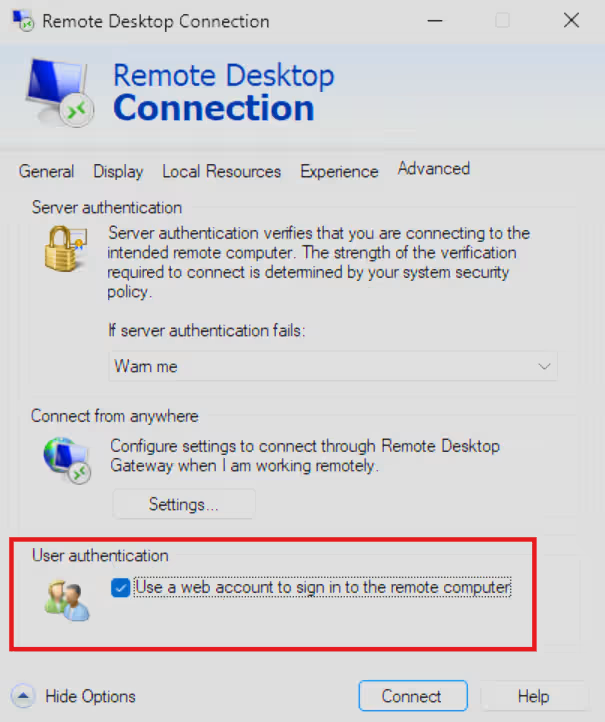
- Select on the Advanced tab and activate the
Use a web account to sign in to the remote computeroption.
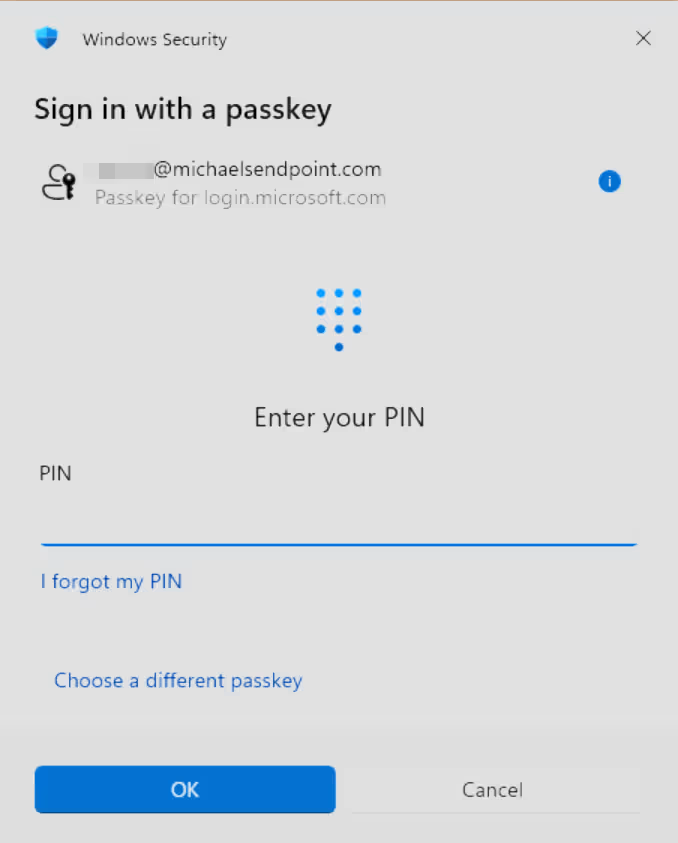
- Select Connect and use your Windows Hello for Business as a passkey login.
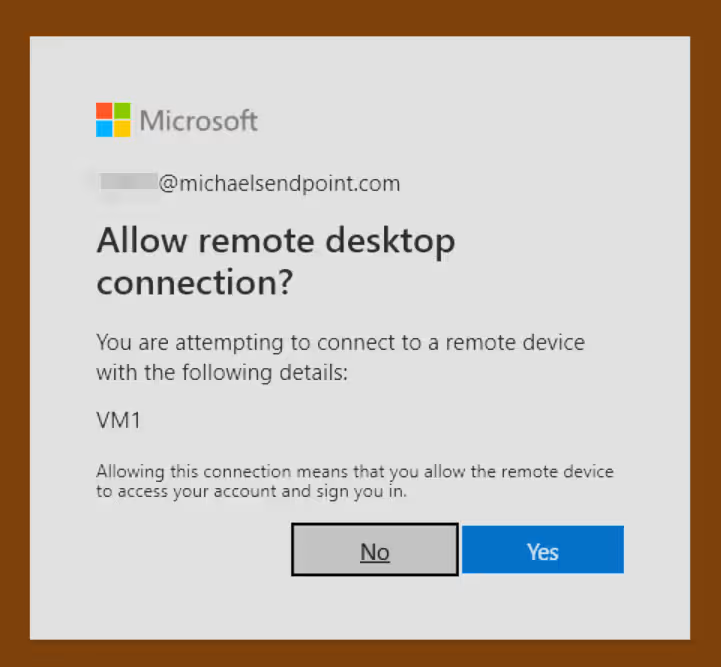
- When connecting to a computer for the first time, you need to approve the connection when prompted.
INFO
- Microsoft Entra remembers for every user up to 15 hosts for 30 days.
- When a remote session is connected using Microsoft identity platform authentication (as in our setup), the default behavior is to disconnect the session when locked. This happens because the Remote Desktop lock screen cannot use Microsoft Entra authentication tokens or passwordless sign‑in methods. This behavior should remain unchanged because it not only improves the user experience by allowing users to use SSO again for the reconnect, but also enhances security by ensuring that conditional access policies are re‑evaluated on reconnect.
💡 Conclusion
Connecting to Entra ID joined devices using Remote Desktop with SSO provides a seamless and secure authentication experience. By leveraging passwordless login methods, organizations can enhance security posture while improving the user experience.
But please be aware that deactivating Remote Credential Guard and opening the Remote Desktop port increases the attack surface of your devices. So use this with caution and only when necessary.
Important Resources