👋 Introduction
WARNING
Be aware that this Feature is currently in Public Preview (March 2026).
Most organizations operate Microsoft services in multiple tenants because of mergers and acquisitions, requirements for partitioning security or privacy-sensitive workloads, test environments, and other reasons. Many organizations also have user-created "shadow IT" tenants that central IT doesn't administer and often doesn't know about. In many environments, it's not easy to verify that each of these tenants is configured properly, especially if you don't know that some tenants even exist. This creates a big security risk, because all of these unmanaged connections is a potential supply chain attack waiting to happen.
Microsoft Entra Tenant Governance enables you to get visibility across all your tenant connections and ensure your own tenants are configured to meet your security and compliance requirements. This includes the tenants you administer today, "shadow IT" tenants that you don't administer and new tenants that your users create.
You need have at least the following entra roles:
- Global Administrator role
- Tenant Contributor on the Subscription
- Tenant Governance Administrator (Related tenants, Governance relaitionshipts)
- Privileged Role Administrator role (configuration management)
Related tenants Licensing
| Feature | Free | Microsoft Entra P1 | Microsoft Entra P2 | Microsoft Entra ID Governance |
|---|---|---|---|---|
| Discover related tenants through B2B collaboration, multitenant apps, and shared billing accounts | ❌ | ❌ | ❌ | ✅ |
Governance relationships Licensing
| Feature | Free | Microsoft Entra P1 | Microsoft Entra P2 | Microsoft Entra ID Governance |
|---|---|---|---|---|
| Governance relationship with cross-tenant granular delegated admin privileges (GDAP) | ❌ | ✅ | ✅ | ✅ |
| Governance relationship with custom multitenant app injection | ❌ | ❌ | ❌ | ✅ |
Secure tenant creation Licensing
| Feature | Free | Microsoft Entra P1 | Microsoft Entra P2 | Microsoft Entra ID Governance |
|---|---|---|---|---|
| New tenant creation with governance relationship | ✅ | ✅ | ✅ | ✅ |
Configuration management Licensing
| Feature | Free | Microsoft Entra P1 | Microsoft Entra P2 | Microsoft Entra ID Governance |
|---|---|---|---|---|
| Single tenant configuration monitoring and drift reporting | ✅ Up to 30 monitors, up to 800 configuration resources per tenant per day | ✅ Up to 30 monitors, up to 800 configuration resources per tenant per day | ✅ Up to 30 monitors, up to 800 configuration resources per tenant per day | |
| Single tenant configuration snapshots | ✅ Up to 20,000 resources per tenant per month, up to 12 active snapshot jobs | ✅ Up to 20,000 resources per tenant per month, up to 12 active snapshot jobs | ✅ Up to 20,000 resources per tenant per month, up to 12 active snapshot jobs |
👥 Related tenants
A Related tenant in Microsoft Entra is a separate tenant in some way linked to yours, based on usage or configurations. It is automatically discovered, so you do not have to set it up. These tenants could be partners, customers, SaaS apps you use or Shadow IT tenants created by employees. This feature helps you find tenants that have security or privacy exposure to tenants that you administer.
Key features:
- Automated Discovery: Automatically detect related tenants using specific discovery signals.
- B2B Activity: Identifies inbound/outbound access, registrations, and administrative links between tenants.
- Multitenant Apps: Tracks tenants sharing application permissions or access with your environment.
- Shared Billing: Pins down tenants linked via shared billing accounts or associations.
- Relationship Metrics: View historical and recent data on the volume of cross-tenant interactions.
- Risk-Based Filtering: Sort and filter related tenants by signal type to prioritize specific security risks.
🤝 Governance relationships
A governance relationship creates a directional link between two Entra tenants. This allows your organization to securely manage "child" tenants from a central "parent" location.
Two Microsoft Entra tenants can establish a governance relationship by mutually agreeing on specific roles. While one tenant can manage multiple others, and a single tenant can be managed by multiple governors, no tenant can simultaneously hold both a governing and governed role.
Key features:
- Cross-tenant delegated administration: Centralize least-privileged access by signing in from the governing tenant. This removes the need for separate admin accounts in every child tenant.
- Multitenant application management: Centrally manage multitenant apps to maintain security and compliance without switching tenants.
- Tenant configuration management: Use delegated administration to child tenants to maintain ongoing tenant security and compliance drift-control.
- Secure tenant creation: New child tenants automatically get governance policies from the parent tenant. This ensures control and prevents misconfigurations.
💼 Configuration management
Monitor over 200 resource types across Entra, Intune, Exchange, Teams, Purview and Defender to manage configurations in any tenant you govern with Configuration management.
Key features:
- Baseline Authoring: Define your desired tenant state using standard JSON.
- Snapshots: Document the current tenant state to create baselines or satisfy audit requirements.
- Monitoring: Automatically compare actual tenant states against your JSON baselines.
- Regular Reporting: View summary statistics from monitoring running every six hours.
- Drift Analysis: Track specific resource properties that differ from your defined baseline.
⚙️ Configuration
Related tenants
INFO
Be aware that after enabling Tenant Discovery you can not turn it off again as long as you got a license.
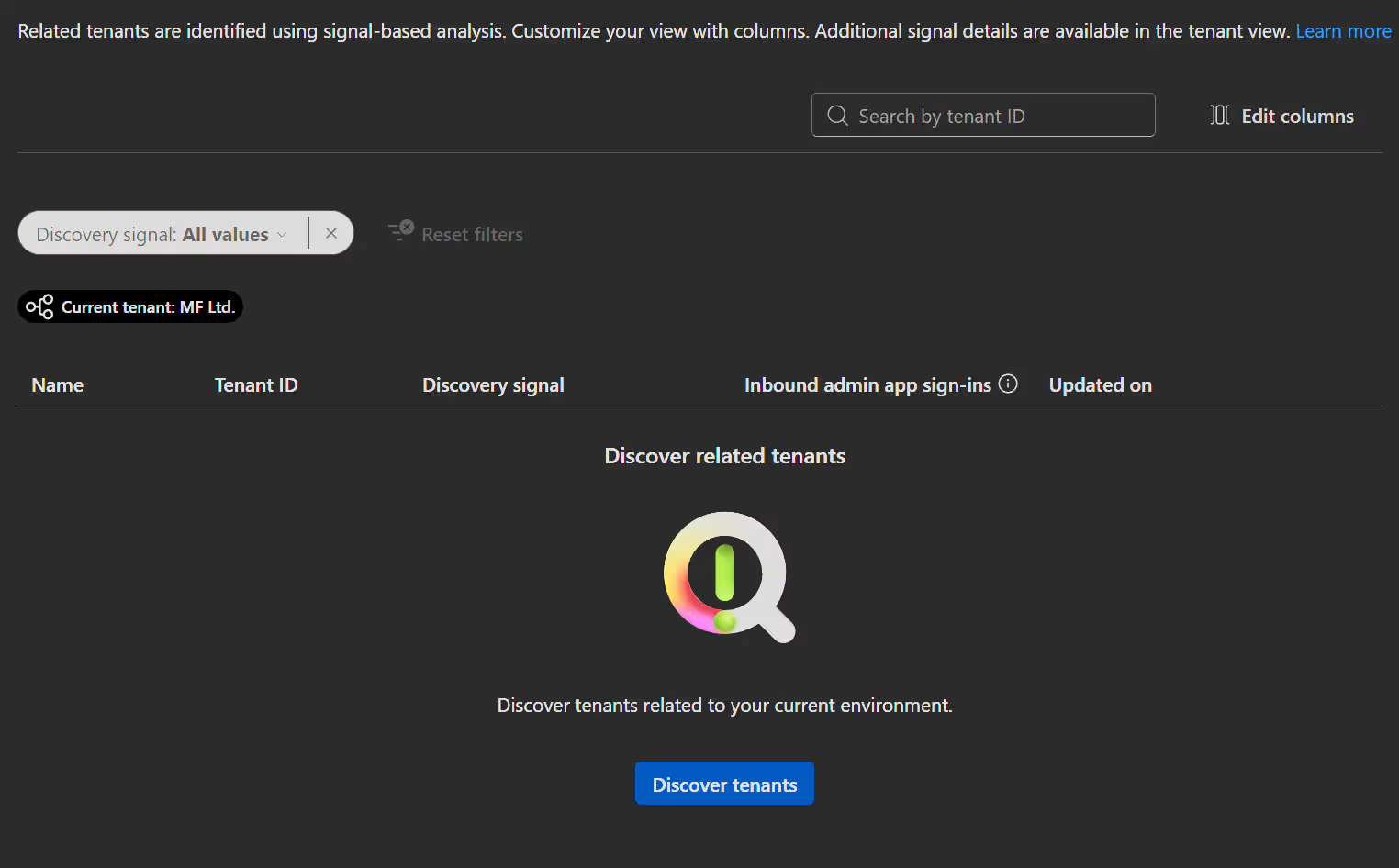
- To Enable Related tenant discovery, open the Entra admin center -> Tenant governance -> Related tenants and click
Discover tenants.
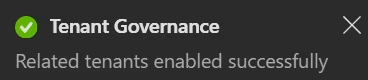
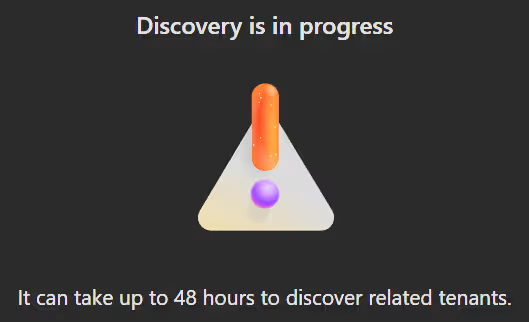
You will now get a success popup and a message that it can take up to 48 hours to gather data. The time depends on the size of your environment. In a small test tenant, it took about one hour.
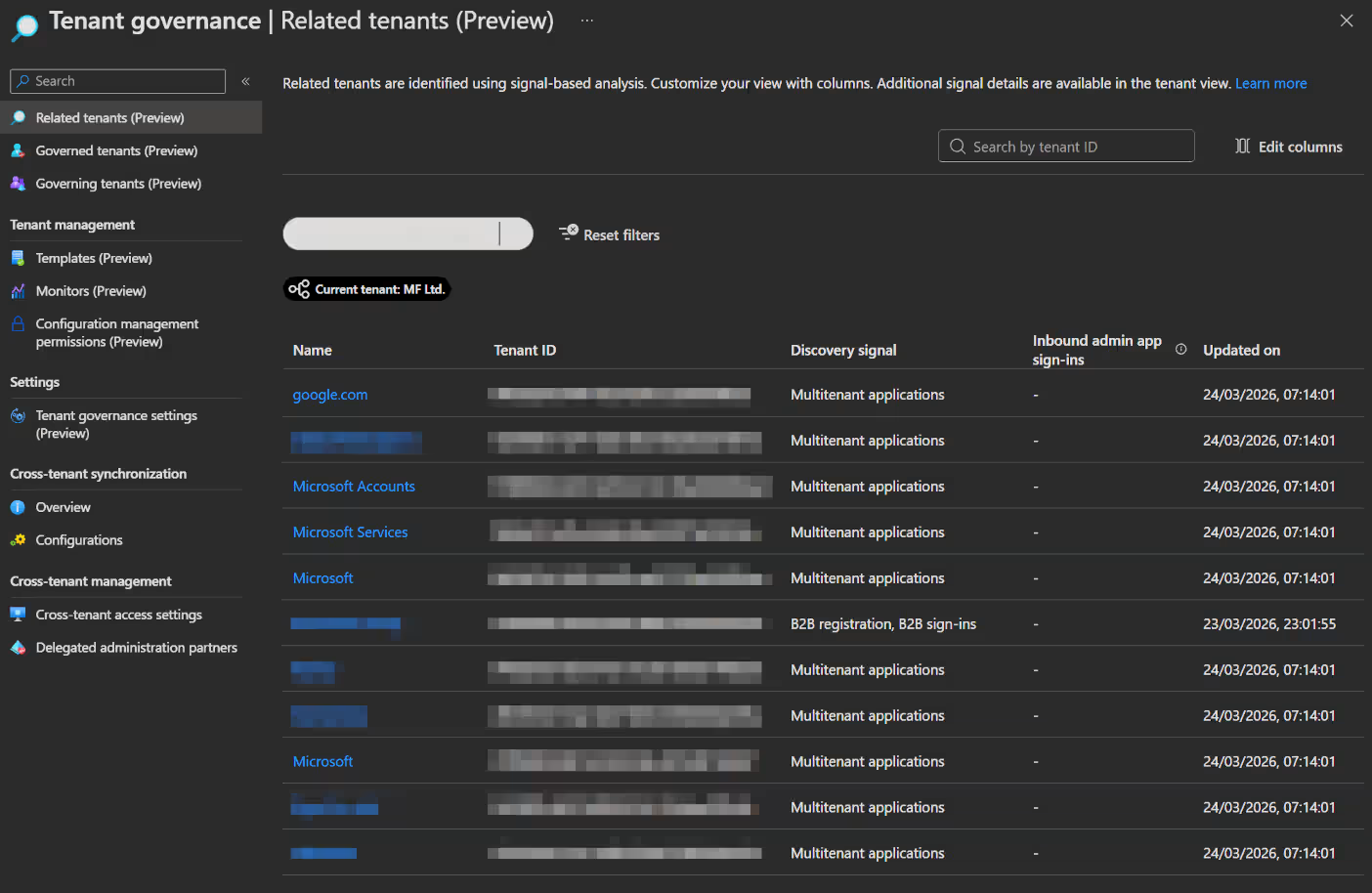
After the data is gathered all related tenants and there leationship are listed.
Governance relationships
INFO
Be aware that the tenant you want to govern also needs to enable governance invitations. And that the system will always send informational e-mails to the administrator of the relevant tenants about any governance invitation or request.
Create a governance policy template
The policy template outlines how your tenants are linked and exactly what the managing tenant can access.
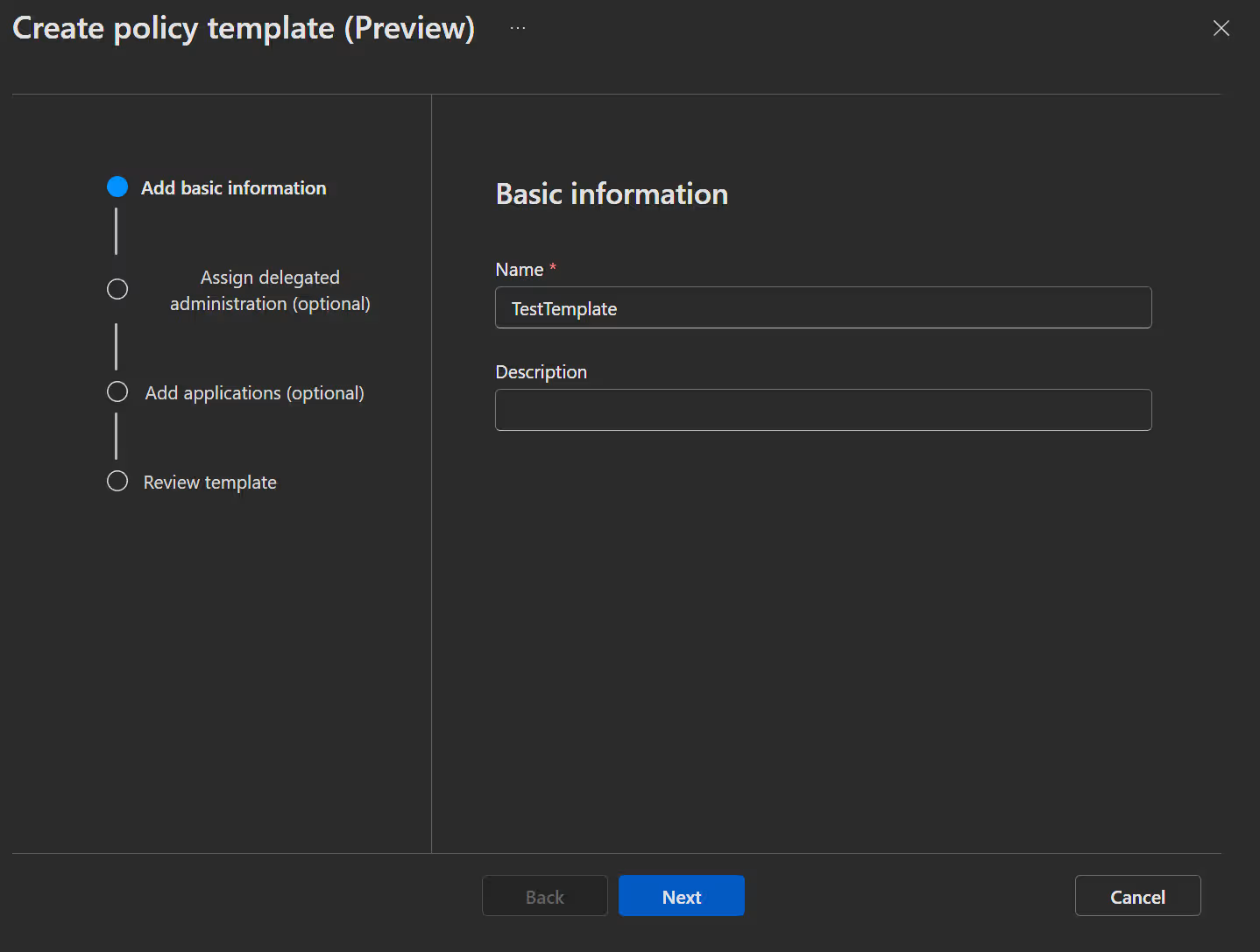
- Open the Entra admin center -> Tenant governance -> Templates and click
New template. - Enter your Name, Description and click
Next.
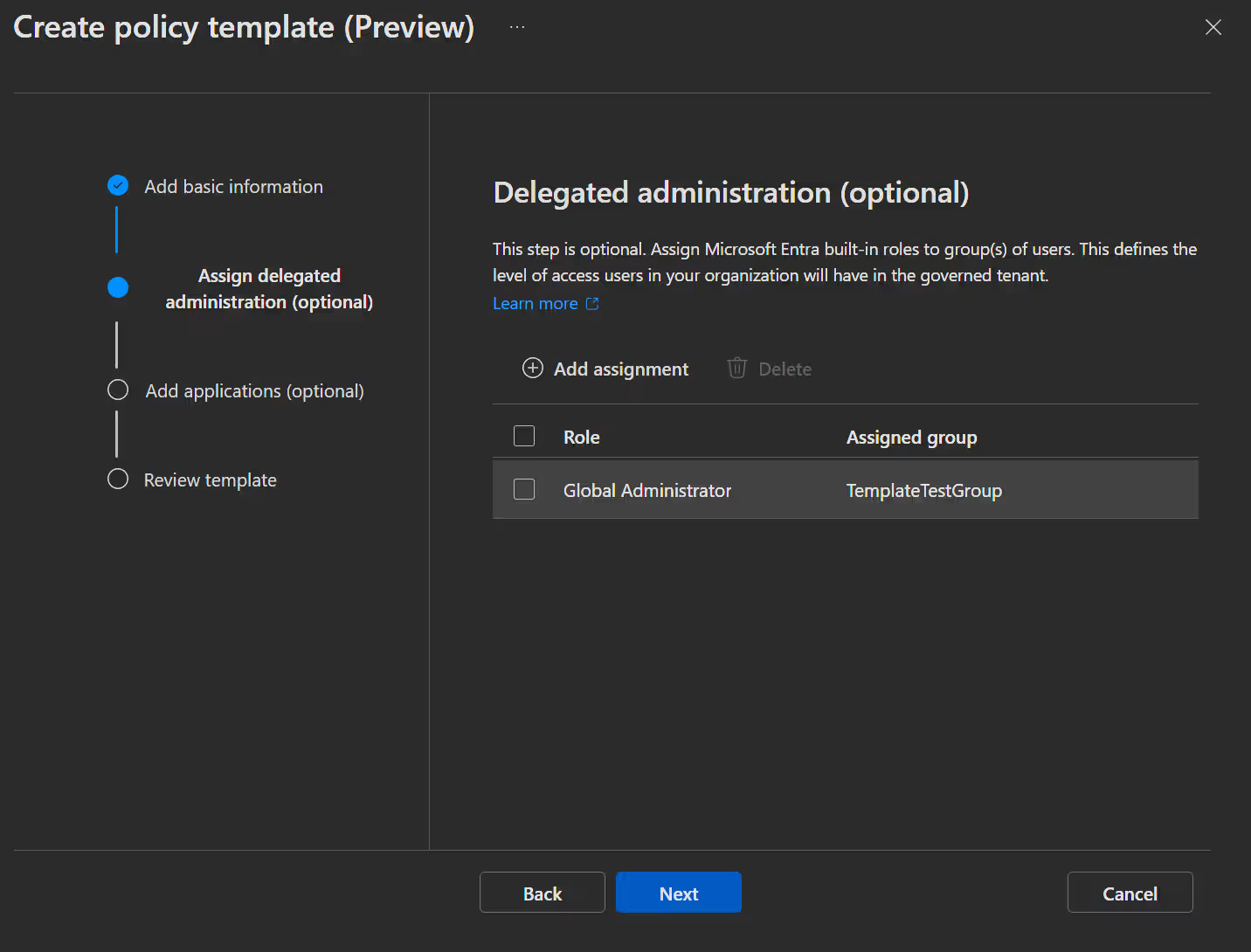
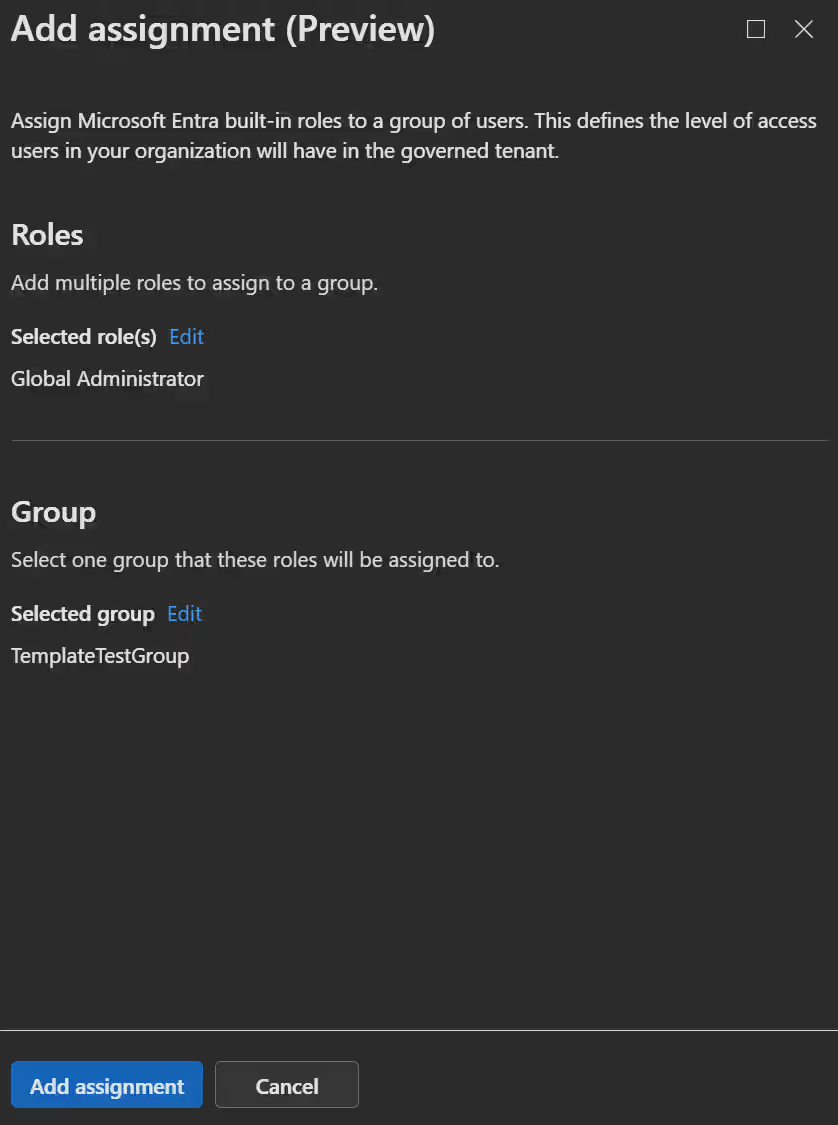
Now you see the Delegated administration window, where you assign Entra roles to security groups. This means that group members will be able to access the governed tenant using their own credentials with these permissions.
INFO
Be aware that the groups need to be role-assignable.

When clicking
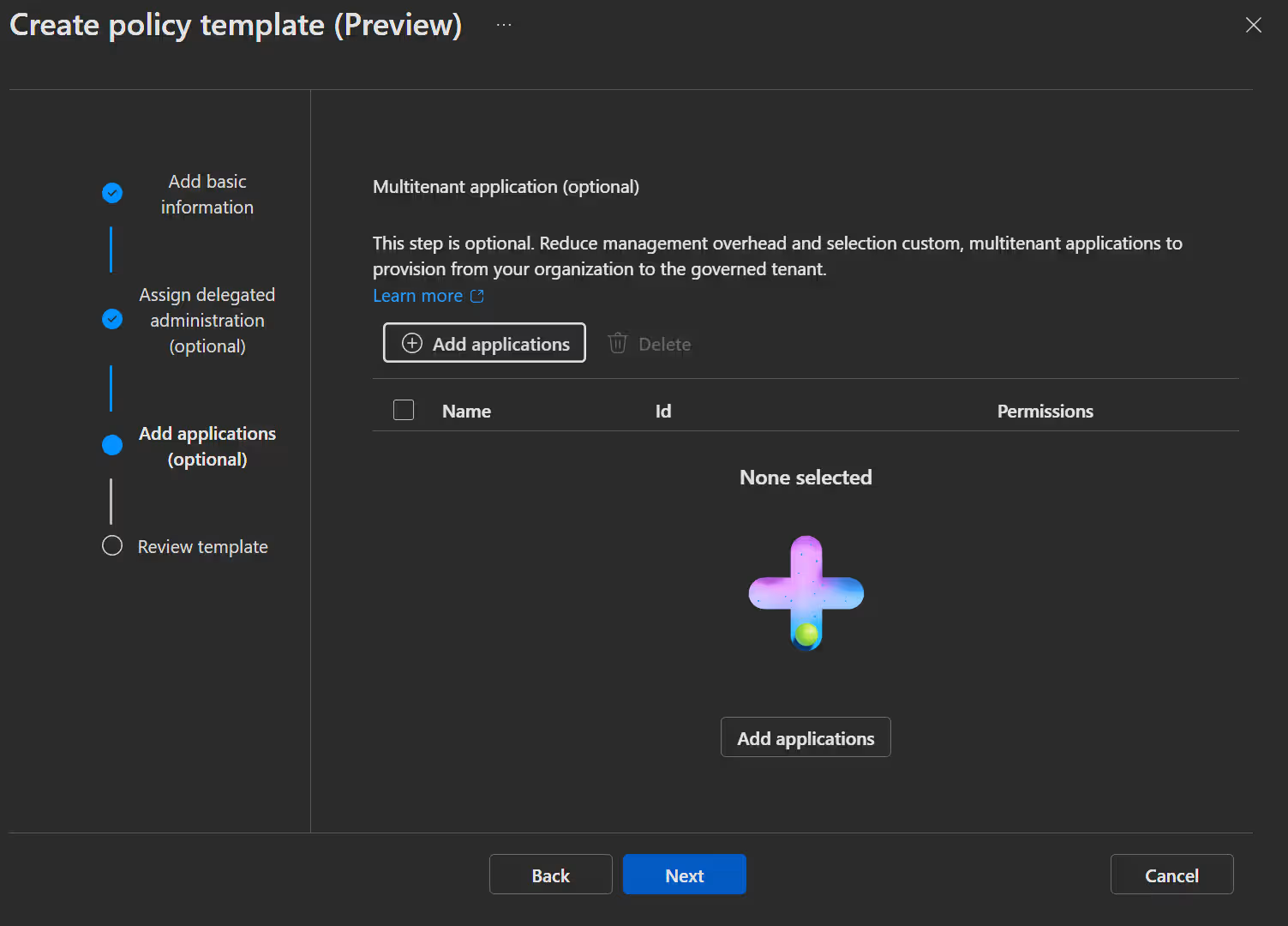
Nextyou get to the Multitenant application management, window where you can select apps from your "Parent" tenant that should be accessible in the "Child" tenant. The system will create service principals in the "Child" tenant for these.
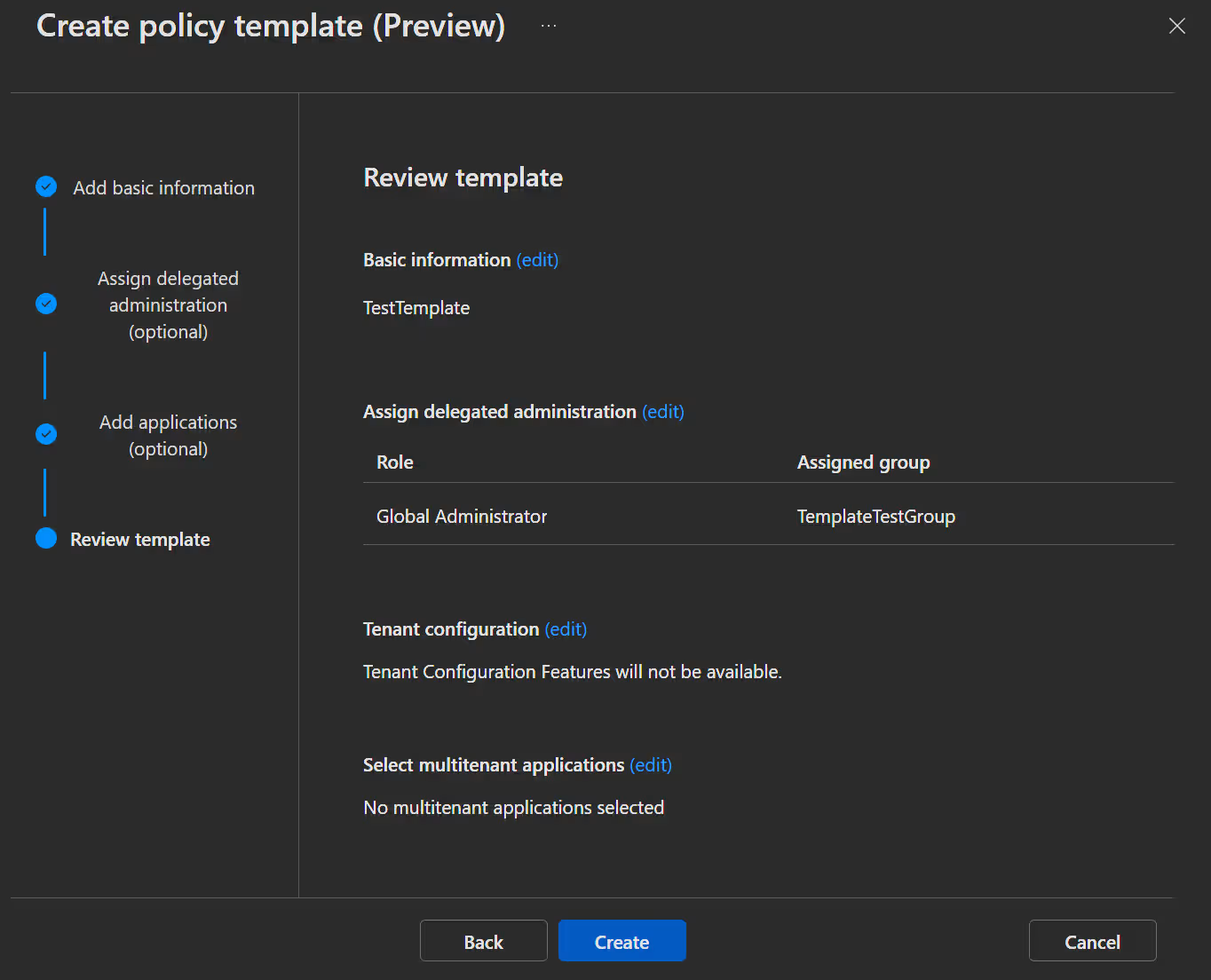
- In the next window you can review your template settings and click
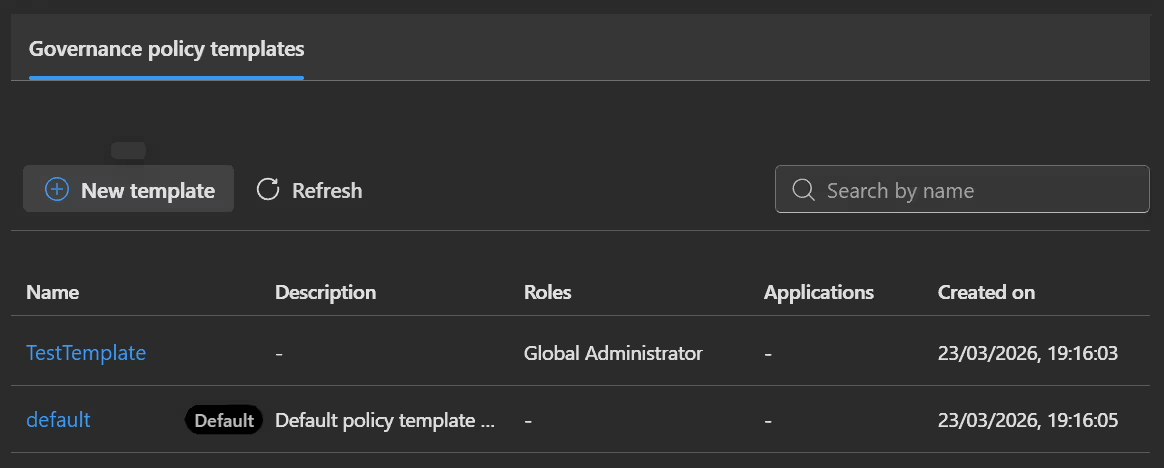
Create.
Set up a governance relationship
In the Tenant you want to govern from:
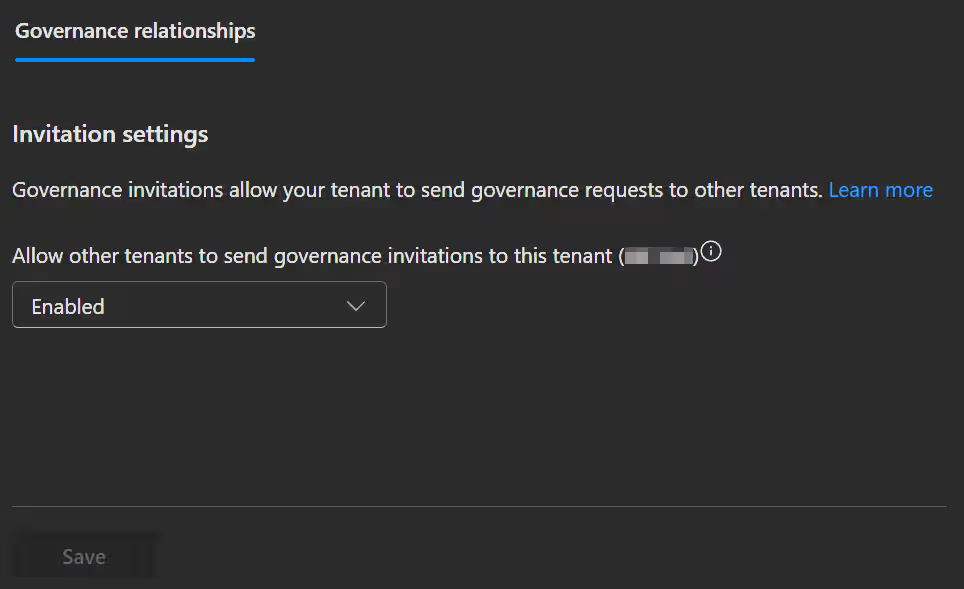
- Open the Entra admin center -> Tenant governance -> Tenant governance settings, switch the setting to
Enabledand clickSave.
TIP
If you do not want to govern any more tenants, disable this setting again when you are done.
In the Tenant you want to govern:
INFO
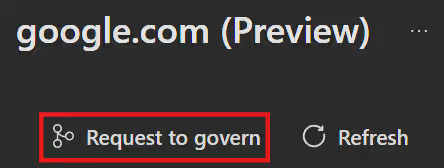
You can skip the invitation point if you already have a discovered relaitionship with the tenant you want to govern. You can then click on the discovered tenant in Related tenants and select Request to govern.
- Open the Entra admin center -> Tenant governance -> Governing tenants, select the Sent invitation tab and click
Send new invitation.
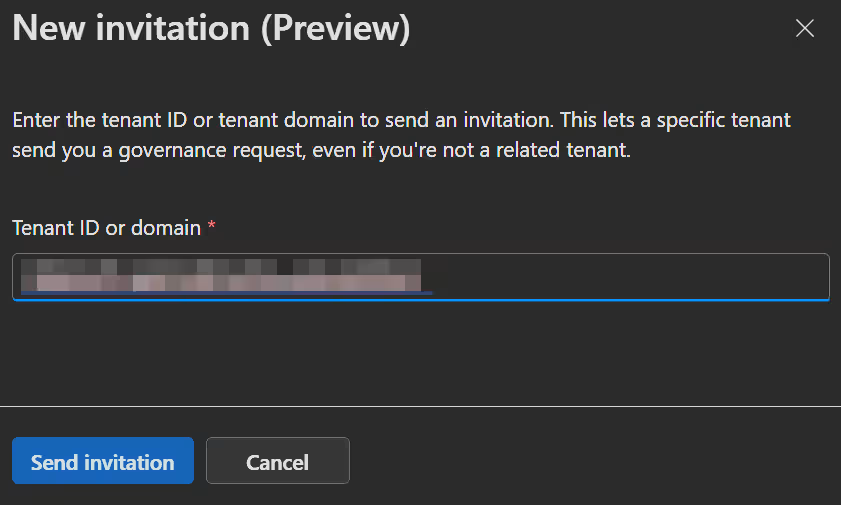
- Enter the Tenant ID of the tenant you want to govern from and click
Send Invitation.
INFO
Governance invitations are valid for 30 days.
In the Tenant you want to govern from:
- Open the Entra admin center -> Tenant governance -> Governed tenants, select the Received invitations tab and click on
Send governance requestnext to the invitation. - In the first windows select the Template we created earlier. This will set the permissions in the "Child" tenant.
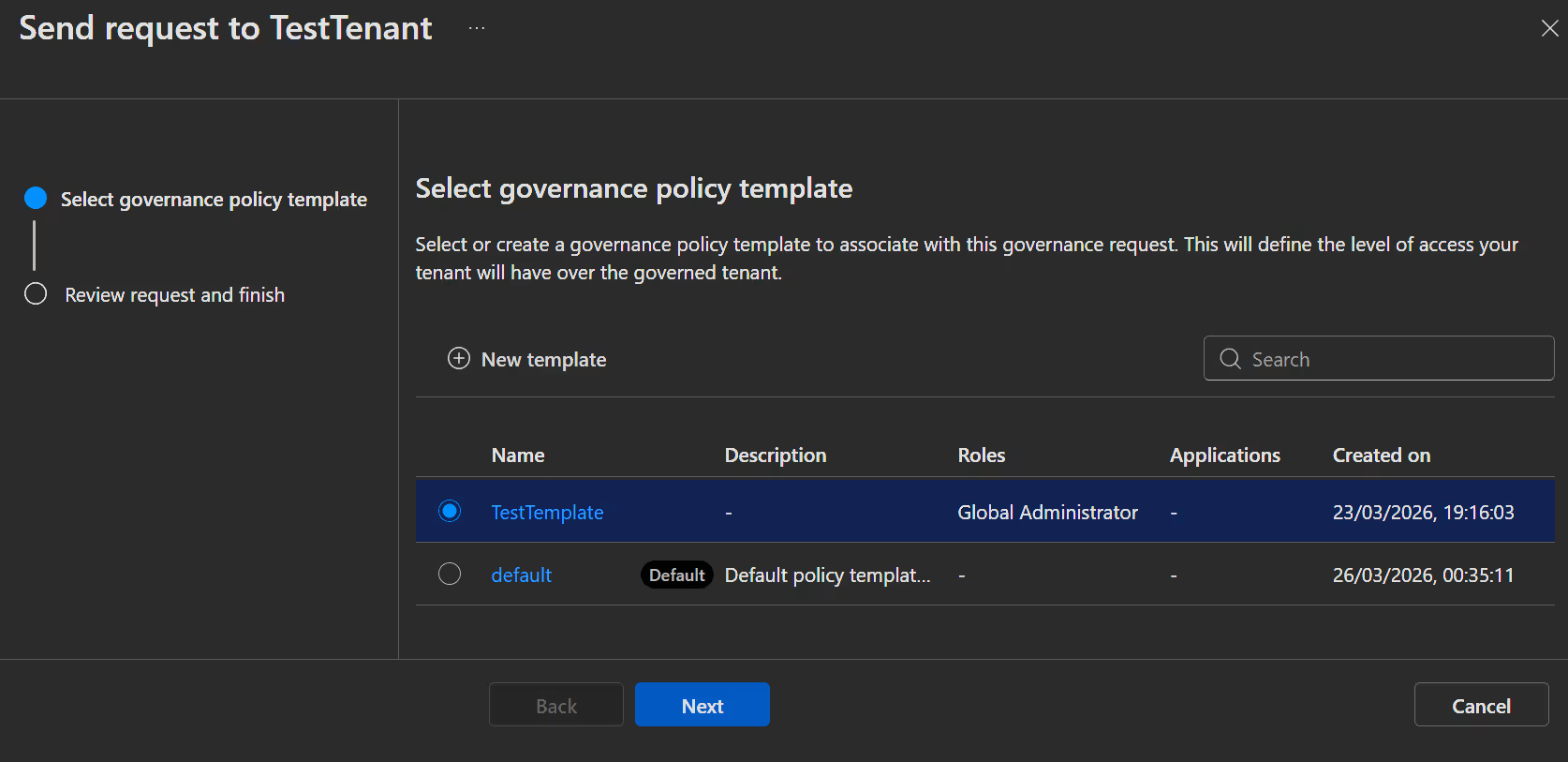
- Click
Nextand thenCreate.
INFO
Governance requests are valid for 14 days.
In the Tenant you want to govern:
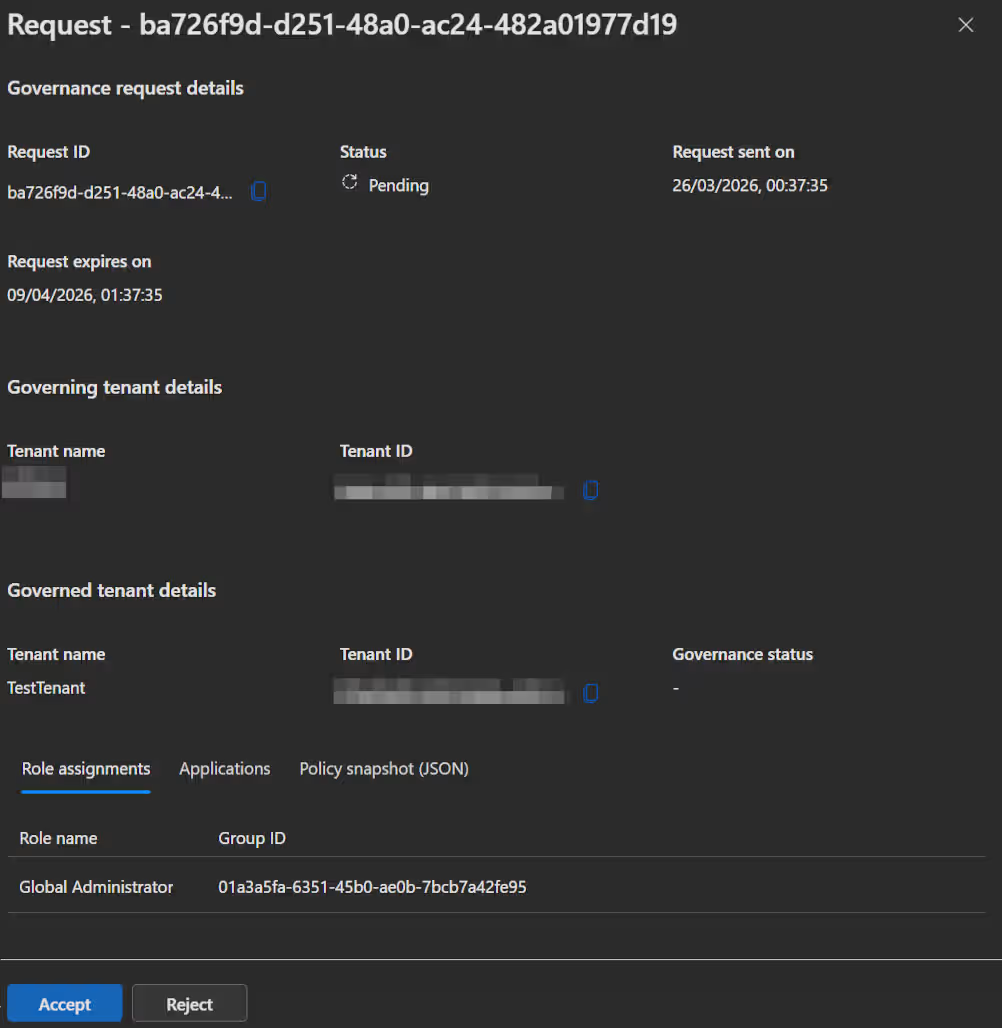
- Open the Entra admin center -> Tenant governance -> Governing tenants, select the Received requests tab and click on the new request we just send.
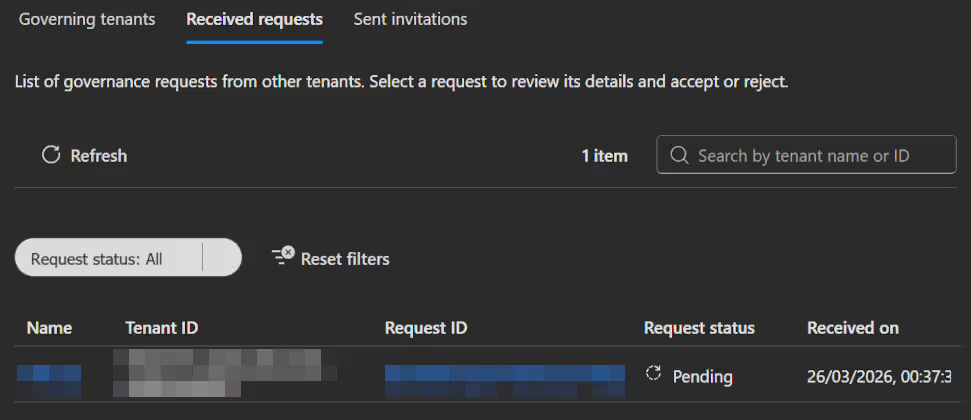
- In the following popup you can review the governance request once more and then click
Accept.
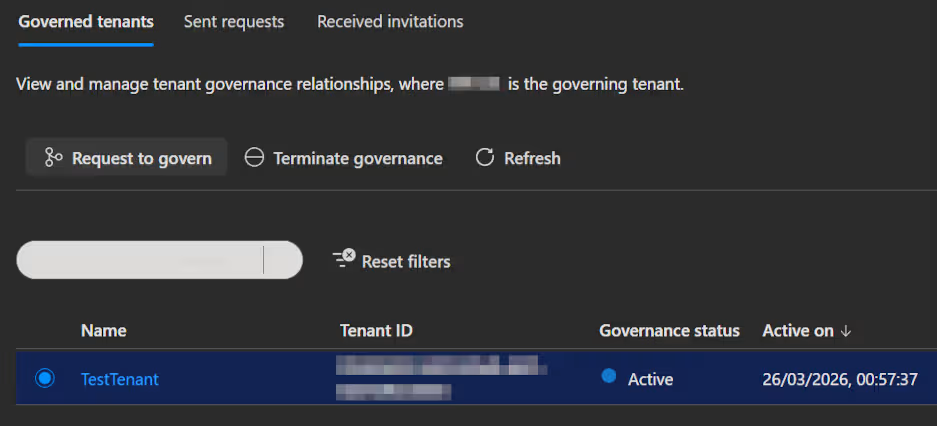
After successfully creating a governance relationship, these resources get created:
- An entry in the Tenant Governance with the Governance status in both tenants.
- In the "Child" tenant:
- If you configured delegated administration: Partner-specific configuration for cross-tenant access and creates cross-tenant role assignments.
- If you configured multitenant application management: A service principal with permissions gets created.
Update a governance relationship
When you update a governance template, that doesn't automatically update the governance relationships you already established with this template in the past. So after updating a template, you need to request governing the "child" tenant again so they can confirm the new permissions you set up in the template. This is needed so you cannot unilaterally give yourself more permissions in another tenant.
In the Tenant you want to govern from:
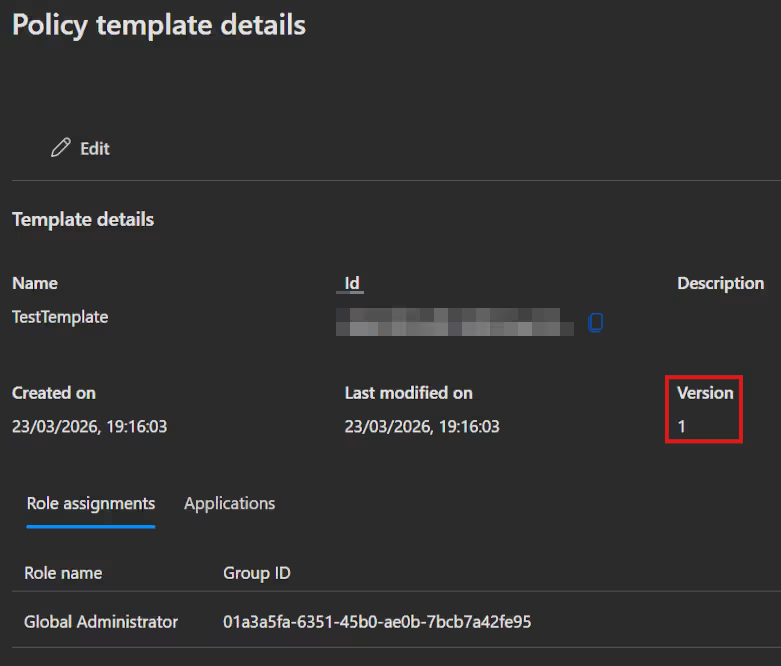
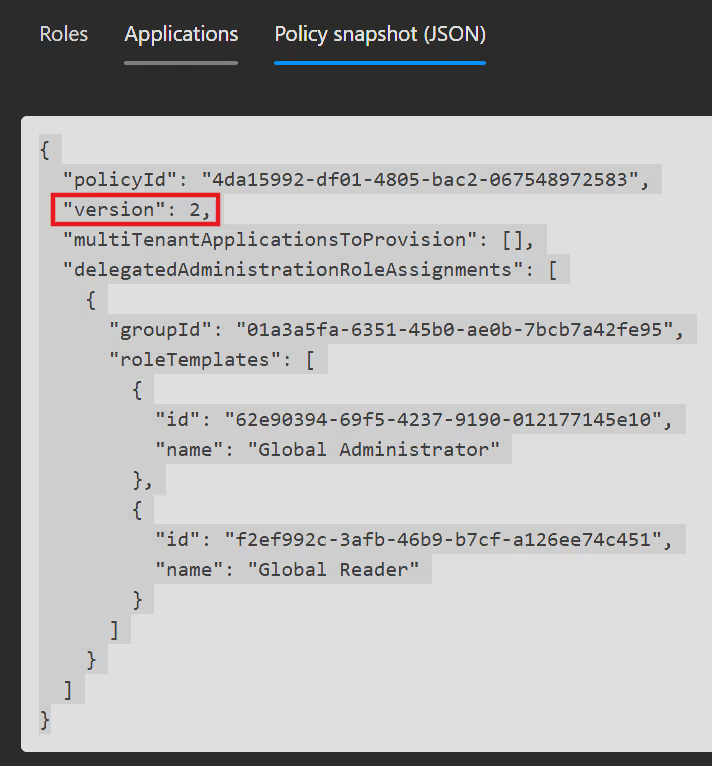
Updating your templates is as easy as opening the Templates blade, selecting your template of choice and changing what you want to change. (See Governance relationships -> Create a governance policy template) The templates also use a build in versioning, so you can follow which relationship was made with the current template or an older version. You can see the template version number directly in the template itself.
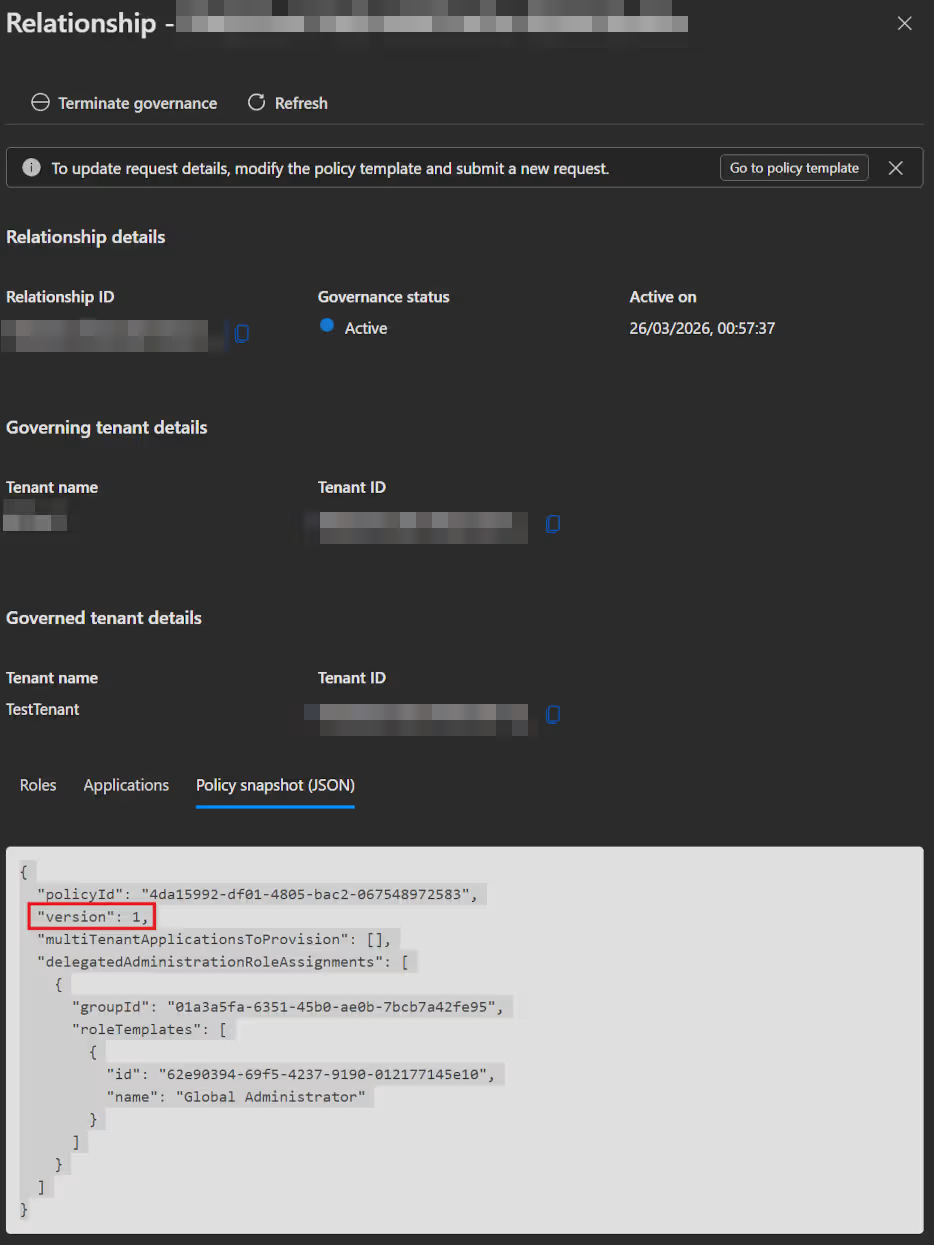
And the template version used in a relationship by opening the Relationship under Governed or Governing tenants.
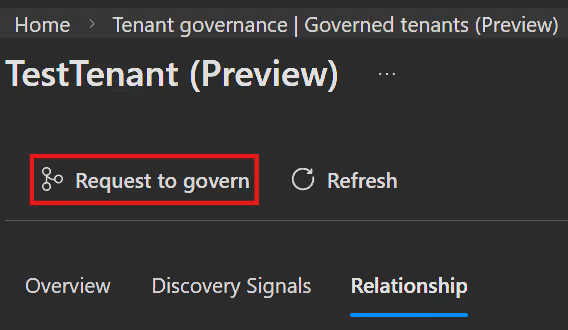
Next, updating the relationship is basically the same process as requesting governance in the first place (See chapter "Set up a governance relationship"). Open the Entra admin center -> Tenant governance -> Governed tenants, select the Sent requests tab and click on
New governance request. Alternativly, you can open the governed tenant and selectRequest to governdirectly.
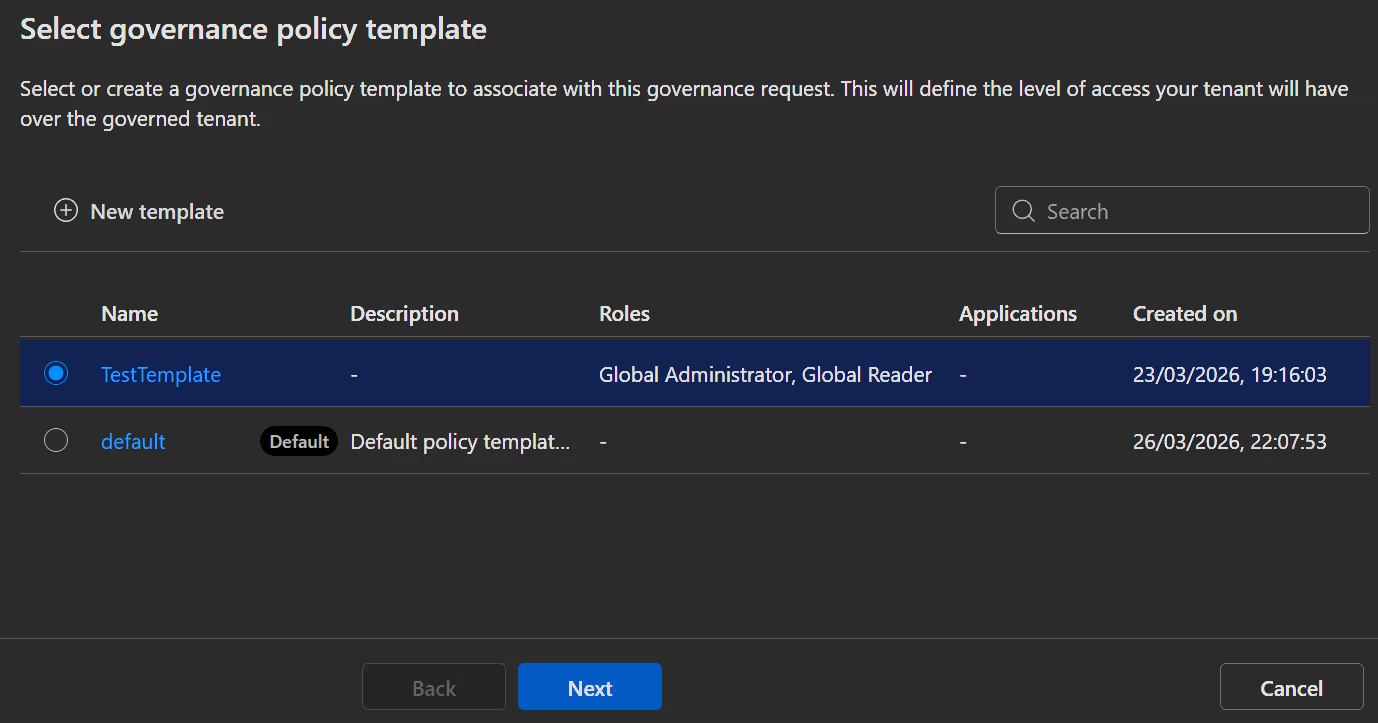
- Either way you will land in the windows where you can select the updated template, click
NextandCreate.
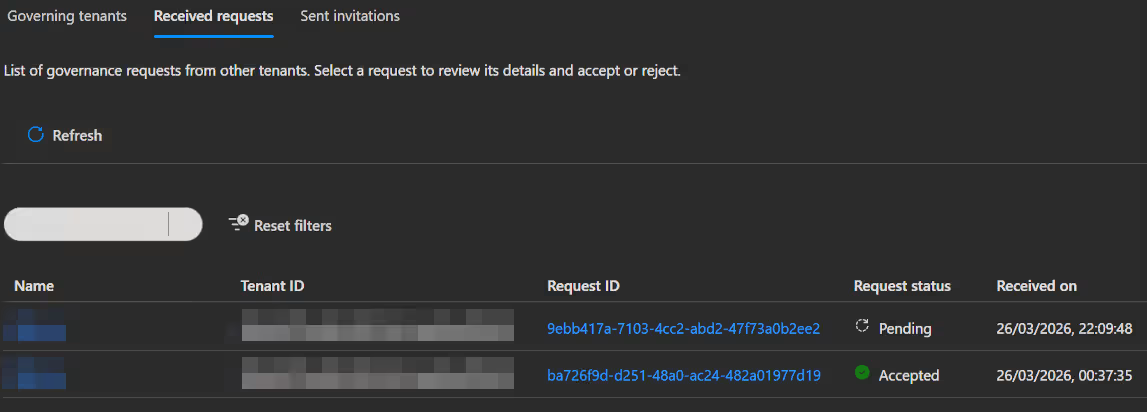
In the Tenant you want to govern:
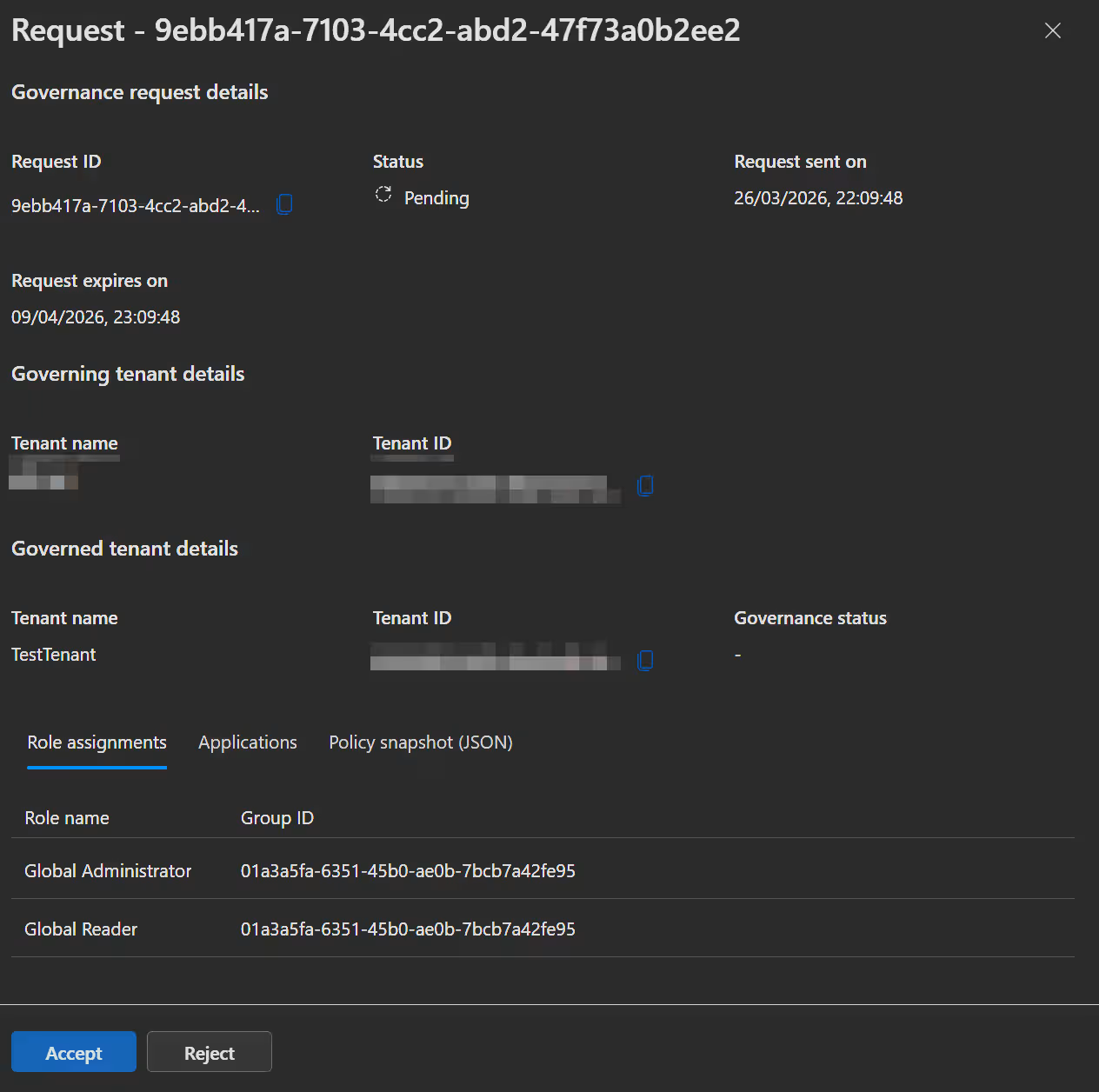
- Next we need to accept the new request, by opening the Entra admin center in the "child" tenant -> Tenant governance -> Governing tenants, select the Received requests tab and click on the newly arrived request.
- Here you just need to accept the request and the relationship will be updated.
In both tenants you can now see the updated relationship.
Terminate a governance relationship
When terminating a governance relationship, the "parent" tenant can send a termination request to the "child" tenant, who has to confirm that. When the "child" tenant wants to terminate the relationship, he can just straight up do that, without a confirmation from the other side needed.
IMPORTANT
With a termination the system also deletes all resources he might have created to facilitate the governance (i.e. Service Principles, cross-tenant permissions etc.).
Termination from the "child" tenant:
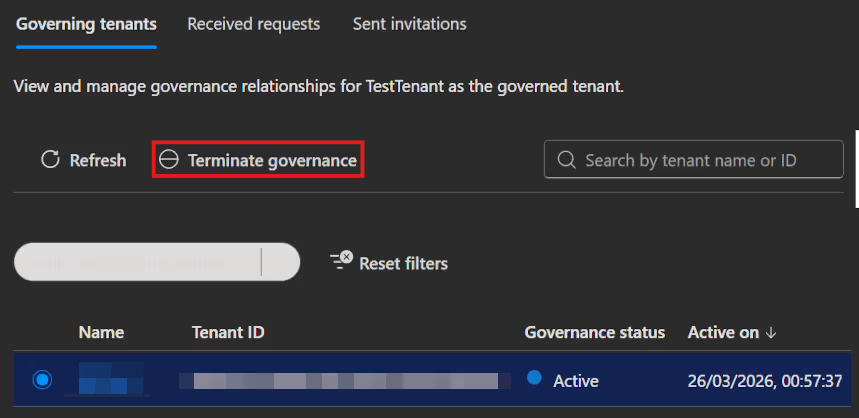
- Start the termination by opening the Entra admin center -> Tenant governance -> Governing tenants, select the "parent" tenant from the list and click
Terminate governance.
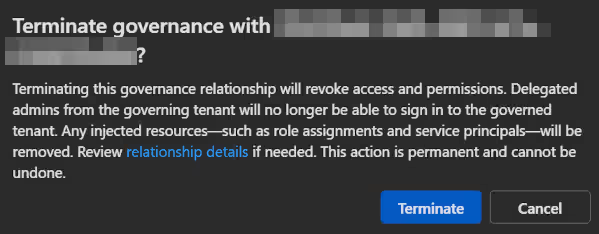
- Just confirm once more and the relationship is terminated.
Termination from the "parent" tenant:
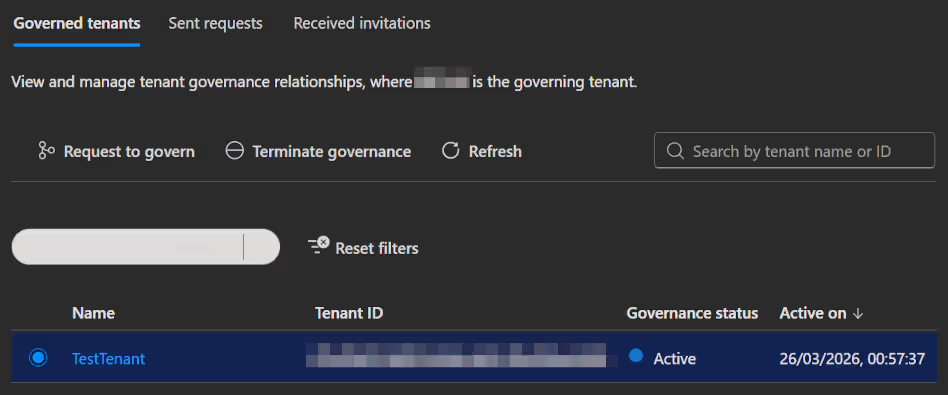
- To start a termination from the "parent" side, open the Entra admin center -> Tenant governance -> Governed tenants, select the "child" tenant from the list and click
Terminate governance.
- You need to confirm the same confirmation prompt as in the "child" tenant. This will result in a termination request been sent out to the "child" tenant.
WARNING
At the moment there seems to be a bug whereby the termination on the "parent" side will also remove the tenant listing on the child tenant. So to see the termination request in the "child" tenant, you need to take a little detour.
- Open the Entra admin center in the "child" tenant -> Tenant governance -> Governing tenants, select the Sent invitation tab and select the "parent" tenant in this list.
- In the now opened windows you scroll to the bottom and select
View relationship details.
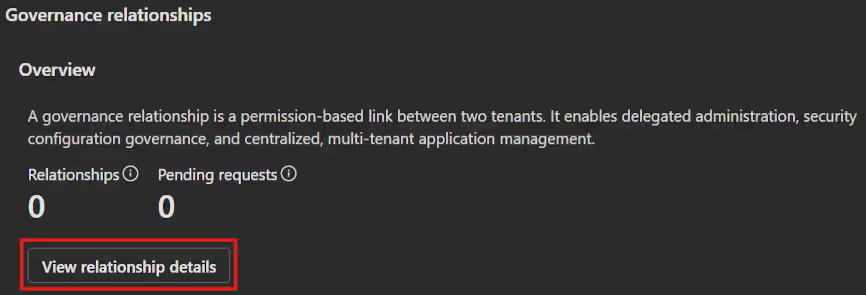
- Now you will see a window with the actual Termination request.
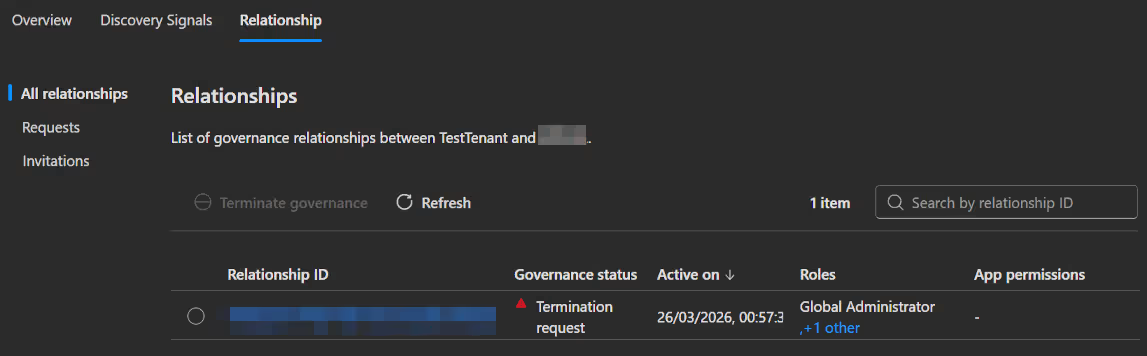
- So just select the listed relationship and click
Confirm terminationat the top.
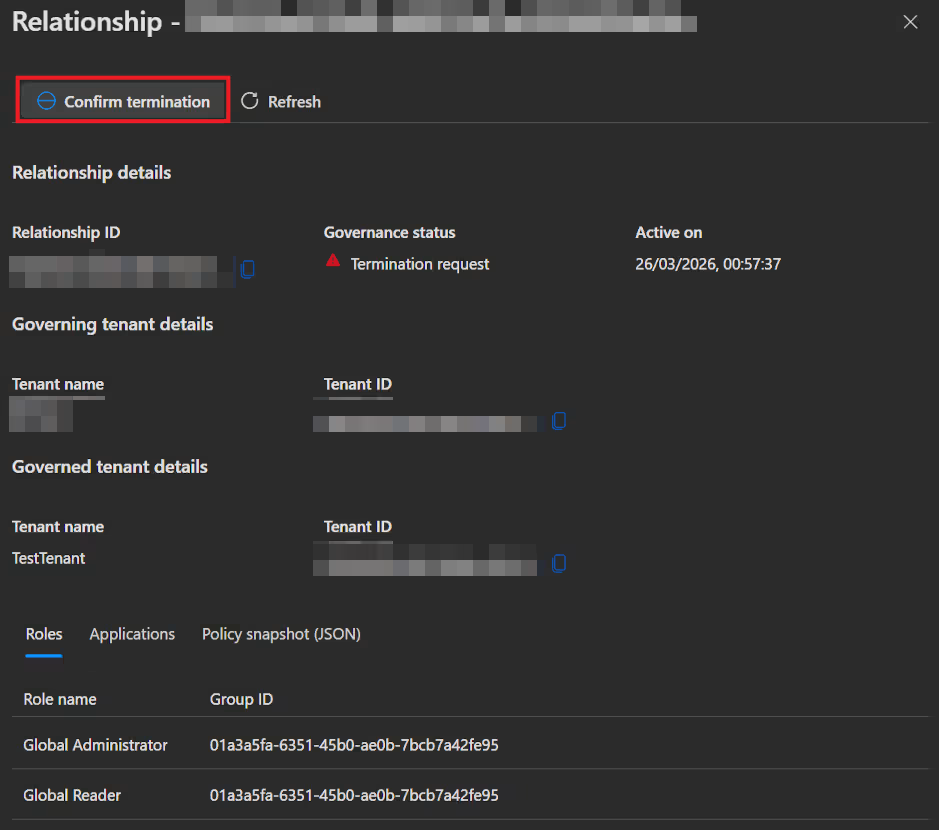
- You need to confirm the same termination message as before to complete the termination.
After the termination is complete you will get a success notification
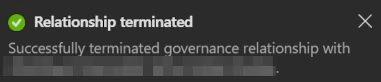
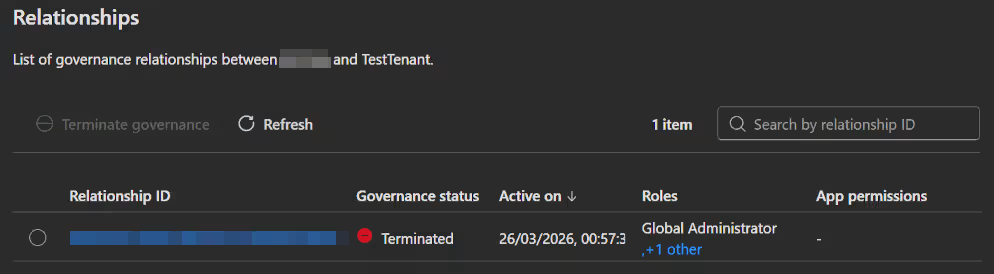
And you can check this also from the parent side, which now shows the relationship as terminated.
Secure tenant creation
WARNING
This Feature is still in private preview and you need to select it via this banner. There is no menu entry yet.
Secure tenant creation will enable you to manage which users are permitted to create new add-on tenants, automatically establish governance relationships with those tenants and guarantee access recovery when needed.
To set up which users can create a new secure tenant you just need to control access to commerce billing accounts in your tenant.
- To get started open the Entra admin center -> Tenant governance -> Governing tenants or Governed tenants and click
View tenant creationin the popup at the top.

Alternativly you can click this direct link.
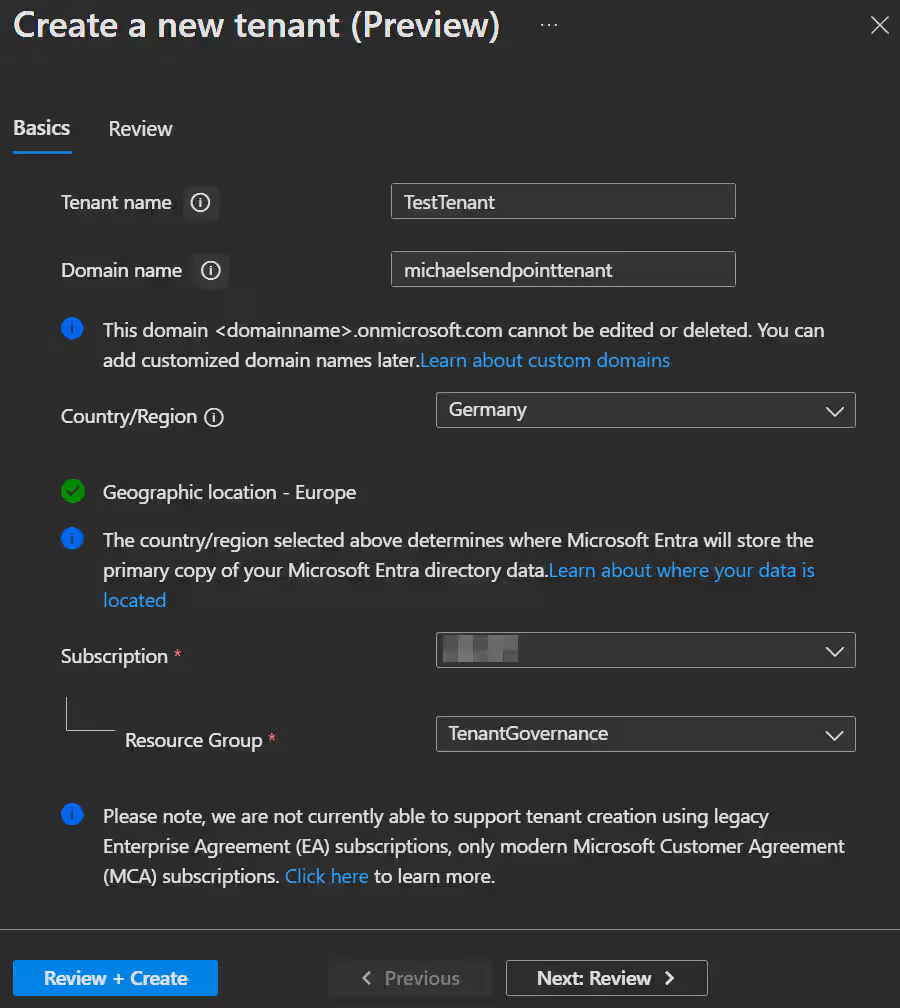
- In the tenant creation you enter the tenant information for your future tenant and
Createit on the next page.
INFO
- At the moment the secure tenant creation uses always the default template for the new tenant.
- With this template the system will also create a governance relationship between your tenant and the new one automatically.
- In the selected resource group an Entra ID Free billing asset will appears.
Configuration management
Set up permissions
Manage the permissions the Configuration management service needs to access monitored resources. An administrator must assign them manually at the moment. At the moment the service can manage application permissions and Microsoft Entra roles.
Permission type depends on the services monitored
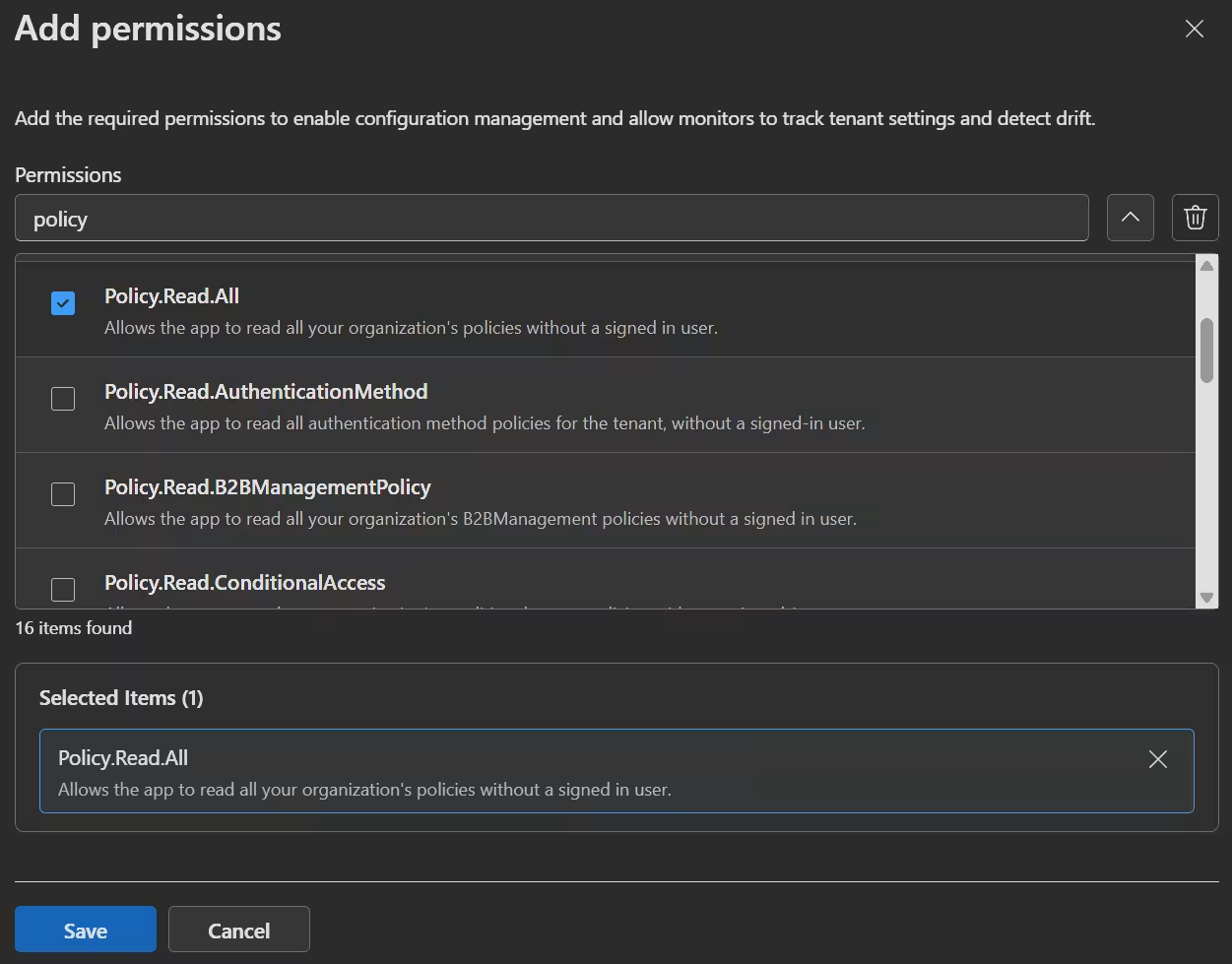
- Microsoft Entra ID and Intune: Assigning graph application permissions is the least-privileged approach to enable monitoring (e.g. Monitoring conditional access policies would require the
Policy.Read.Allpermission). - Teams: For Teams the least-privileged way to enable monitoring is the
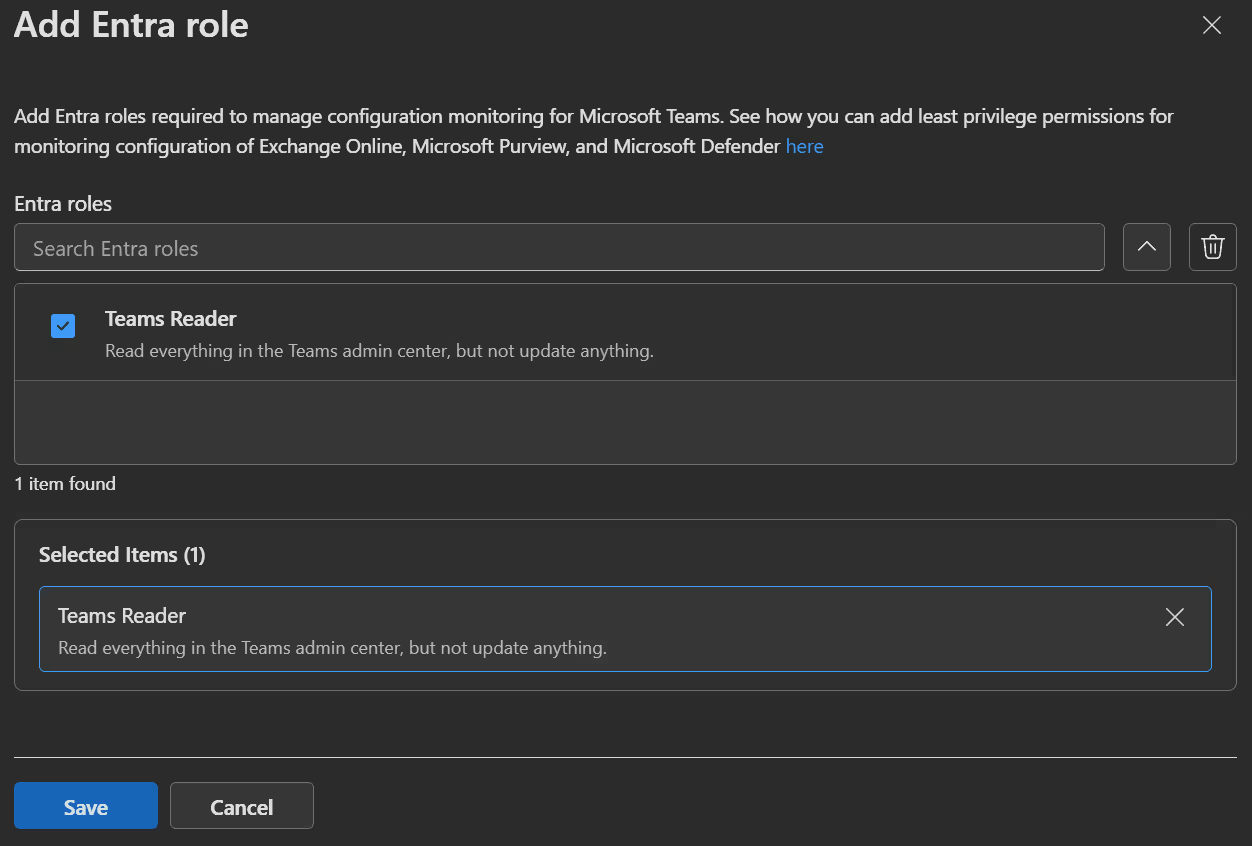
Teams Readerrole. - Exchange, Security, and Compliance (Purview and Defender): Microsoft recommends assigning permissions for these services via the application itself, because the existing roles in Entra are not least privelege.
- Exchange: Monitoring this service also requires that you assign the
Exchange.ManageAsApppermission to the configuration management service, which enables a service principal to authenticate to Exchange APIs. This assignment is independent of any permissions you assign locally to the configuration management service.
Manage application permissions
- To get started open the Entra admin center -> Tenant governance -> Configuration management permissions and click
Add permissionsin the Application permissions tab. - Choose the application permissions that the configuration management service needs to access the resources you want to monitor and click
Save.
Manage Microsoft Entra roles
- To get started open the Entra admin center -> Tenant governance -> Configuration management permissions, select the Entra roles tab and click
Add Entra role. - Choose the required Microsoft Entra role for the configuration management service (At the moment
Teams Readerto monitor Teams) and clickSave.
Roles & Permissions Result
After you set these settings you can observe the corresponding permissions and roles being set by the service.
Application permissions: 
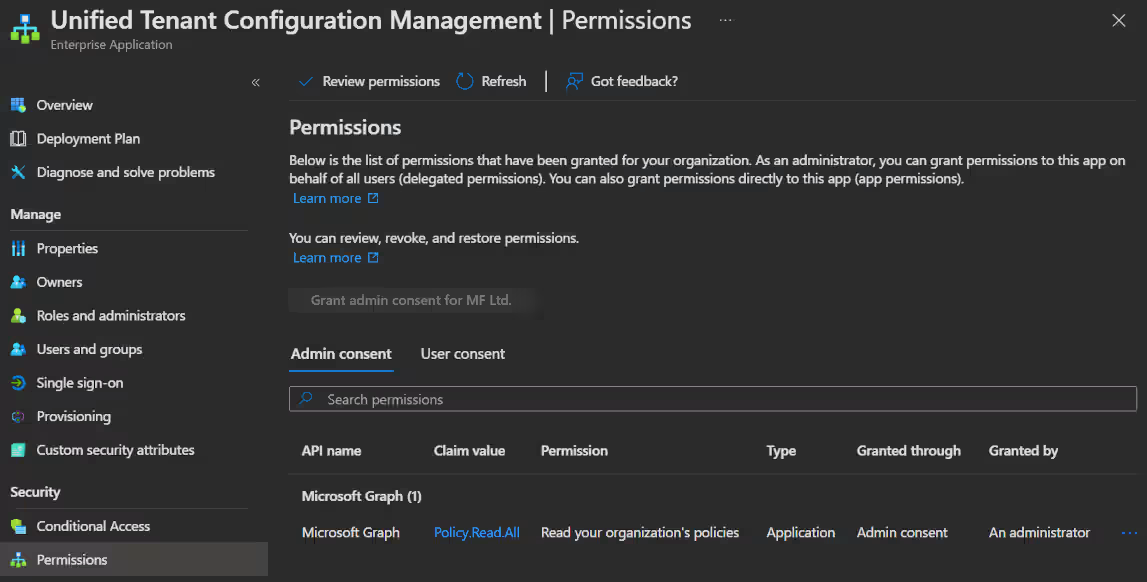
Entra role: 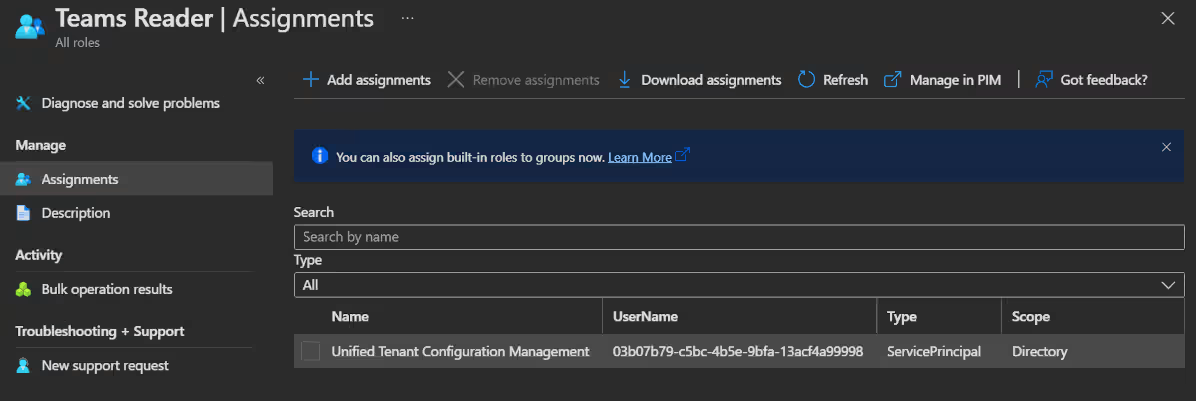
Create a Configuration baseline
Once permissions are set, you must provide a Configuration baseline in JSON format before setting up a monitor. This baseline describes how you want your child tenants resources to look.
Folowing you find an example with a conditional acccess policy (Download it here):
{
  "displayName": "TestBaseline",
  "description": "Entra Governance Baseline Test",
  "baseline": {
    "displayName": "TestBaseline1",
    "description": "March 27 2026",
    "parameters": [],
    "resources": [
      {
        "displayName": "MFA enabled for admins",
        "resourceType": "microsoft.entra.conditionalaccesspolicy",
        "properties": {
          "DisplayName": "MFA enabled for admins",
          "State": "enabled",
          "GrantControlOperator": "AND",
          "ApplicationEnforcedRestrictionsIsEnabled": false,
          "CloudAppSecurityIsEnabled": false,
          "SignInFrequencyIsEnabled": false,
          "PersistentBrowserIsEnabled": false,
          "AuthenticationStrength": "Multifactor authentication",
          "Ensure": "Present",
          "IncludeApplications": [
            "all"
          ],
          "ExcludeApplications": [],
          "IncludeRoles": [
            "62e90394-69f5-4237-9190-012177145e10"
          ],
          "ExcludeRoles": []
        }
      }
    ]
  },
  "parameters": {}
}
You will find the Microsoft documentation with all the possible resources here. In this documentation you will also find the needed permissions for each resource.
- Agreement.Read.All
- Application.Read.All
- Group.Read.All
- Policy.Read.All
- RoleManagement.Read.Directory
- User.Read.All
- CustomSecAttributeDefinition.Read.All
Create a Configuration monitor
The Configuration monitor monitors the current tenant settings against the baseline set up in the monitor. When a deviation is noticed, you can find it in the Configuration drifts tab.
- To get started open the Entra admin center -> Tenant governance -> Monitors and click
New monitor. - On the Permissions page, you will see all the Application permissions and Entra roles we set up in the last step. To monitor the resources, ensure you have all the necessary permissions and roles assigned here.
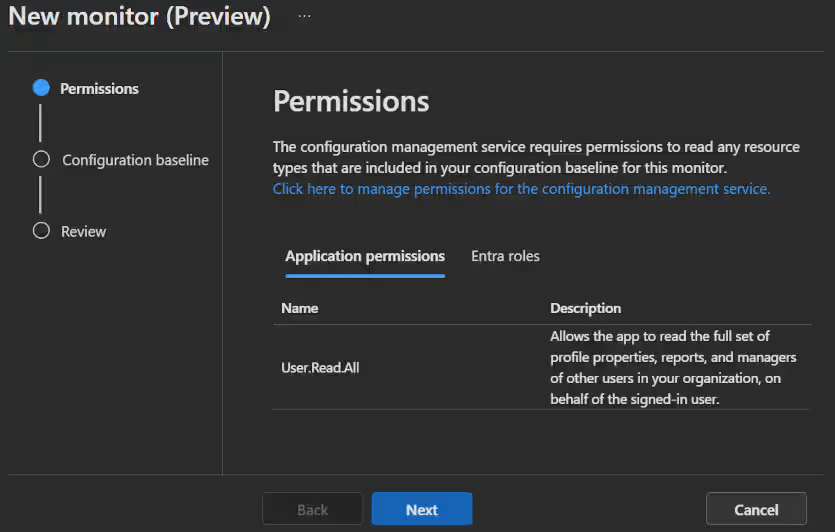
- When you click
Nextyou get to the Configuration baseline page, where you set your desired resource state by writing, pasting or uploading a JSON file.
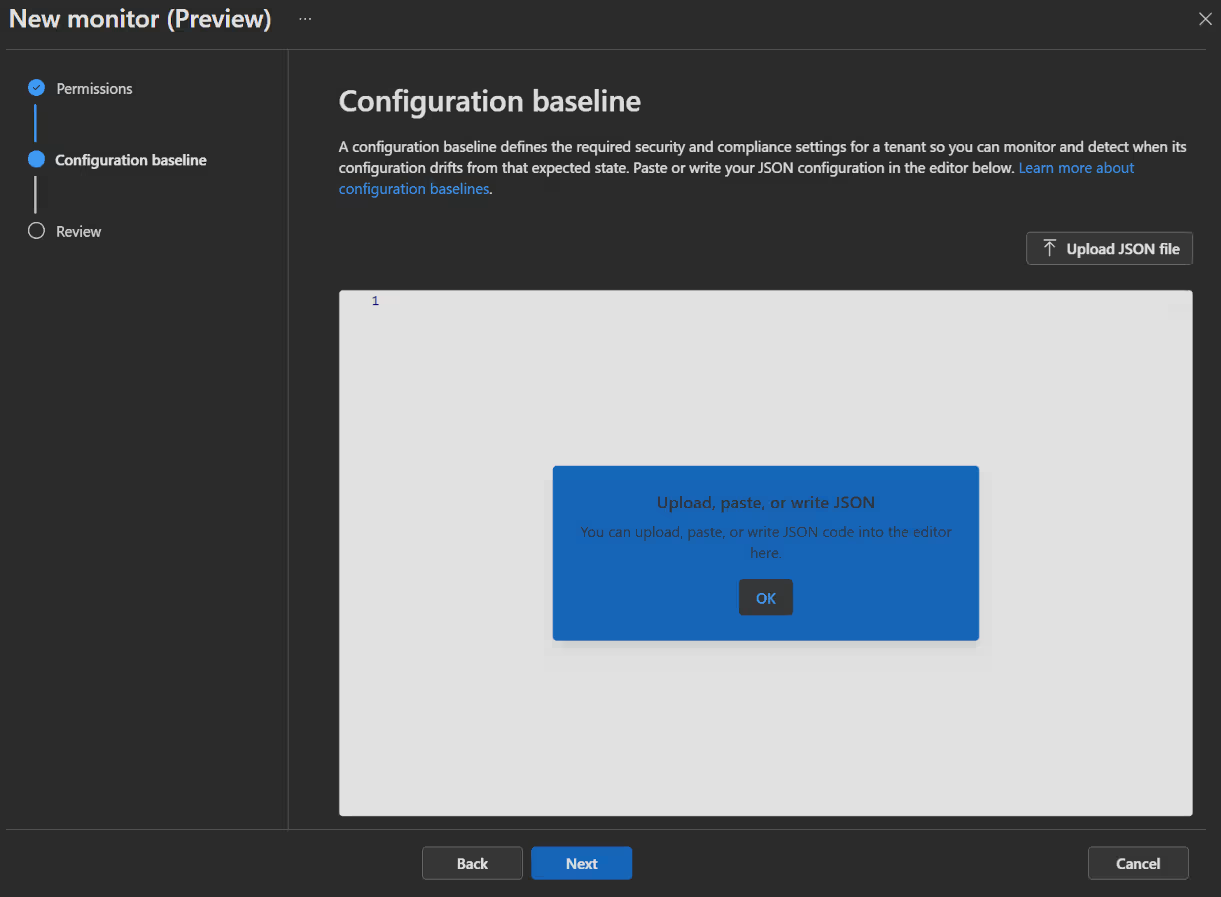
- Now click
Next, review your monitor and clickCreate monitorto finish the monitor.
IMPORTANT
Updating an existing monitor clears all previous results and drifts. New data will be recorded during the next run, which may take up to six hours to complete.
🖥️ Admin experience
Related tenants
Evaluate discovered tenants
Now that you’ve begun the journey of mapping out your environment and discovering related tenants, the natural next question is: What do you actually do with this information?
Generally speaking, you have three options:
- Governance: Take control of a tenant by setting up governance relationship.
- Quarantine: Restrict any tenant that’s unapproved or looks risky.
- Ignore: Let it be and if possible, document that you have seen and assessed it.
Having a relationship with a tenant, doesn't automatically mean there is trust, risk, or control. It simply identifies which other Entra tenants are interacting with yours and what specific activity is linking them.
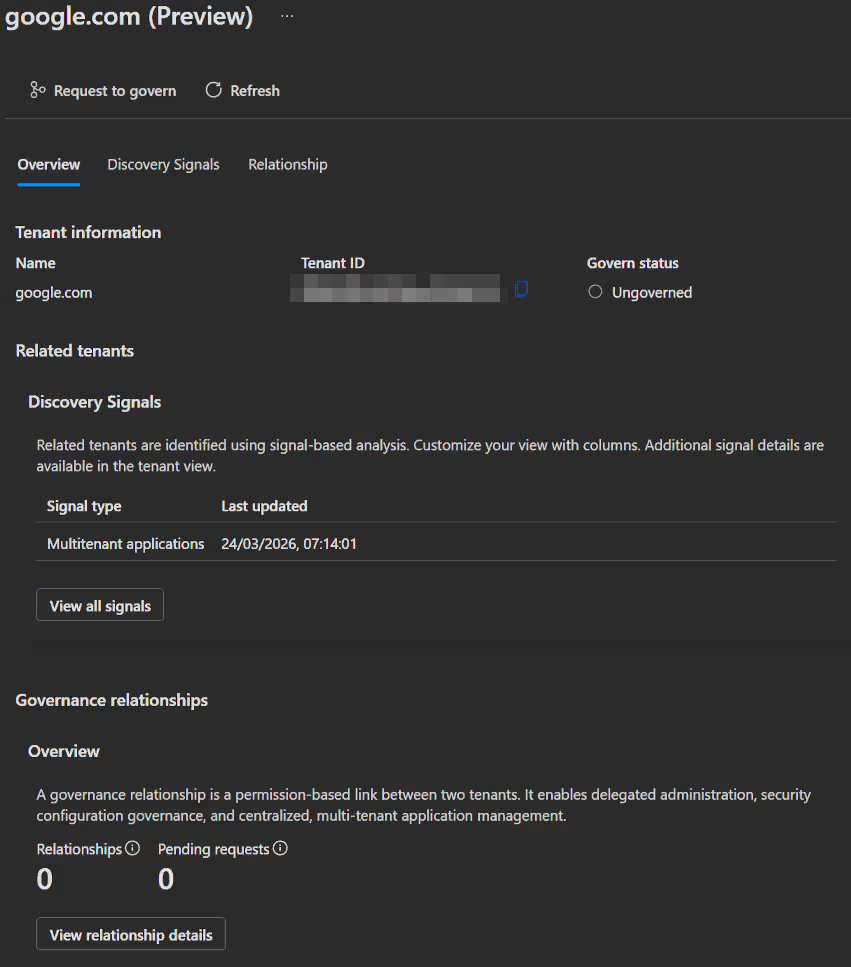
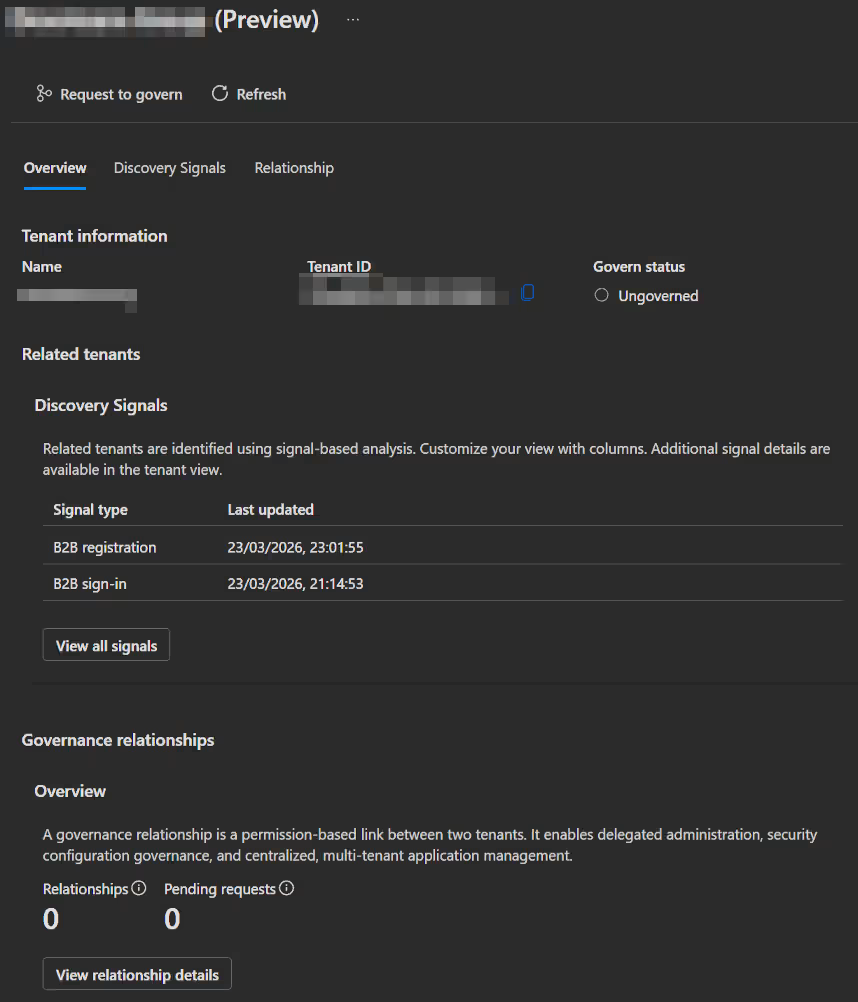
- To review a discovered relationship you first open the Entra admin center -> Tenant governance -> Related tenants and then go through the list one-by-one.
- When you select a discovered tenant, you can find general information such as the name and ID, as well as information about the discovered relationship, like the discovered signals.
 |  |
|---|
The following categories of discovery signal exist:
- B2B collaboration activity
- B2B registration
- B2B sign-ins
- B2B administrative sign-ins
- Multitenant applications
- Billing or commerce relationships
INFO
If you want to learn more on how to quarantine discovered tenants, click here.
Governance relationships
After checking on all the discovered tenants, we can start using our newly created tenant relationships.
Use delegated administration (as "Parent")
Using this capability comes pretty natural. As a prerequisite, you only need to make sure you are a member of the groups used in the governance policy template.
- Open the Entra admin center with
https://entra.microsoft.com/{child-tenant-domain-or-id}and log in with your usual "parent" credentials. - You will now have automatically the permissions assigned through the governance policy template.
IMPORTANT
Because of privacy rules, your account info will appear a bit different:
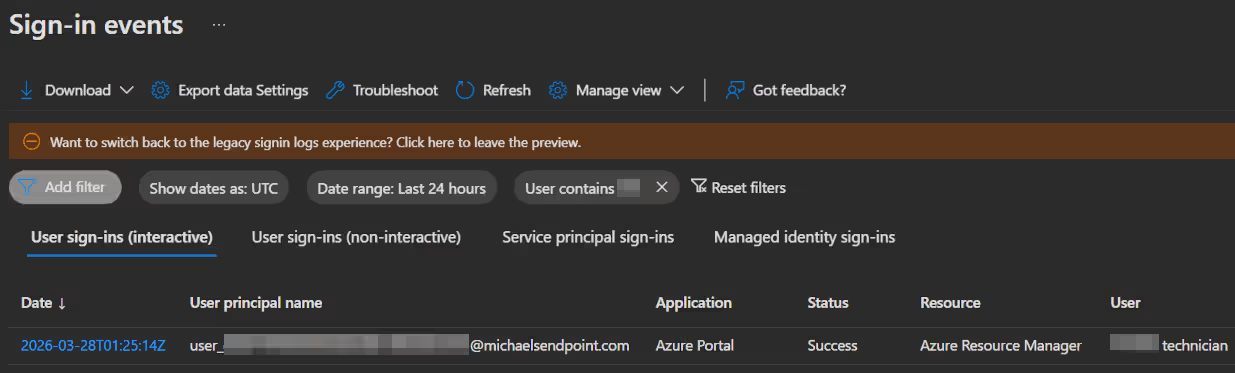
- Your display name appears as
user_{your user object ID in the governing tenant without dashes}. - In the "child" tenant, both sign-in and audit logs will list your display name as
{Governing tenant name} Technician.
Monitor delegated administration (as "Child")
Monitoring the activities of "parent" tenant admins in your tenant is also very important, if you are the admin of a "child" tenant. Through sign-in and audit logs, you can maintain visibility and ensure that "parent" admins operate within their authorized scope.
Fortunately, due to the above-mentioned differences in username appearance, this is pretty easy.
- First open the Entra admin center -> Monitoring & health and select either Sign-in logs or Audit logs.
- Now click
Add filterand selectUserin Sign-in logs orInitiated by (actor)in Audit logs. - Lastly enter the "parent" tenants name and click apply.
Configuration management
View monitor results
Every six hours, the monitor publishes run statistics and records a configuration drift for any resource that deviates from the baseline.
- To view these information you open the Entra admin center -> Tenant governance -> Monitors and open the Monitor Results tab.
- If a monitor detects a drift you will see it in the Drifts Detected column.
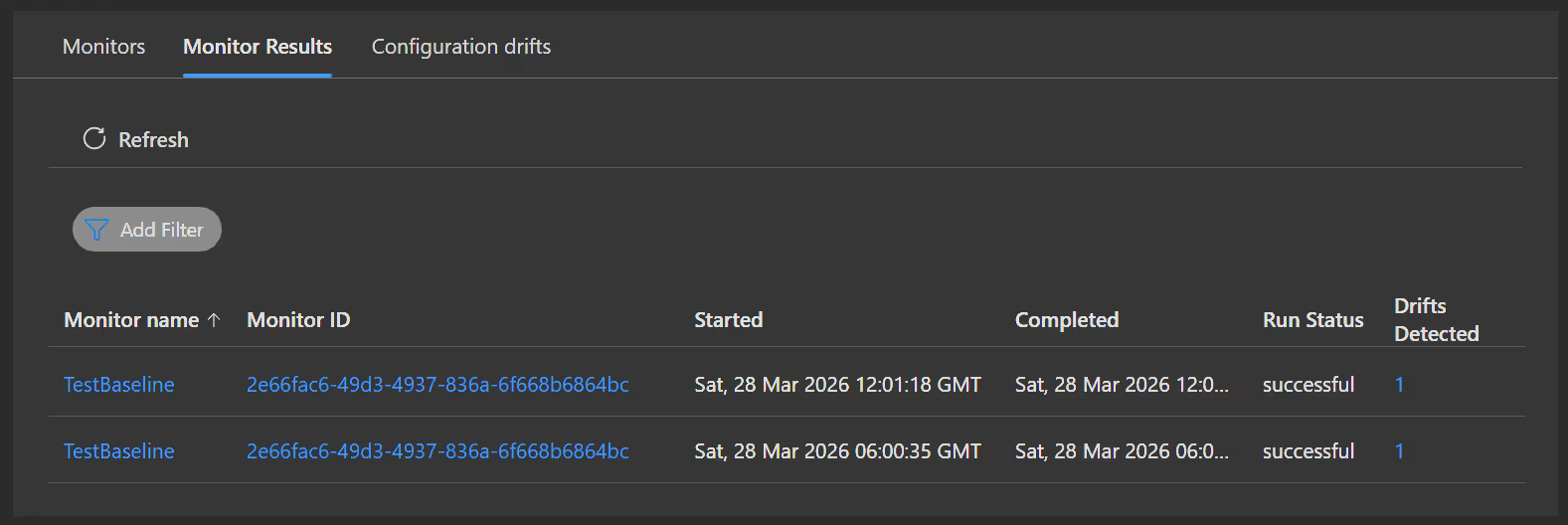
- You can then either click on that monitor result or got the Configuration drifts tab, wher you will see all the drifts currently active.
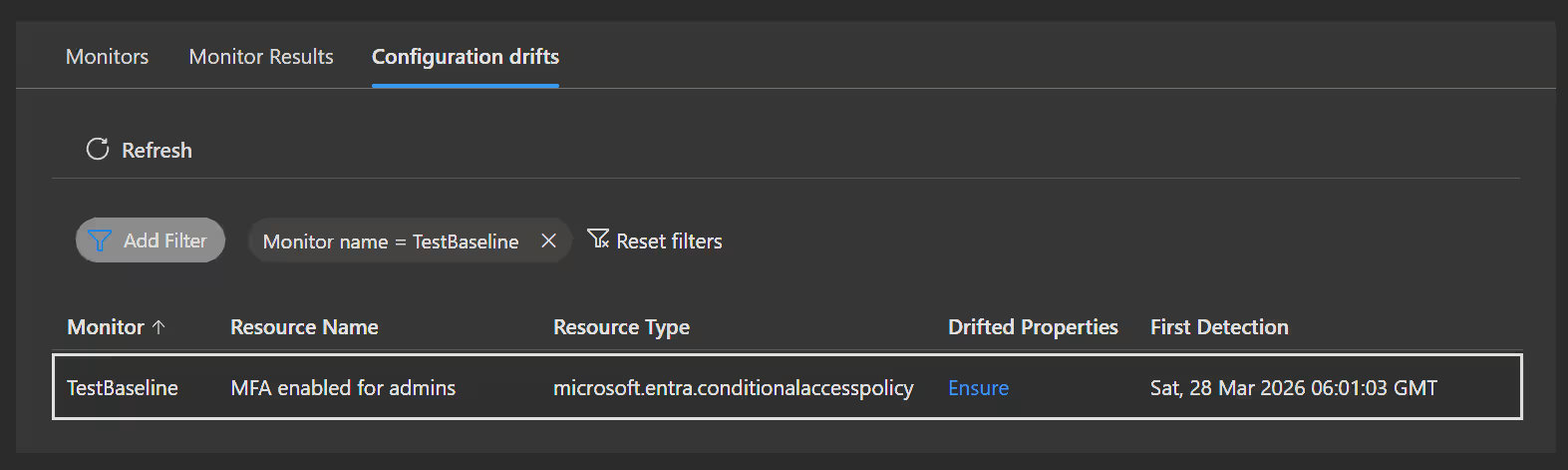
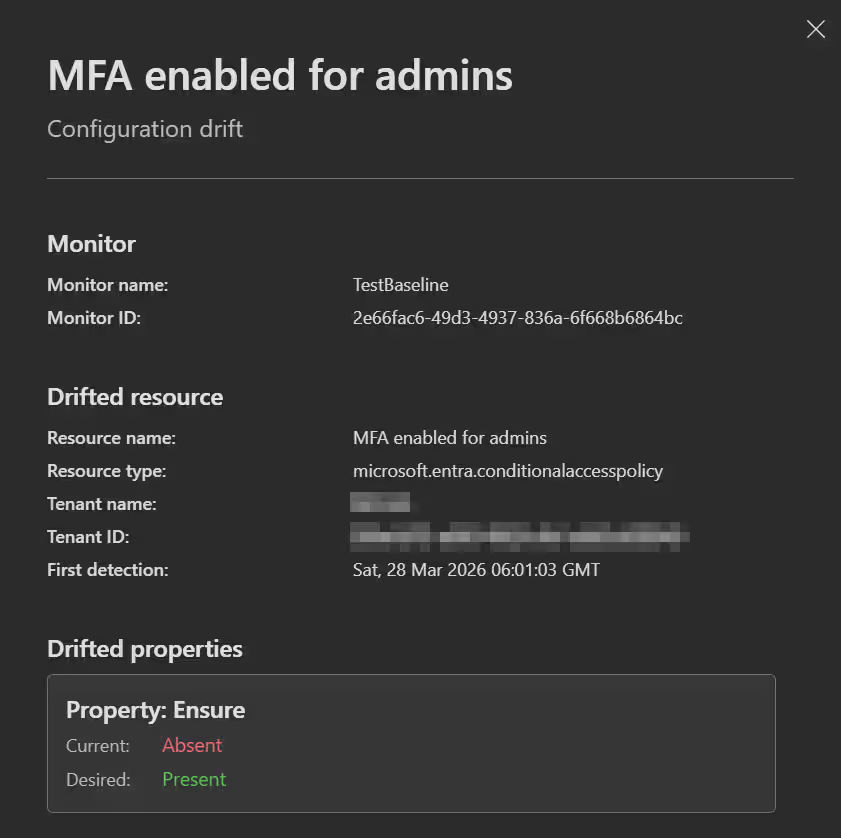
- If you click on the detected drift, a flyout window opens with all the info about what exactly drifted.
💡 Conclusion
Microsoft Entra Tenant Governance helps organisations deal with the problems of managing a complex cloud environment. SAAS apps, test tenants, mergers & acquisitions all add to the number of connections your tenant has to 3rd party environments.
By combining automated discovery, secure governance relationships and drift control, you can organize these connections more securely and efficiently.
- Gain visibility
- Reduce security risk
- Streamline administration
- Maintain compliance
- Enable scalability
These are all advantages of using a centralized solution. So if you got the licenses, there are only positives in trying this out. And even if not, this makes a great case to get these difficult to manage connections under control.
Following is a great way to get started:
- Start small with tenant discovery to understand your environment
- Establish governance relationships with critical tenants
- Leverage configuration management to enforce your security and compliance standards across your organization
Resources