
👋 Introduction
Remote Help is a Microsoft cloud-based remote support tool designed for IT teams. It enables support staff (helpers) to securely connect to users’ devices (sharers) using their Microsoft Entra ID work accounts.
With Remote Help, you can use Intune’s role-based access control (RBAC) to define who can provide support and what level of access they have. This gives organizations control over remote assistance and helps maintain security and compliance.
Features
- Support for unenrolled devices: You can enable assistance for users on devices not enrolled in Intune.
- Organization sign-in: To prevent impersonation, both the helper and the person receiving support use Microsoft Entra accounts to verify their identities.
- Compliance warnings: If a device doesn’t meet your organization’s compliance policies, helpers will see a warning before connecting.
- Role-based access control (RBAC): Admins can control who can provide assistance, which permissions they have on the remote device and whether they can view the device or take full control.
- Monitor sessions: View real-time and historical reports in the Intune admin center, including who helped whom, which device was involved, session duration and audit logs.
Security
| Control | How It Works |
|---|---|
| Corporate-Only Access | Only Microsoft Entra joined or Microsoft Entra hybrid joined, Intune-enrolled physical devices are supported. |
| Explicit RBAC Permission | Uses dedicated RBAC permissions. |
| Least Privilege | Helpers can only perform actions allowed by the Windows account used to sign in. |
| User Awareness | If a user is signed in, they receive a notification and have 30 seconds to accept or reject the request. |
| Session Isolation | Support runs in a separate session, keeping the user's session locked and their apps and data isolated. |
| Full Audit Trail | All unattended sessions are logged for auditing, compliance and accountability. |
| 12-Hour Maximum Session Duration | Sessions automatically disconnect after 12 hours to prevent abandoned connections. |
✅ Prerequisites
General prerequisites
License
Remote Help add-on, Intune Suite or Microsoft 365 E3/E5 licenses for all helpers and sharers
Prerequisites
Both the helper and sharer authenticate with Microsoft Entra ID to establish a trusted Remote Help session.
| Platform | Control | Requirements |
|---|---|---|
| Windows | Attended | If support is restricted to enrolled devices, the sharer's device must be enrolled in the same tenant as the one where the session starts |
| Windows | Unattended | The device must be enrolled, powered on and online, with the Azure Virtual Desktop agent and bootloader, Intune Management Extension and Remote Desktop enabled |
| Windows | Unattended | The helper needs the Remote Help app - Windows unattended control remote sign-in permission, scoped to the target devices |
| macOS | If support is restricted to enrolled devices, configure the Microsoft Enterprise SSO plug-in and have the user open and sign in to Company Portal | |
| macOS | Devices without user affinity don't support Company Portal. Set Remote Help for unenrolled devices to Allowed | |
| Android | Only enrolled devices are supported | |
| Android | Samsung/Zebra Android Dedicated (COSU) devices don't require a Sharer license; only the Helper needs a Remote Help license | |
| Web App | Same requirements as the sharer's platform |
Supported tenants
| Area | Supported / Limitation |
|---|---|
| Tenant | Sessions between different tenants aren't supported |
| Availability | Remote Help may not be available in all markets or localizations |
| GCC | Supported on Windows, Windows ARM64, Windows 365, Samsung/Zebra Android Enterprise dedicated devices and macOS 13–15 |
| GCC High | Supported for eligible Microsoft cloud environments |
| DoD | Not supported |
Supported platforms
| Platform | Requirements / Supported versions |
|---|---|
| Windows – Attended | Windows x86/x64/ARM64, Windows 365 and Azure Virtual Desktop (desktop and RemoteApp) |
| Windows – Unattended | Physical, Intune-managed, corporate-owned Windows device; x64; Microsoft Entra joined or hybrid joined. Not supported: Windows 365, AVD, virtual, unenrolled or BYOD devices |
| Windows – Unattended prerequisites | The Intune Management Extension (IME) is required for notifications and requests. Keep Windows and IME up to date. |
| Azure Virtual Desktop | Do not remotely initiate Remote Help sessions for Azure Virtual Desktop users |
| macOS | macOS 13 (Ventura), 14 (Sonoma), 15 (Sequoia) and 26.0+ with Remote Help 1.0.2509231+ |
| Android – Samsung | Samsung Knox is required. Non-Knox devices support screen sharing only, not full control or unattended access. |
| Android – Zebra | MX 8.3 or later; unattended control requires MX 9.3 or later. Zebra OEMConfig is required. |
| Android – General | Android Enterprise dedicated mode, Managed Google Play and Intune app version 5.0.5541.0 or later. Device configuration must allow screen capture. |
| Web App – Browsers | Safari 16.4.1+, Chrome 109+, Edge 109+, Firefox 122+ |
| Web App – macOS | macOS 11 Big Sur (web app only), 12 Monterey, 13 Ventura, 14 Sonoma |
| Web App – Windows | Windows 11 |
| Web App – Linux | Linux isn't officially supported, but the web app may work with a supported browser |
| Web App – VMs | Virtual machines aren't supported |
App modes
Remote Help supports native apps for Windows, macOS and Android, as well as a web app with reduced capabilities.
- Attended: The sharer participates and grants access.
- View only: View the remote screen without control.
- Full control: Control the remote device.
- Elevation: Allows interaction with Windows UAC prompts.
- Unattended: Authorized helpers can access and control Intune-managed Windows and Android devices without an active sharer.
The following table shows which modes are supported by the helper and sharer apps.
| - | Helping from: Windows native | Helping from: Windows web | Helping from: macOS web |
|---|---|---|---|
| Sharing from: Windows native | ✅ View only ✅ Full control ✅ Elevation | ✅ Unattended | Unsupported |
| Sharing from: macOS native | Unsupported | ✅ View only ✅ Full control | ✅ View only ✅ Full control |
| Sharing from: Android native | Unsupported | ✅ View only ✅ Full control ✅ Unattended | ✅ View only ✅ Full control ✅ Unattended |
| Sharing from: macOS web app | Unsupported | ✅ View only | ✅ View only |
| Sharing from: Windows web app | Unsupported | ✅ View only | ✅ View only |
NOTE
On Windows, attended and unattended sessions use separate Remote Help apps. Attended sessions support view only, full control and elevation, while unattended sessions support unattended control.
Endpoints
- Outbound connectivity: TCP 443 (HTTPS)
- Inbound port: /
- Protocol: RDP (Remote Desktop Protocol)
- Encryption: TLS 1.2
Remote Help Endpoints
| Description | Ports | Addresses |
|---|---|---|
| MEM - Remote Help Feature | TCP | .support.services.microsoft.com remoteassistance.support.services.microsoft.com teams.microsoft.com remoteassistanceprodacs.communication.azure.com edge.skype.com aadcdn.msftauth.net aadcdn.msauth.net alcdn.msauth.net wcpstatic.microsoft.com .aria.microsoft.com browser.pipe.aria.microsoft.com .events.data.microsoft.com v10c.events.data.microsoft.com .monitor.azure.com js.monitor.azure.com edge.microsoft.com .trouter.communication.microsoft.com .trouter.teams.microsoft.com *.trouter.communications.svc.cloud.microsoft go-amer.trouter.communications.svc.cloud.microsoft(only for NA, ROW customers) go-apac.trouter.communications.svc.cloud.microsoft(only for APAC customers) go-eu.trouter.communications.svc.cloud.microsoft(only for EU customers) api.flightproxy.skype.com ecs.communication.microsoft.com remotehelp.microsoft.com remoteassistanceprodacseu.communication.azure.com(only for EU customers) |
| Dependency - Remote Help web pubsub | TCP | *.webpubsub.azure.com AMSUA0101-RemoteAssistService-pubsub.webpubsub.azure.com |
| Remote Help Dependency for GCC customers | TCP | remoteassistanceweb-gcc.usgov.communication.azure.us gcc.remotehelp.microsoft.com gcc.relay.remotehelp.microsoft.com *.gov.teams.microsoft.us |
| Remote Help for Windows unattended access - Remote Sign-in dependencies | Remote Sign-in requires the AVD session host endpoints | |
| Launch Remote Help | TCP | *.trouter.communications.svc.cloud.microsoft |
| Remote Assistance Service | TCP | remotehelp.microsoft.com |
Session host virtual machines
Session host VMs require outbound access to the following Azure Virtual Desktop FQDNs and endpoints (inbound ports are not required). Select your cloud environment tab below.
Azure Cloud
| Address | Protocol | Port | Purpose | Service tag |
|---|---|---|---|---|
| login.microsoftonline.com | TCP | 443 | Authentication to MS Online Services | AzureActiveDirectory |
| 51.5.0.0/16 | UDP | 3478 | Relayed RDP connectivity | WindowsVirtualDesktop |
| *.wvd.microsoft.com | TCP | 443 | Service traffic with TCP based RDP | WindowsVirtualDesktop |
| catalogartifact.azureedge.net | TCP | 443 | Azure Marketplace | AzureFrontDoor.Frontend |
| *.prod.warm.ingest.monitor.core.windows.net | TCP | 443 | Agent traffic - Diagnostic output | AzureMonitor |
| gcs.prod.monitoring.core.windows.net | TCP | 443 | Agent traffic | AzureMonitor |
| azkms.core.windows.net | TCP | 1688 | Windows activation | Internet |
| mrsglobalsteus2prod.blob.core.windows.net | TCP | 443 | Agent and side-by-side stack updates | Storage |
| wvdportalstorageblob.blob.core.windows.net | TCP | 443 | Azure portal support | AzureCloud |
| oneocsp.microsoft.com | TCP | 80 | Certificates | AzureFrontDoor.FirstParty |
| www.microsoft.com | TCP | 80 | Certificates | N/A |
| *.aikcertaia.microsoft.com | TCP | 80 | Certificates | N/A |
| azcsprodeusaikpublish.blob.core.windows.net | TCP | 80 | Certificates | N/A |
| *.microsoftaik.azure.net | TCP | 80 | Certificates | N/A |
| ctldl.windowsupdate.com | TCP | 80 | Certificates | N/A |
| aka.ms | TCP | 443 | MS URL shortener | N/A |
| *.service.windows.cloud.microsoft | TCP | 443 | Service Traffic | WindowsVirtualDesktop |
| *.windows.cloud.microsoft | TCP | 443 | Service Traffic | N/A |
| *.windows.static.microsoft | TCP | 443 | Service Traffic | N/A |
Government Cloud
| Address | Protocol | Port | Purpose | Service tag |
|---|---|---|---|---|
| *.service.windows.usgovcloud.microsoft | TCP | 443 | Service Traffic | WindowsVirtualDesktop |
| 20.140.236.0/22 | UDP | 3478 | Relayed RDP connectivity | WindowsVirtualDesktop |
| *.windows.usgovcloud.microsoft | TCP | 443 | Service Traffic | N/A |
| *.windows.usgovcloud-static.microsoft | TCP | 443 | Service Traffic | N/A |
| login.microsoftonline.us | TCP | 443 | Authentication to MS Online Services | AzureActiveDirectory |
| *.wvd.azure.us | TCP | 443 | Service traffic | WindowsVirtualDesktop |
| *.prod.warm.ingest.monitor.core.usgovcloudapi.net | TCP | 443 | Agent traffic - Diagnostic output | AzureMonitor |
| gcs.monitoring.core.usgovcloudapi.net | TCP | 443 | Agent traffic | AzureMonitor |
| azkms.core.usgovcloudapi.net | TCP | 1688 | Windows activation | Internet |
| mrsglobalstugviffx.blob.core.usgovcloudapi.net | TCP | 443 | Agent and side-by-side stack updates | AzureCloud |
| wvdportalstorageblob.blob.core.usgovcloudapi.net | TCP | 443 | Azure portal support | AzureCloud |
| ctldl.windowsupdate.com | TCP | 80 | Certificates | N/A |
| ocsp.msocsp.com | TCP | 80 | Certificates | N/A |
Communication Services
Communication Services require internet connectivity to specific ports and IP addresses to deliver high-quality multimedia. Without proper access, these services will fail to function correctly.
Azure Cloud
| Category | IP ranges or FQDN | Ports |
|---|---|---|
| Media traffic | Azure public cloud IP range 20.202.0.0/16. This range contains the IP addresses of the media processor or Azure Communication Services TURN service. | UDP 3478 through 3481, TCP ports 443 |
| Signaling, telemetry, registration | *.skype.com, *.microsoft.com, *.azure.net, *.azure.com, *.office.com | TCP 443, 80 |
| Call Automation Media | 52.112.0.0/14, 52.122.0.0/15, 2603:1063::/38 | UDP: 3478, 3479, 3480, 3481 |
| Call Automation callback URLs | *.lync.com, *.teams.cloud.microsoft, *.teams.microsoft.com, teams.cloud.microsoft, teams.microsoft.com, 52.112.0.0/14, 52.122.0.0/15, 2603:1027::/48, 2603:1037::/48, 2603:1047::/48, 2603:1057::/48, 2603:1063::/38, 2620:1ec:6::/48, 2620:1ec:40::/42 | TCP: 443, 80 UDP: 443 |
Government Cloud
| Category | IP ranges or FQDN | Ports |
|---|---|---|
| Media traffic | 52.127.88.0/21, 52.238.114.160/32, 52.238.115.146/32, 52.238.117.171/32, 52.238.118.132/32, 52.247.167.192/32, 52.247.169.1/32, 52.247.172.50/32, 52.247.172.103/32, 104.212.44.0/22, 195.134.228.0/22 | UDP 3478 through 3481, TCP ports 443 |
| Signaling, telemetry, registration | *.gov.teams.microsoft.us, *.infra.gov.skypeforbusiness.us, *.online.gov.skypeforbusiness.us, gov.teams.microsoft.us | TCP 443, 80 |
📊 Data and 🔒 privacy
Microsoft logs a minimal amount of session data to monitor Remote Help. This includes:
- Session times: When a session starts and ends (retained for 30 days).
- Session details: Includes the identities of the helper and sharer and the device involved (retained for 30 days).
- Errors: Issues like disconnections are logged on the sharer's device in Event Viewer.
- Features used: Actions performed during the session, such as view-only mode or elevation requests (retained for 30 days).
Remote Help logs session details locally in Windows Event Logs for both helper and sharer.
Microsoft cannot access session content or see actions or keystrokes.
Both the helper and sharer can see the following details from each other's organizational profiles:
- Profile picture (if you have one)
- Company name
- Verified domain
- First and last name
- Job title
INFO
Microsoft retains this data for no longer than 30 days.
🧑🔧 Configuration
Tenant configuration
To configure Remote Help in your tenant for any supported platform, follow these steps:
Turn on Remote Help
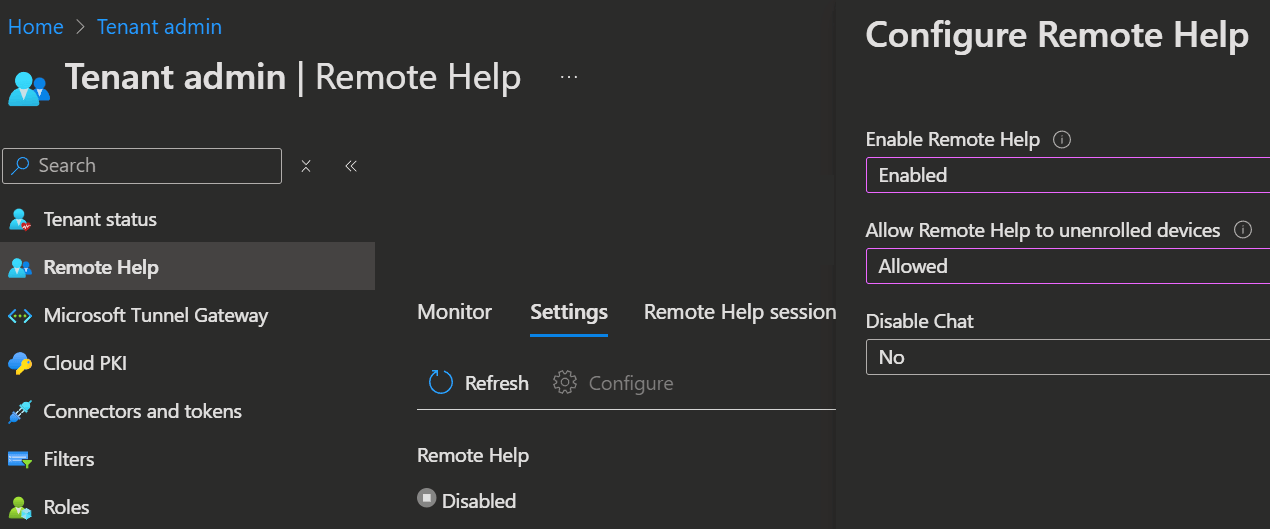
- Sign in to the Microsoft Intune admin center and go to Tenant administration → Remote Help.
- Select the Settings tab.
- Enable Remote Help
- Choose whether to allow users to receive help on unenrolled devices, then set this option to
Allowedif desired. - Choose whether to allow helpers and sharers to chat with each other during a session, then set this option to
Noif desired.
Set up permissions for Remote Help
Remote Help uses Intune’s role-based access control (RBAC) to determine who can provide help and what they’re allowed to do.
The Help Desk Operator role includes the permissions needed for a Remote Help session.

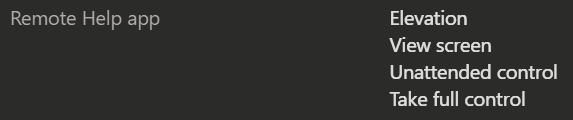
Here are the main permissions you can configure for Remote Help sessions:
 |
|
|---|---|
 |
|
NOTE
Some permissions are dependent on others. When you enable a setting, related permissions are automatically granted:
- Enabling
Take full controlalso enablesView screen. - Enabling
Elevationalso enables bothTake full controlandView screen. - Enabling
Unattended controlautomatically grants all other permissions.
The default Help Desk Operator role comes pre-configured with all necessary Remote Help permissions enabled. You can assign this role as-is or create custom roles to tailor permissions for different support scenarios. For more details on configuring RBAC, see Role-based access control.
Assign users to roles
To grant helpers the necessary permissions, assign them to the appropriate role:
- Sign in to the Microsoft Intune admin center and navigate to Tenant administration → Roles and select a role.
- Now open Assignments, then click
Assignto create a new role assignment. - On the Basics page, enter a name and description and click
Next. - On the Admin Groups page, select your helper group and click
Next. - If needed, enter a scope tag, then create the assignment.
Set up Conditional Access for Remote Help
Registering this service principal lets you apply Conditional Access to attended Remote Help sessions. Conditional Access is not used for unattended Windows Remote Help sessions.
Connect-MgGraph -Scopes "Application.ReadWrite.All"

New-MgServicePrincipal -AppId "1dee7b72-b80d-4e56-933d-8b6b04f9a3e2"DisplayName Id AppId ServicePrincipalType
---- ------- ----------- ---------------
RemoteAssistanceService 3d5ff82b-a5f2-483a-xxxx-9514ed66f7c5 1dee7b72-b80d-4e56-933d-8b6b04f9a3e2
App deployment
You can deploy the app through Intune or install it directly on the target devices.
To install it manually, download the latest version of Remote Help from Microsoft or install it with winget.
Winget install Microsoft.RemoteHelpTo deploy the app through Intune, you have two main options:
- Download and package: Download the installer, package it as an
.intunewinfile and deploy it as a Win32 app through Intune. - Universal app deployment (no packaging): Use my Universal App deployment method to install the app directly with winget, without packaging it.
If you choose the INTUNEWIN method, use the following information for deployment:
# Install command
remotehelpinstaller.exe /quiet acceptTerms=1 enableAutoUpdates=1# Uninstall command
remotehelpinstaller.exe /uninstall /quiet acceptTerms=1Detection Rule
- For Rule type, select File
- For Path, specify C:\Program Files\Remote Help
- For File or folder, specify RemoteHelp.exe
- For Detection method, select String (version)
- For Operator, select Greater than or equal to
- For Value, enter the Remote Help version to deploy (e.g., 10.0.22467.1000).
- Leave Associated with a 32-bit app on 64-bit clients set to No
Web app
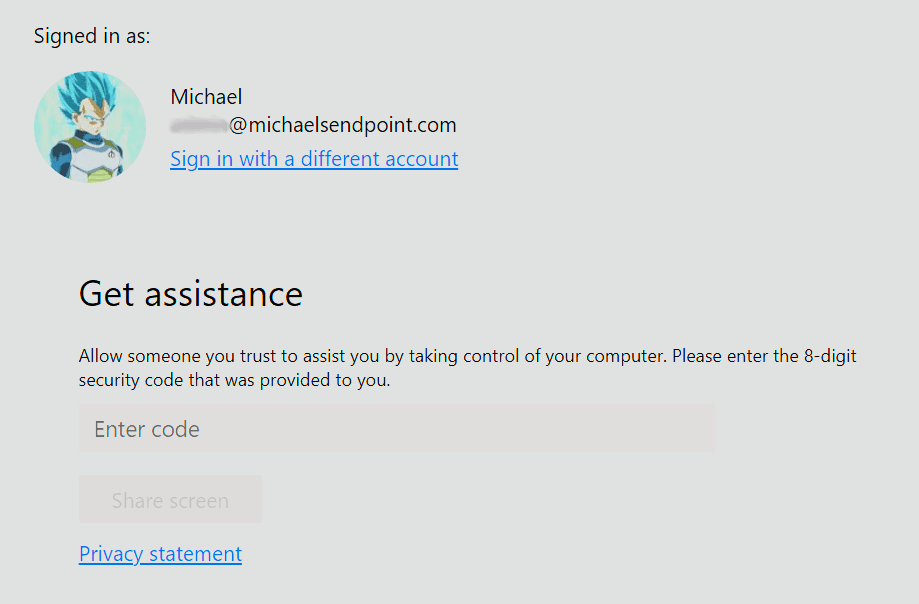
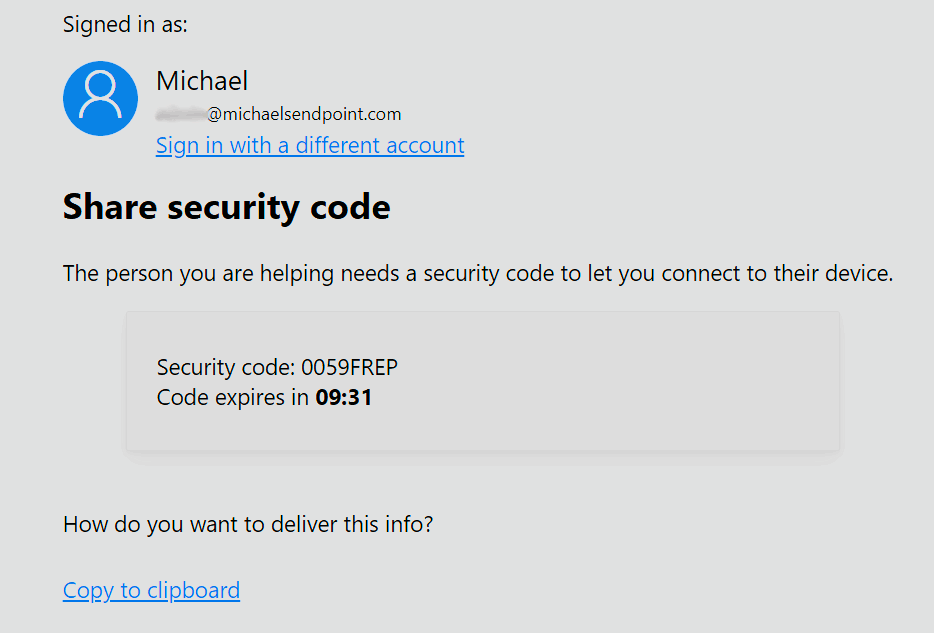
| Sharer: https://aka.ms/rh | Remote Helper: https://aka.ms/rhh |
|---|---|
 |  |
macOS
On macOS, you can download the latest version of Remote Help from Microsoft.
Android
To use Remote Help on Android Enterprise devices, install the Intune app or open the web app in a supported browser.
Additionally, ensure that screen capture is allowed in your Android device policies.
For Zebra devices: Configure Zebra OEMConfig as described in the Microsoft documentation.
Unattended Windows access setup
With unattended capabilities, your helpdesk can connect directly to the Windows login screen and sign in with their own credentials, even when no user is currently connected to the device. If a user is already signed in, they receive a notification and can choose to accept or reject the remote access request.
Once connected, the helpdesk works in a separate Windows session, while the user's existing session remains locked and untouched. This allows support to work on the device without interrupting the user's session or affecting their open applications and work.
Security is also important to keep in mind with an unattended access feature. Access is based on least-privilege permissions, with a dedicated RBAC permission and a complete audit trail to ensure that access is controlled and can always be traced back to the person who used it.
The dedicated permission also needs to be explicitly assigned as a custom role and scoped to specific device groups. It is not included in any built-in Intune role.
Remote Help app -> Windows unattended control remote sign-in
The support session includes features such as file transfer, clipboard passthrough, Remote Desktop Virtual Printer and multi-monitor support, giving the help desk useful tools for troubleshooting devices.
To get started, create a custom RBAC role.
- Open the Intune admin center, go to Tenant administration -> Roles and select
+ Create->Intune role. - Enter a Name and Description in the Basics tab and click
Next. - In the Permissions tab, you open Remote Help app and toggle Windows unattended control remote sign-in to
Yes.

- Click
Next, select a Scope tag if needed and create the Custom Role on the tab after that withCreate. - Open the new role again and select the Assignments tab. Here, you can assign the new role to your admins and select its targets with
+ Assign. - Enter again a Name and Description for the assignment and click
Next. - On the Admin Groups tab, select a group containing the support users who should be able to initiate unattended control, then click
Next. - On the Scope Groups tab, select a group containing the users or devices that the selected helpers can access, then click
Next. - Select a Scope tag if needed and create the assignment on the tab after that with
Create.
INFO
All Devices doesn't include unenrolled devices. Use a user scope group instead.
Remote Help RBAC Permissions
Permission Description View screen View the sharer's screen without control Take full control Full control of the sharer's device Elevation Interact with Windows UAC prompts Android unattended control Unattended access to Intune-enrolled Android Dedicated devices; explicitly scope to target devices Windows unattended control remote sign-in Unattended sign-in to targeted physical, corporate-owned Windows devices; explicitly scope to target devices Remote Tasks - Offer remote assistance Allows offering remote assistance Remote Assistance Connector - Read Allows checking whether Remote Help is configured for the tenant Built-in Intune roles
- Help Desk Operator: View screen, full control, elevation android unattended control, remote assistance, connector read
- School Administrator: View screen, full control, elevation, remote assistance, connector read
Required for providing help:
Remote Tasks - Offer Remote Assistance+Remote Assistance Connector - Read+ at least one Remote Help permission.- Open the Intune admin center, go to Tenant administration -> Roles and select
Now that the permissions are in place, you need to roll out the Azure Virtual Desktop Agent and Azure Virtual Desktop Agent Bootloader, which will facilitate the unattended control.
- Download the Azure Virtual Desktop Agent and Azure Virtual Desktop Agent Bootloader, package them as
.intunewinfiles and upload them to Intune as Win32 apps. Ensure you deploy the Azure Virtual Desktop Agent first, then configure a dependency on the Azure Virtual Desktop Agent Bootloader requiring the base agent to be present before installation.
Alternatively, you can use my custom script to handle the entire workflow automatically. It fetches the latest agent versions, installs both components, generates a log file, copies the output to the Intune Management Extension logs directory and cleans up all temporary files afterward.
You can grab the install script below or download it directly from my GitHub (Download Uninstall Script). Deploy it as a Platform script or package it as a Win32 app. Ensure it runs with administrative privileges.
INFO
If you install the agents manually, the installer may display
INVALID_TOKEN. This is expected.
Download & Install PowerShell Script
PowerShell<#PSScriptInfo .VERSION 1.1.0 .AUTHOR Michael Frank .COMPANYNAME michaelsendpoint.com .Name InstallAVDAgent.ps1 .SYNOPSIS Download and install the Azure Virtual Desktop Agent & Azure Virtual Desktop Agent Bootloader. .creationdate 22.09.2026 .lasteditdate 23.09.2026 #> # Force TLS 1.2 and suppress GUI progress output to maximize download speed in PS 5.1 [Net.ServicePointManager]::SecurityProtocol = [Net.SecurityProtocolType]::Tls12 $ProgressPreference = 'SilentlyContinue' # ------------------------------------------------- Parameter -------------------------------------------------------------- $Location = "C:\AVDDownload" $Uri = "https://learn.microsoft.com/en-gb/intune/remote-help/deploy?tabs=windows#configure-remote-help-apps" # ------------------------------------------------- Get Download Links ----------------------------------------------------- # Request raw HTML with BasicParsing (no IE dependency) $webResponse = Invoke-WebRequest -Uri $Uri -UseBasicParsing # Extract MSI links using RegEx directly from raw HTML $avdMatch = [regex]::Match($webResponse.Content, 'href="([^"]+)"[^>]*>Azure Virtual Desktop Agent<\/a>') $bootMatch = [regex]::Match($webResponse.Content, 'href="([^"]+)"[^>]*>Azure Virtual Desktop Agent Bootloader<\/a>') $AVDUri = $avdMatch.Groups[1].Value $BootUri = $bootMatch.Groups[1].Value # ------------------------------------------------- Download --------------------------------------------------------------- New-Item -type Directory $Location Set-Location $Location $files = @( @{ Uri = $AVDUri OutFile = 'AzureVirtualDesktopAgent.msi' }, @{ Uri = $BootUri OutFile = 'AzureVirtualDesktopAgentBootloader.msi' } ) Write-Host "Downloads started..." foreach ($file in $files) { Write-Host "Downloading $($file.OutFile)..." Invoke-WebRequest -Uri $file.Uri -OutFile $file.OutFile -UseBasicParsing } Write-Host "Downloads finished." # ------------------------------------------------- Installation ------------------------------------------------------------ $files = Get-ChildItem -Path .\*.msi Write-Host "Install started..." Foreach ($file in $files) { $DataStamp = get-date -Format yyyyMMddTHHmmss $logFile = '{0}-{1}.log' -f $file.fullname,$DataStamp $MSIArguments = @( "/i" ('"{0}"' -f $file.fullname) "/qn" "/norestart" "/L*v" $logFile ) Start-Process "msiexec.exe" -ArgumentList $MSIArguments -Wait -NoNewWindow } Write-Host "Install finished" # ------------------------------------------------- Move logs -------------------------------------------------------------- Move-Item -Path .\*.log -Destination "C:\ProgramData\Microsoft\IntuneManagementExtension\Logs" Set-Location "C:\" Remove-Item $Location -recurseApp Detection Scripts
Azure Virtual Desktop Agent
PowerShell<#PSScriptInfo .VERSION 1.0.0 .AUTHOR Michael Frank .COMPANYNAME michaelsendpoint.com .Name Detect-AzureVirtualDesktopAgent.ps1 .SYNOPSIS Detects Azure Virtual Desktop Agent using registry .creationdate 22.09.2026 .lasteditdate 22.09.2026 #> # ------------------------------------------------- Parameter -------------------------------------------------------------- $appname = "Remote Desktop Services Infrastructure Agent" # ------------------------------------------------- detects an app using registry ------------------------------------------ # This is for 64-bit applications on 64-bit systems $app = Get-ItemProperty HKLM:\Software\Microsoft\Windows\CurrentVersion\Uninstall\* | Where-Object { $_.DisplayName -eq "$($appname)" } if ($app) { Write-Host "Found app $($appname)!" exit 0 } # This is for 32-bit applications on 64-bit systems $app = Get-ItemProperty HKLM:\Software\WOW6432Node\Microsoft\Windows\CurrentVersion\Uninstall\* | Where-Object { $_.DisplayName -eq "$($appname)" } if ($app) { Write-Host "Found app $($appname)!" exit 0 } else { Write-Host "Did not find app $($appname)!" exit 1 }Azure Virtual Desktop Agent Bootloader
PowerShell<#PSScriptInfo .VERSION 1.0.0 .AUTHOR Michael Frank .COMPANYNAME michaelsendpoint.com .Name Detect-AzureVirtualDesktopAgentBootloader.ps1 .SYNOPSIS Detects Azure Virtual Desktop Agent Bootloader using registry .creationdate 22.09.2026 .lasteditdate 22.09.2026 #> # ------------------------------------------------- Parameter -------------------------------------------------------------- $appname = "Remote Desktop Agent Boot Loader" # ------------------------------------------------- detects an app using registry ------------------------------------------ # This is for 64-bit applications on 64-bit systems $app = Get-ItemProperty HKLM:\Software\Microsoft\Windows\CurrentVersion\Uninstall\* | Where-Object { $_.DisplayName -eq "$($appname)" } if ($app) { Write-Host "Found app $($appname)!" exit 0 } # This is for 32-bit applications on 64-bit systems $app = Get-ItemProperty HKLM:\Software\WOW6432Node\Microsoft\Windows\CurrentVersion\Uninstall\* | Where-Object { $_.DisplayName -eq "$($appname)" } if ($app) { Write-Host "Found app $($appname)!" exit 0 } else { Write-Host "Did not find app $($appname)!" exit 1 }Download & Uninstall PowerShell Script
PowerShell<#PSScriptInfo .VERSION 1.1.0 .AUTHOR Michael Frank .COMPANYNAME michaelsendpoint.com .Name InstallAVDAgent.ps1 .SYNOPSIS Download and uninstall the Azure Virtual Desktop Agent & Azure Virtual Desktop Agent Bootloader. .creationdate 22.09.2026 .lasteditdate 23.09.2026 #> # Force TLS 1.2 and suppress GUI progress output to maximize download speed in PS 5.1 [Net.ServicePointManager]::SecurityProtocol = [Net.SecurityProtocolType]::Tls12 $ProgressPreference = 'SilentlyContinue' # ------------------------------------------------- Parameter -------------------------------------------------------------- $Location = "C:\AVDDownload" $Uri = "https://learn.microsoft.com/en-gb/intune/remote-help/deploy?tabs=windows#configure-remote-help-apps" # ------------------------------------------------- Get Download Links ----------------------------------------------------- # Request raw HTML with BasicParsing (no IE dependency) $webResponse = Invoke-WebRequest -Uri $Uri -UseBasicParsing # Extract MSI links using RegEx directly from raw HTML $avdMatch = [regex]::Match($webResponse.Content, 'href="([^"]+)"[^>]*>Azure Virtual Desktop Agent<\/a>') $bootMatch = [regex]::Match($webResponse.Content, 'href="([^"]+)"[^>]*>Azure Virtual Desktop Agent Bootloader<\/a>') $AVDUri = $avdMatch.Groups[1].Value $BootUri = $bootMatch.Groups[1].Value # ------------------------------------------------- Download --------------------------------------------------------------- New-Item -type Directory $Location Set-Location $Location $files = @( @{ Uri = $AVDUri OutFile = 'AzureVirtualDesktopAgent.msi' }, @{ Uri = $BootUri OutFile = 'AzureVirtualDesktopAgentBootloader.msi' } ) Write-Host "Downloads started..." foreach ($file in $files) { Write-Host "Downloading $($file.OutFile)..." Invoke-WebRequest -Uri $file.Uri -OutFile $file.OutFile -UseBasicParsing } Write-Host "Downloads finished." # ------------------------------------------------- Installation ------------------------------------------------------------ $files = Get-ChildItem -Path .\*.msi Write-Host "Uninstall started..." Foreach ($file in $files) { $DataStamp = get-date -Format yyyyMMddTHHmmss $logFile = '{0}-{1}.log' -f $file.fullname,$DataStamp $MSIArguments = @( "/x" ('"{0}"' -f $file.fullname) "/qn" "/norestart" "/L*v" $logFile ) Start-Process "msiexec.exe" -ArgumentList $MSIArguments -Wait -NoNewWindow } Write-Host "Uninstall finished" # ------------------------------------------------- Move logs -------------------------------------------------------------- Move-Item -Path .\*.log -Destination "C:\ProgramData\Microsoft\IntuneManagementExtension\Logs" Set-Location "C:\" Remove-Item $Location -recurse- Lastly, deploy a policy to enable unattended access by allowing users to connect through RDP.
- Open the Intune admin center -> Devices -> Configuration and click
+ Create->+ New Policy. - For Platform, select
Windows 10 and later. For Profile type, selectSettings catalog, then clickCreate. - Enter a Name and Description on the Basics tab, then click
Next. - On the Configuration tab, select
Allow users to connect remotely using Remote Desktopfrom the catalog and set it toEnable.
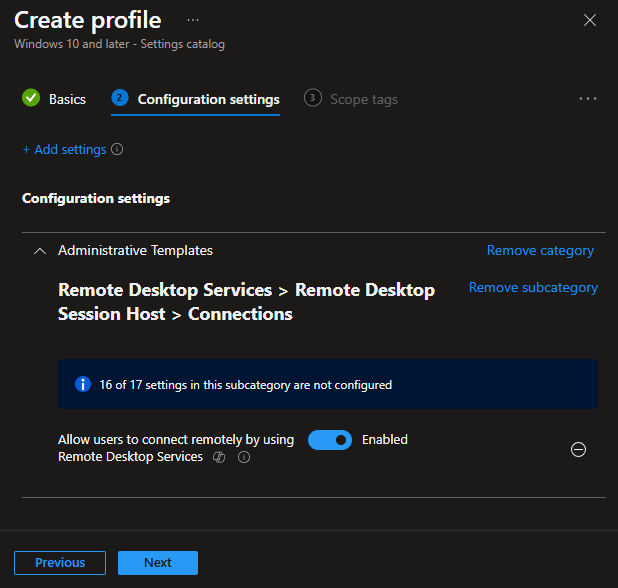
- Click
Next, select the required Scope tags, assign the policy to the device or user groups you want to support and create the policy on the final tab.
- Download the Azure Virtual Desktop Agent and Azure Virtual Desktop Agent Bootloader, package them as
Conditional Access
To control Remote Help with Conditional Access, create a service principal using the Remote Assistance Service app ID.
New-MgServicePrincipal -AppId "1dee7b72-b80d-4e56-933d-8b6b04f9a3e2"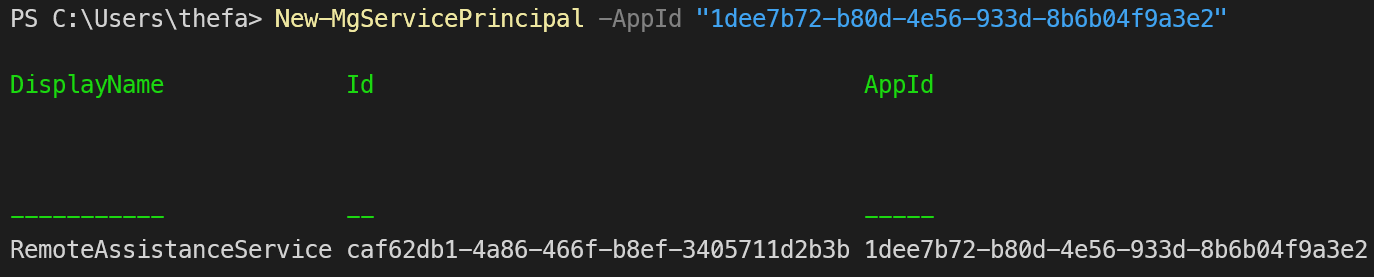 | 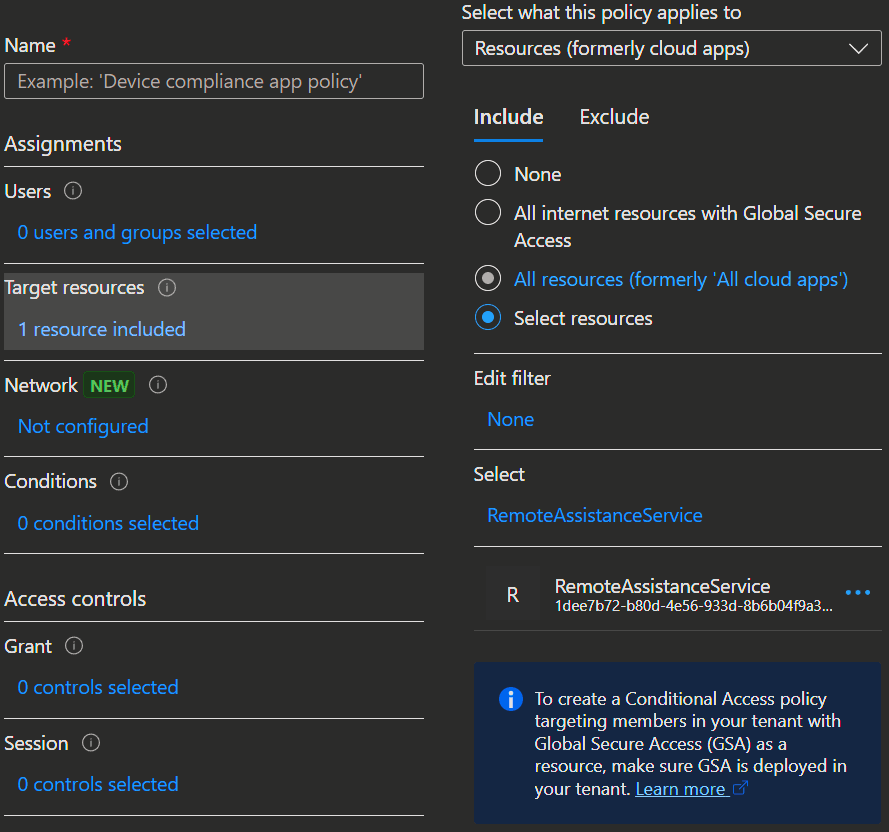 |
|---|
⌨️ Usage
To start a remote session, you can either open the app and exchange a security code with the end user or start a session directly through Intune. When you start a session through Intune, it handles the security code for you.
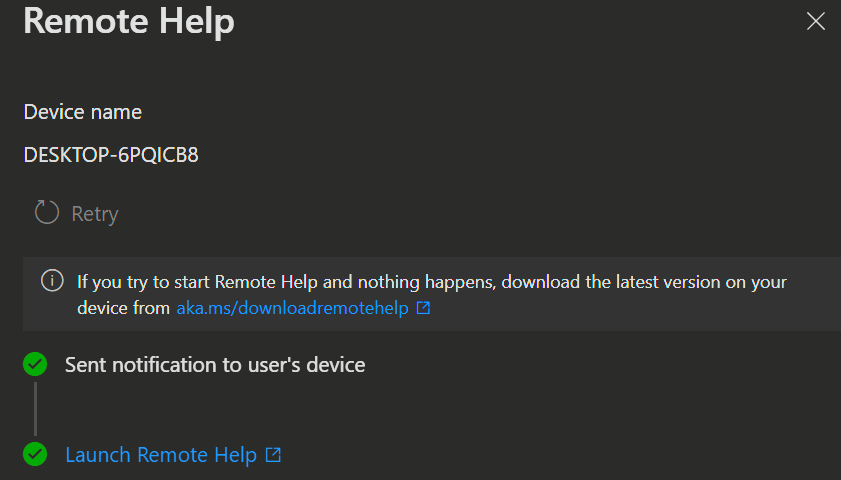
- To start a remote session from Intune, open the Intune admin center, go to Devices, select the device you want to help and choose
Remote actions->Begin a remote assistance session.

- A flyout will appear where you select
Remote Helpand clickContinue.

- On the next screen, choose whether to start a session with a user at the device (
Initiate attended control) or without one (Initiate unattended control), then clickSelect.

- If you selected attended control, a notification will appear on the end user's device announcing the remote session. When the user selects the toast notification, Remote Help launches automatically and waits for you to start the session. No code exchange is required.
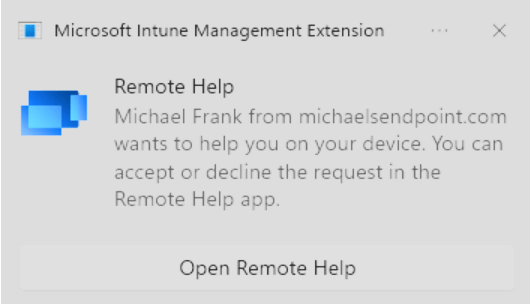
If you start an unattended session while a user is signed in, they will see a dialog and have 30 seconds to cancel the session. Otherwise, it starts automatically.

The helper will see a message that someone is signed in and be asked whether to continue. Selecting Yes locks the user’s session without closing anything and connects the helper to a separate Windows session.

- Once Remote Help starts on the end user's device or the unattended session is ready, the flyout shows a green checkmark next to
Open Remote Help.
Before each connection, Intune checks the configuration and displays a message if a check fails:
| Condition | What happens |
|---|---|
| Missing RBAC permission | Session initiation is disabled with the message: "You can only select session types for which you have permission." |
| Personal device | Session initiation is disabled with the message: "Unattended control is not available on personal devices." |
| Device not compliant | A warning indicates that the device doesn't meet security or compliance requirements. |
| Device offline | The session fails with the message: "Make sure the user's device is on and connected to the internet." |
| Missing prerequisites | Intune indicates that required agents, policies, permissions or settings aren't configured. |
| Attended control | Unattended control |
|---|---|
 |  |
- Once connected, authenticate to the device.
To start a remote session without Intune, use the following instructions.
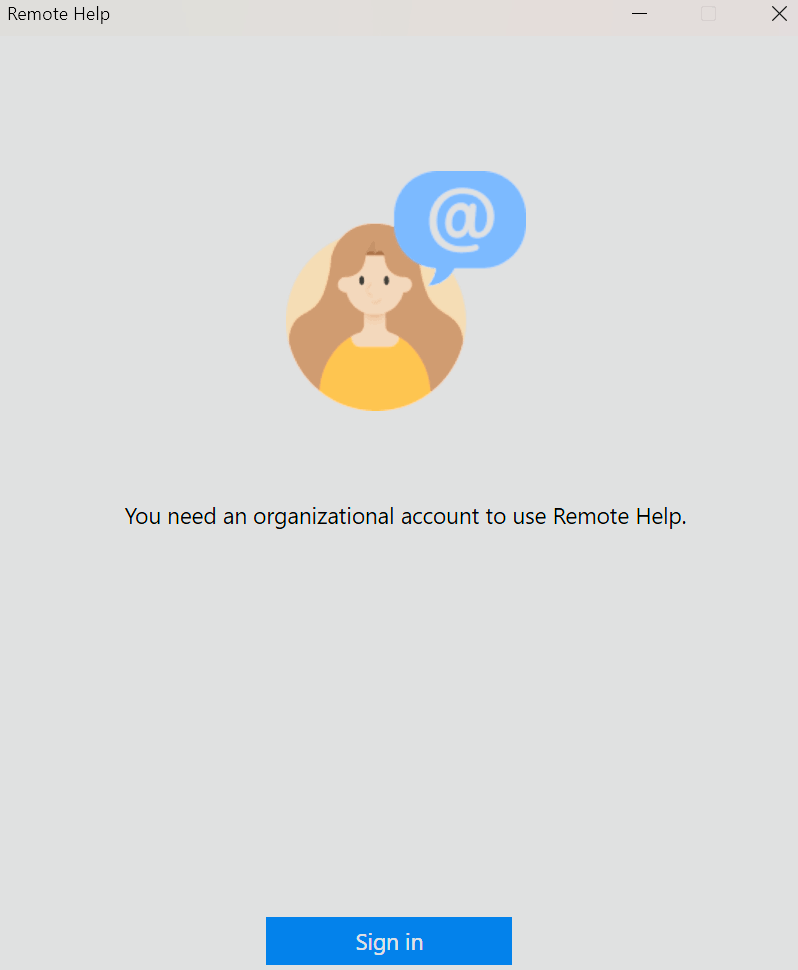
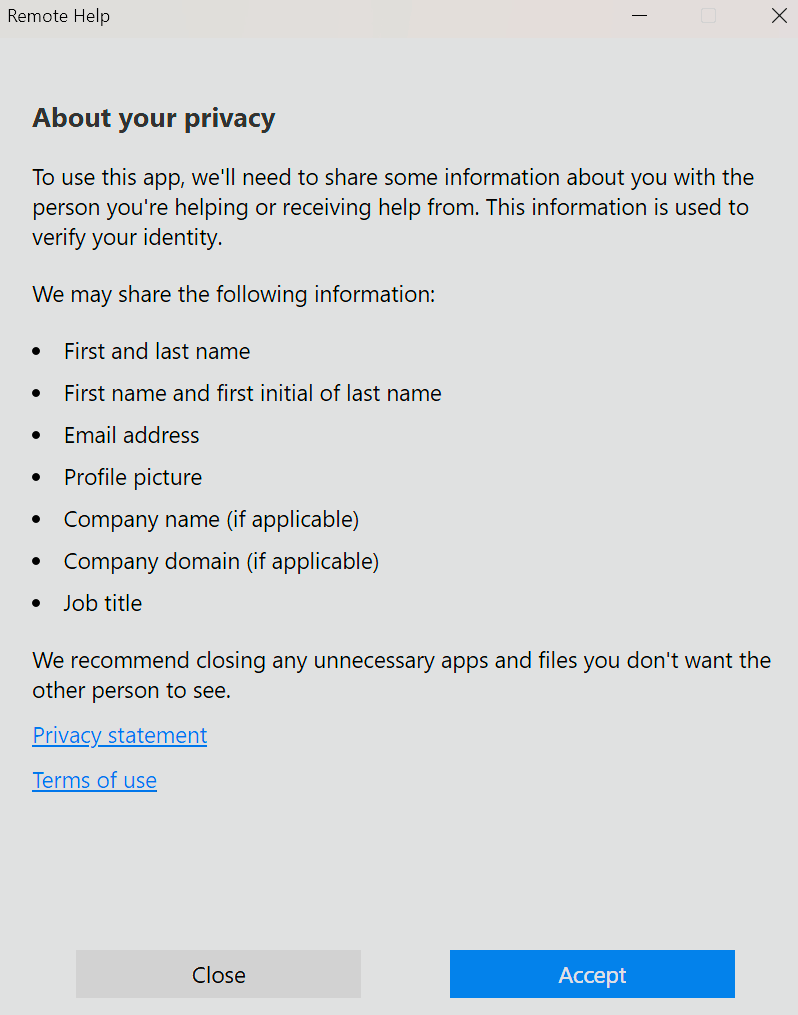
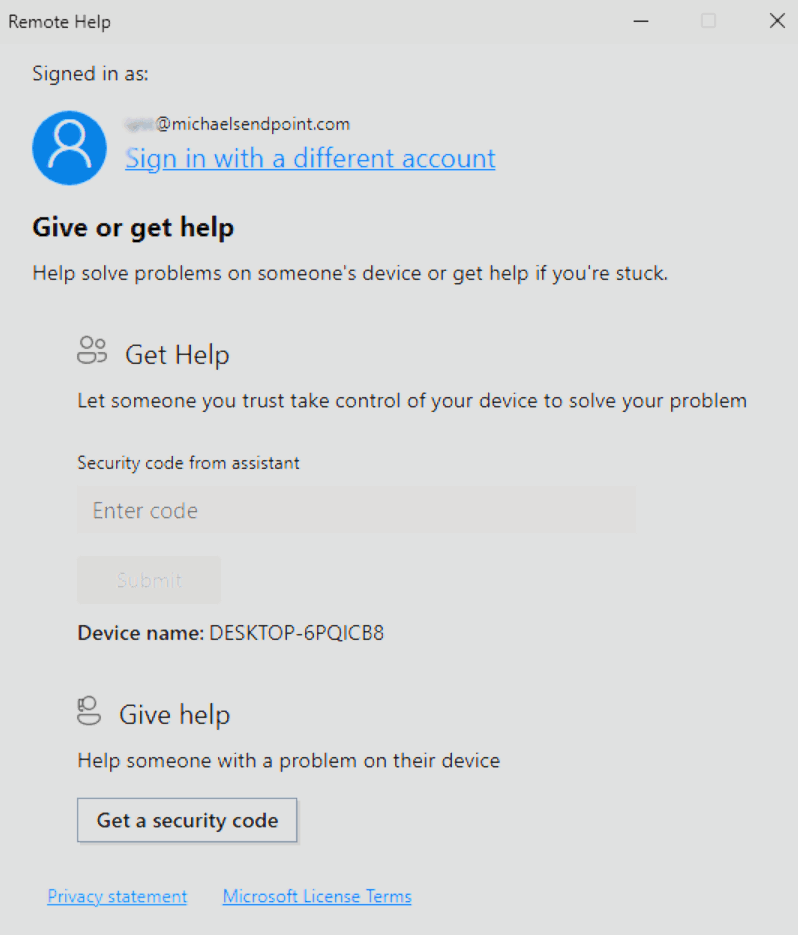
- The user must first sign in to the Remote Help client or have SSO enabled.
 |  |
|---|
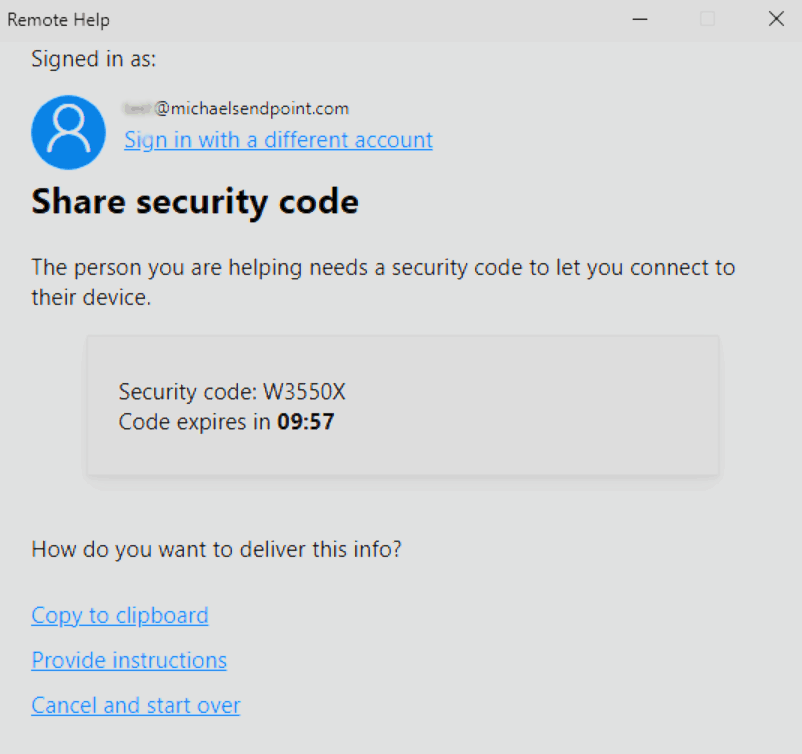
- Next, the helper selects
Get security codeand has 10 minutes to share the code with the sharer (the end user who needs help). - The sharer enters the security code in the appropriate field in the Remote Help client.
| Helper view | Sharer view |
|---|---|
 |  |
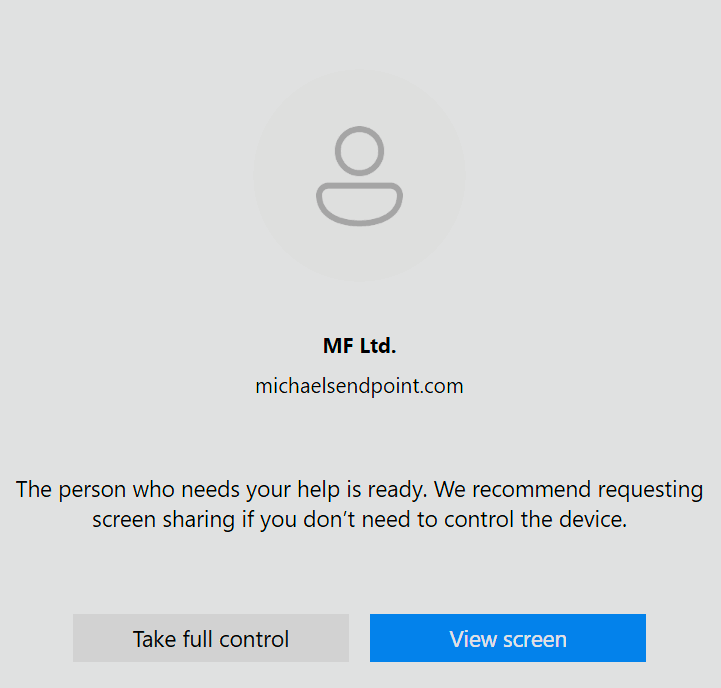
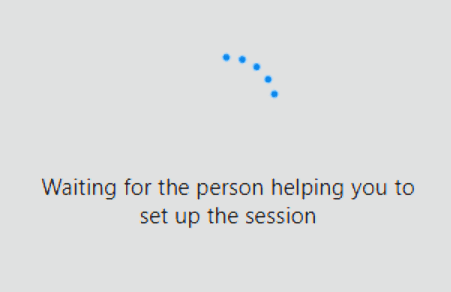
- The sharer sees a waiting screen while the helper chooses whether to Take full control or View screen.
Security Check
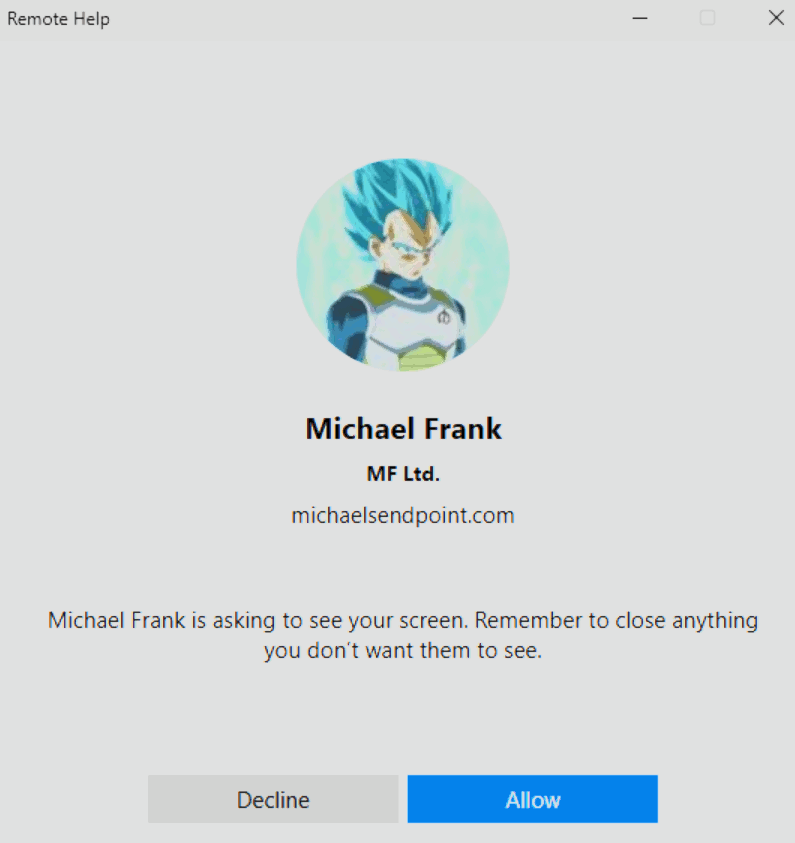
Before the helper can take control or view the screen, both parties will see each other's organizational details (name, company, domain, etc.) to confirm identities and prevent impersonation. This step ensures that only authorized helpers from your organization can provide assistance.
| Helper view | Sharer view |
|---|---|
 |  |
- Once the helper has selected their desired action, the sharer receives a pop-up window displaying the helper’s account details and the requested action (view screen or take control). The sharer can then choose to allow or decline the connection.
Information
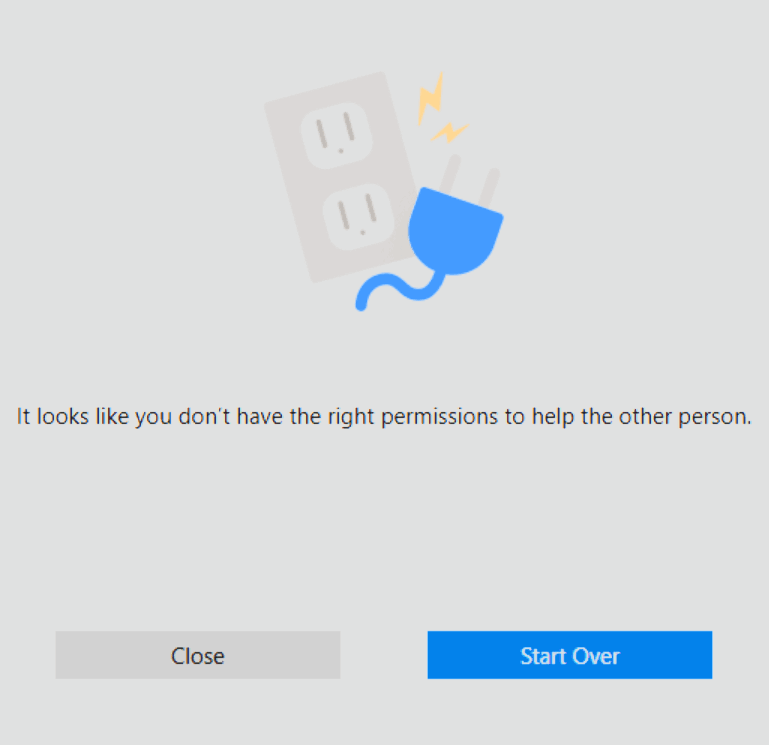
If you do not have the required RBAC permissions in Intune to act as a helper, a notification window will appear informing you that you lack the necessary permissions to provide remote assistance.
- The sharer sees a bar at the top where they can end the session by selecting
Xor start a chat💬.
- The end user’s console displays the lock screen, so they cannot see the helper’s actions. The helper works in a separate Windows session.
- The end user can regain control at any time by signing back in from the lock screen. The helper is notified and can then choose to disconnect.
Unattended session

- The helper has several tools in the toolbar to manage the session:
Request Control- Admin Session
🖥️ - Laser pointer
📍 - On-Screen Pen
🖊️ - Fullscreen
🪟 - Chat
💬 - Restart machine
↩️(only in admin mode) - Task manager
📟(only in admin mode) Leave

- If the helper requests control, the sharer receives the request in the Remote Help bar and can select
AlloworDeny.

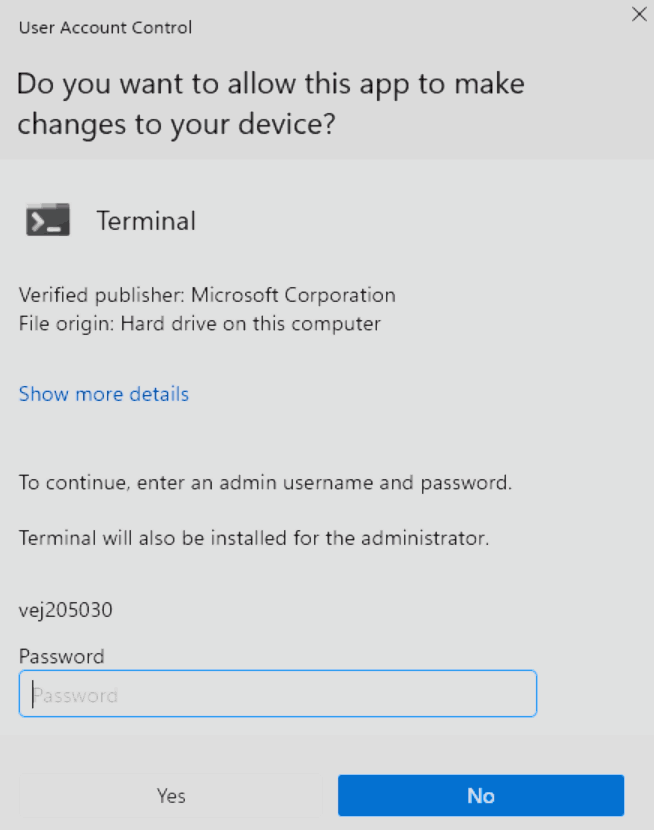
- If you need to open an elevated window during a Remote Help session, the UAC prompt appears on the secure desktop by default. Your session view will go black and display a ⏸️ symbol because the secure desktop isn't visible until an Admin Session is enabled.
| Helper view | Sharer view |
|---|---|
 |  |
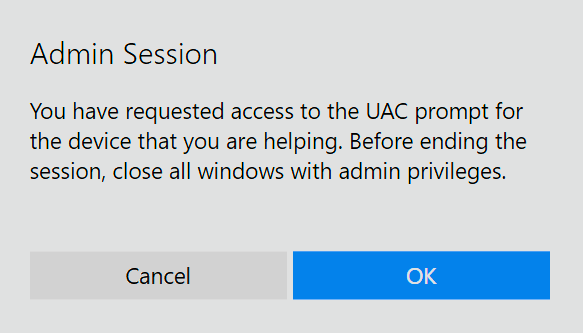
- If the helper needs to enter credentials or interact with the UAC prompt, you can enable an Admin Session.
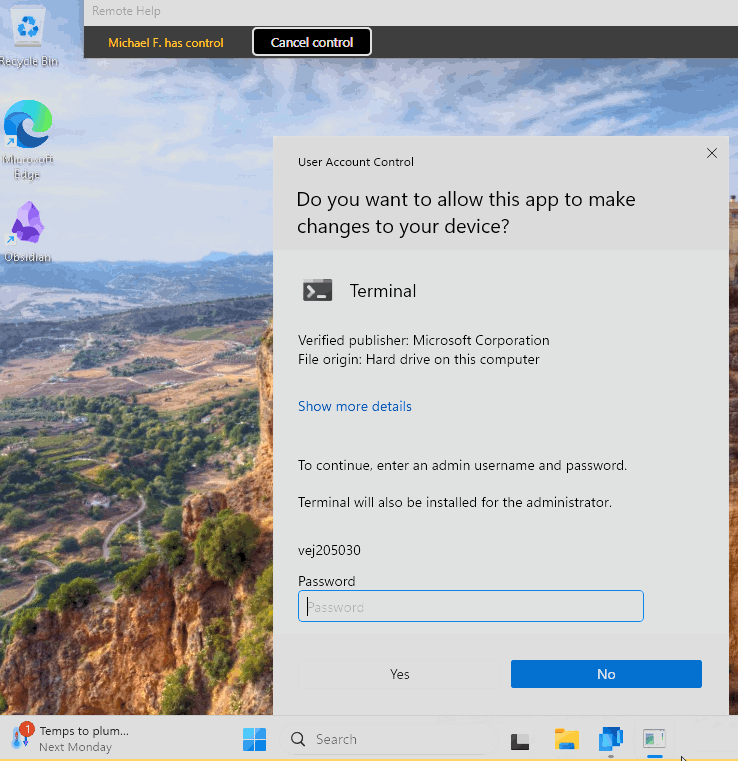
- Once the Admin Session is enabled, if a UAC prompt appears, the helper will be able to view and interact with the elevated windows directly.
| Helper view | Sharer view |
|---|---|
 | |
IMPORTANT
While the Admin Session is enabled you will see a warning message reminding you of closing all elevated windows before leaving the session. 
If the session is closed by the sharer while an admin session is still active, the user will be signed out immediately. This ensures that all elevated windows are closed, protecting admin credentials. 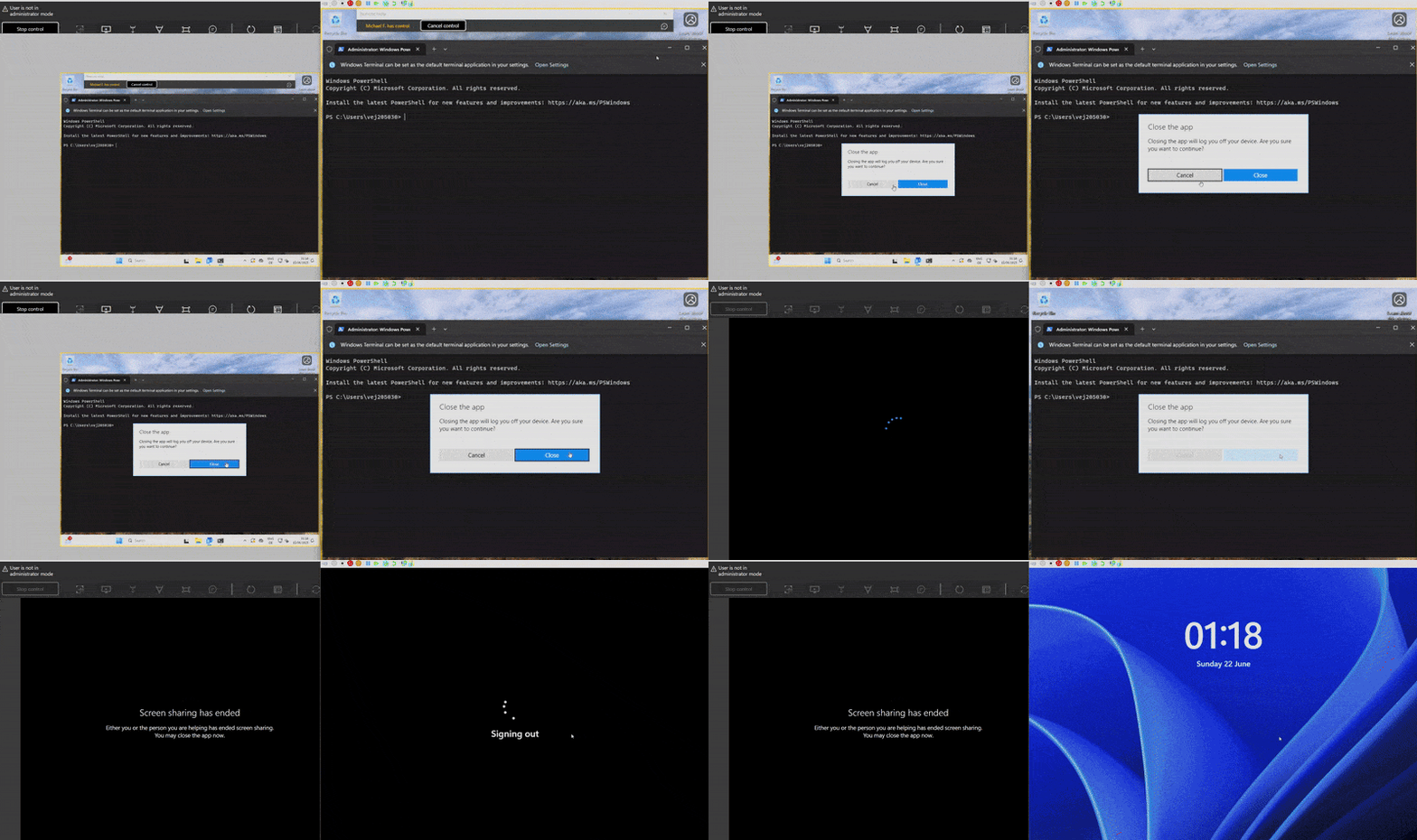
- When either party ends the session, everyone sees a corresponding message.
| Helper view | Sharer view |
|---|---|
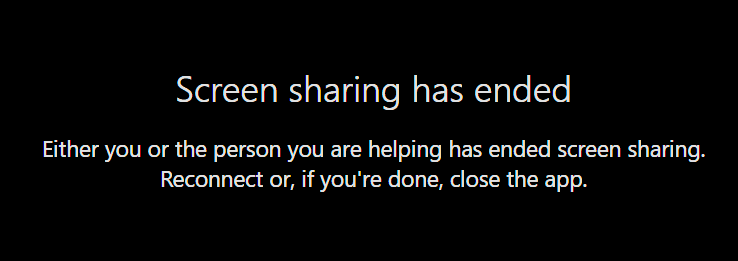 | 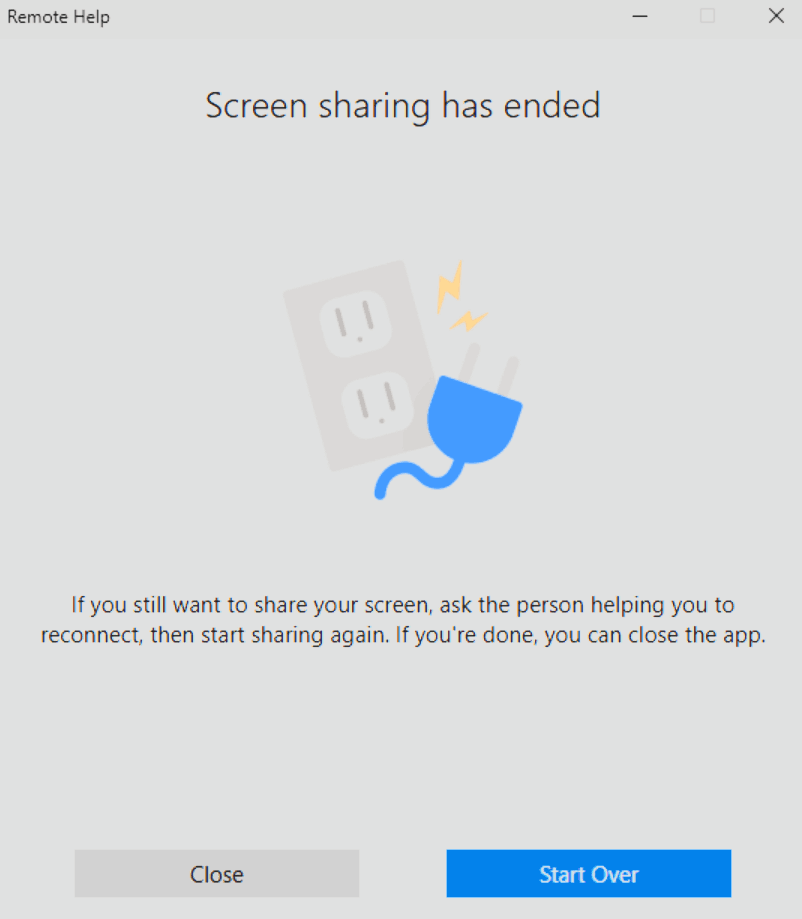 |
🔍 Monitoring
You can monitor Remote Help usage in the Intune admin center.
- Sign in to the Microsoft Intune admin center and go to Tenant admin → Remote Help.
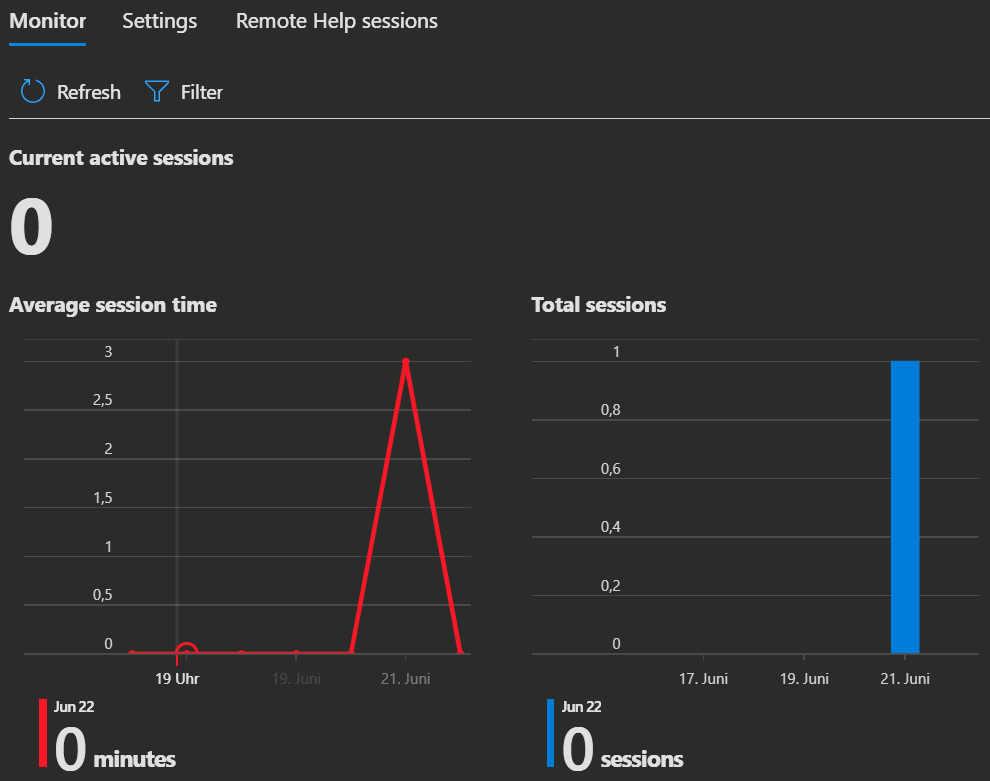
- The Monitor tab shows active sessions and information about past sessions.
- The Remote Help sessions tab shows details about past sessions.
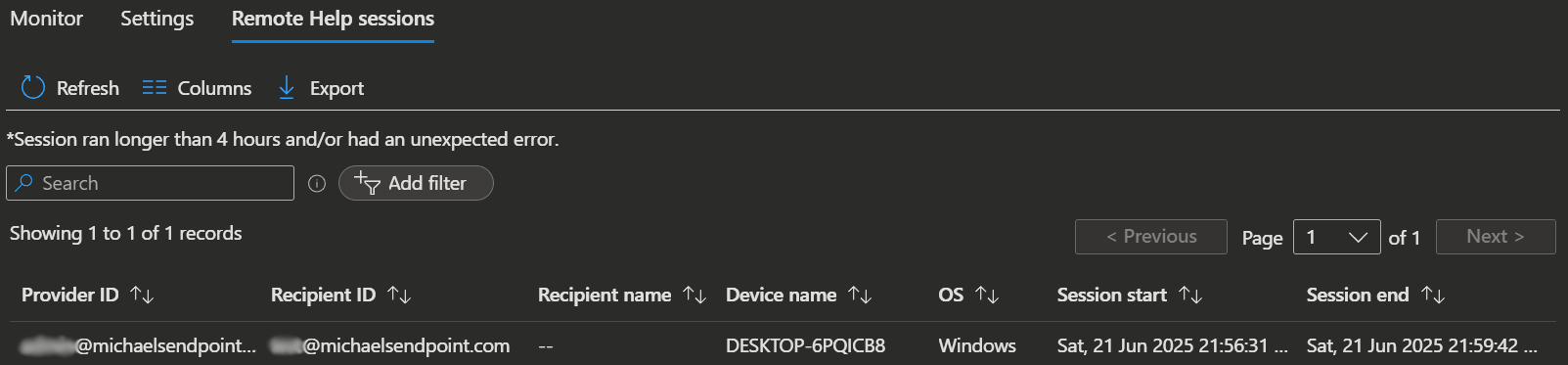
- For Android Enterprise Dedicated devices, you’ll see “--” for Recipient ID and Recipient name since these devices don’t have user affinity.
- Reporting is more limited for unenrolled devices.
Information
💡 Conclusion
Remote Help is a good, straightforward option for providing remote support through Intune, with great auditing features. If your organization already licenses its helpers and users with Microsoft 365 E3 or E5, Remote Help is included at no additional charge.
It is integrated into the Microsoft ecosystem, so helpers and users can sign in with their existing Entra ID work accounts. Access is managed through Intune RBAC, rather than a separate account system or permissions portal.
Remote Help is not perfect and may still be missing some features you expect. However, Microsoft continues to add new features, so it’s worth keeping an eye on its development.
When considering adoption, weigh its capabilities against your support needs, costs and the convenience of managing support from a single pane of glass in Intune.
References