
👋 Introduction
When hiring contractors and granting them access to sensitive resources, such as internal data, SaaS platforms or administrative portals, it is critical to enforce security controls at the application layer, because direct management of the device is not possible. Implementing Microsoft Edge for Business alongside Mobile Application Management (MAM) is an effective way to safeguard your organisation's data accessed through browsers on Windows.
Microsoft has announced the launch of a Public Preview (March 2026) feature that will allow browser-based protection policies to be applied to the work profile of Edge for Business, even when the device is not managed directly. This approach ensures data boundaries are maintained while respecting the ownership of devices belonging to other organisations.
⚙️ Configuration
Mobile Threat Defense (MTD)
The Microsoft Intune MTD connector links Intune with third-party vendors to provide cross-platform threat intelligence. For unmanaged devices, MAM can use these connectors to assess device health without an agent present on the machine.
The connector will only gather data from MAM-enrolled users. To stop transmission, users can sign out of the protected app or the admin can remove the MTD connector from Intune.
The data sent through the connector includes:
- User, app and device identifiers
- Last update timestamp
- A predefined health state
- Secured: Zero-tolerance for threats
- Low: Allows only low-level threats
- Medium: Allows low or medium level threats
- High: Allows all threat levels (should only be used for test purposes)
Configure the MTD Connector
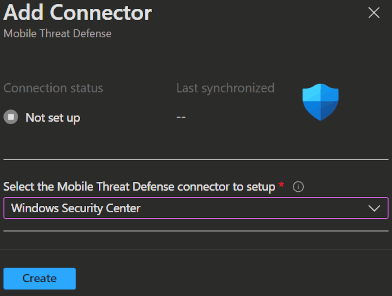
- Open the Intune admin portal -> Tenant administration -> Connectors and tokens -> Mobile Threat Defense and click
➕ Create. - Now select
Windows Security Centerin the Select the Mobile Threat Defense connector to setup field and clickCreate.
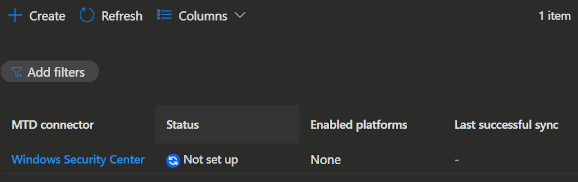
INFO
The status will show 🔁 Not set up until you enroll the first MAM user.
App Configuration policy
This will set up the behaviour of the Edge work profile and how we want the app to interact with the user. Following you will find my best practices:
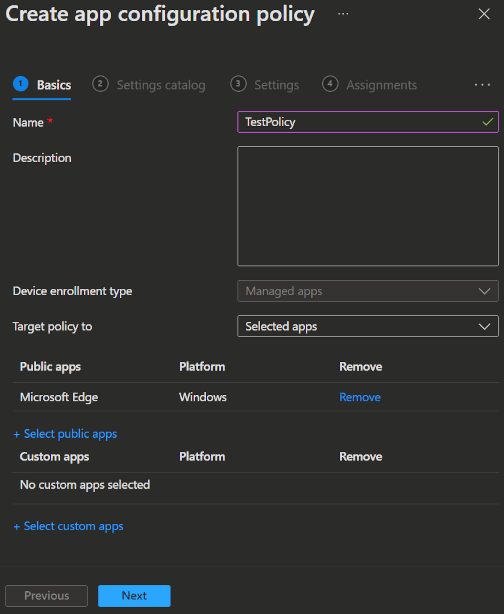
- Open the Intune admin portal -> Apps -> Manage apps -> Configuration and click
➕ Create->Managed Apps. - Enter a Name, Description and click
Select public apps. - Now select Microsoft Edge with the Windows platform, click
SelectandNext.
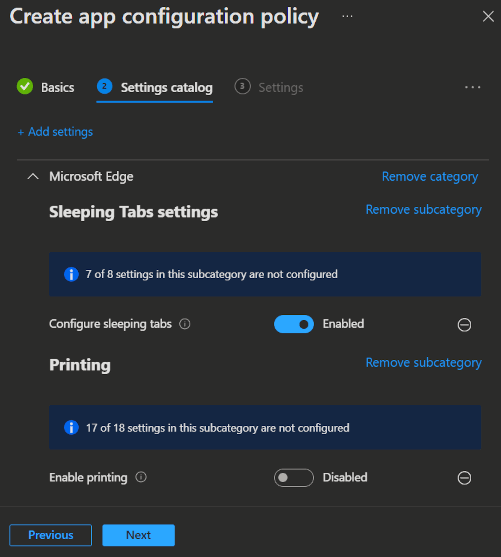
- Now add the following settings from the Settings catalog.
Settings Catalog
| Settings Name | Value |
|---|---|
| Show Home button on toolbar | Enabled |
| Allow HTTPS-Only Mode to be enabled | Force enable HTTPS-Only Mode in Strict mode |
| Default pop-up window setting | Do not allow any site to show popups |
| Enable saving passwords to the password manager | Disabled |
| Enable AutoFill for payment instruments | Disabled |
| Block tracking of users' web-browsing activity | Balanced |
| Enable network prediction | Don't predict network actions on any network connections |
| Allow importing of autofill form data | Disabled |
| Allow importing of saved passwords | Disabled |
| Allow importing of browsing history | Disabled |
| Allow importing cookies | Disabled |
| Allow importing of extension | Disabled |
| Allow download restrictions | Block malicious downloads and dangerous file types |
| Show Microsoft Rewards experiences | Disabled |
| Shopping in Microsoft Edge Enabled | Disabled |
| Enable deleting browser and download history | Enabled |
| Force Microsoft Defender SmartScreen checks on downloads from trusted sources | Enabled |
| Allow insecure content on specified sites | [] |
| Block insecure content on specified sites | ["*"] |
| Control which native messaging hosts users can use | [] |
| Configure native messaging block list | ["*"] |
| Restrict the range of local UDP ports used by WebRTC | 10000:11000 |
| Clear browsing data when Microsoft Edge closes | Enabled |
| Disable synchronization of data using Microsoft sync services | Enabled |
| Enable printing | Disabled |
| InPrivate mode availability | InPrivate mode disabled |
| Force synchronization of browser data and do not show the sync consent prompt | Disabled |
| Configure sleeping tabs | Enabled |
| Allow or block video capture | Disabled |
- Click
Next2 times, add your contractor group to Assignments and then clickCreate.
INFO
You can find Microsofts recommendations for Edge App Configuration policies here.
App Protection policy
This will set up the behaviour of the Edge work profile and how we want the user to interact with the data. Following you will find my best practices:
- Open the Intune admin portal -> Apps -> Manage apps -> Protection and click
➕ Create->Windows. - Enter a Name and Description for the policy, then click
Next. - Now select Microsoft Edge and click
Next.
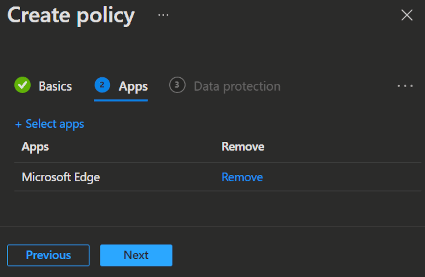
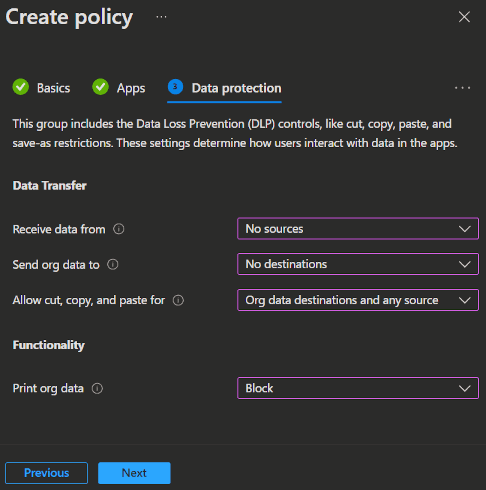
Select which Data Protection settings you want to apply to the app, then click
Next.Leak control
If you set the
Allow cut, copy, and pastepolicy, to anything different thanAll destinations and sources, the following controls are set by default:- Blocks Screenshots
- Blocks Developer Tools

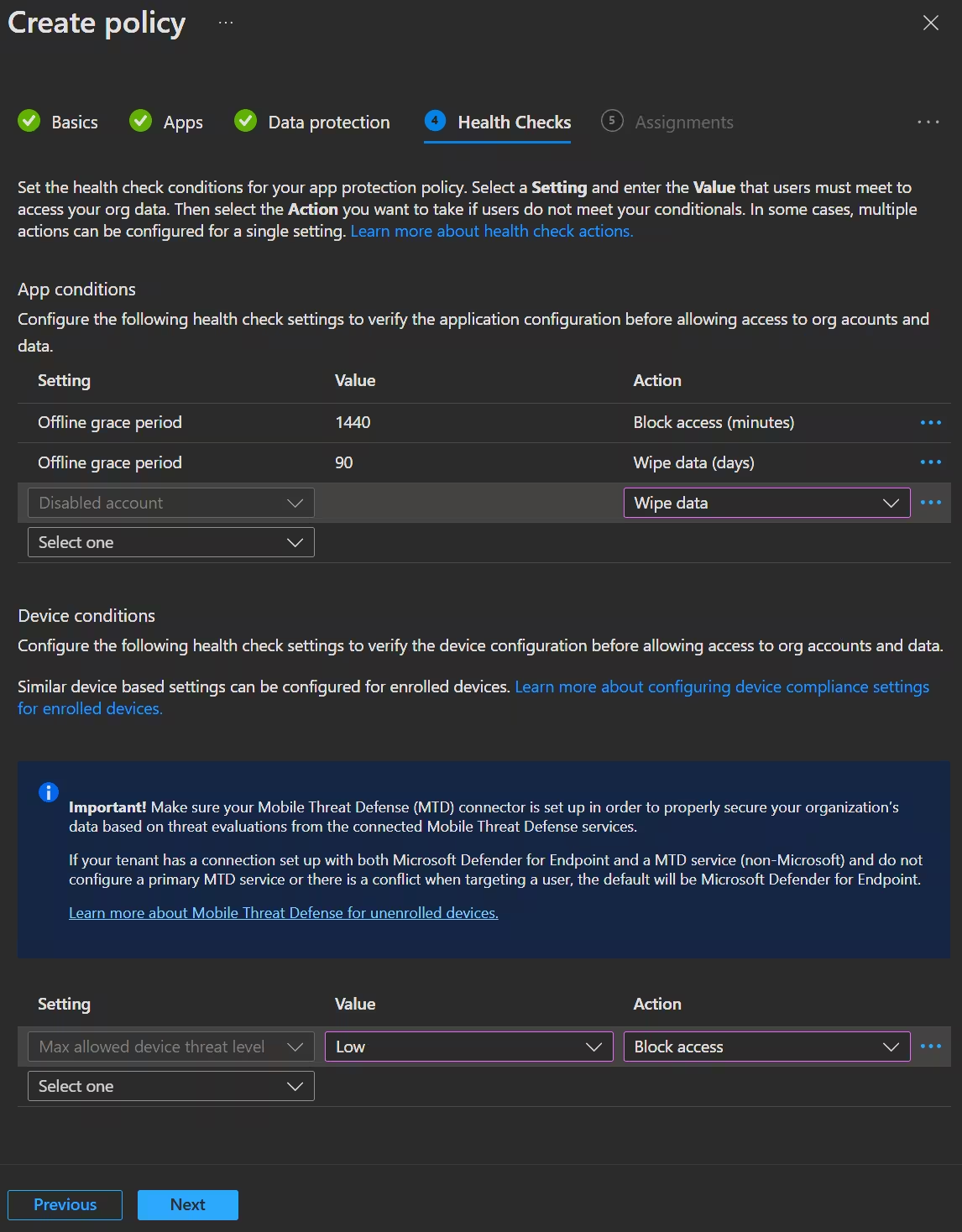
- Lastly you can select App conditions and Device conditions.
- Click
Next, add your contractor group to Assignments and then clickCreateto finish the policy.
INFO
You can find Microsofts recommendations for Edge App Protection policies here.
Conditional Access policy
This will set up the access control that forces the contractors to use the app protection policy we set up.
- Open the Intune admin portal -> Devices -> Manage devices -> Conditional access -> Policies and click
➕ New Policy. - Enter the Name for your policy.
- Under Users or Agents select your contractor user group.
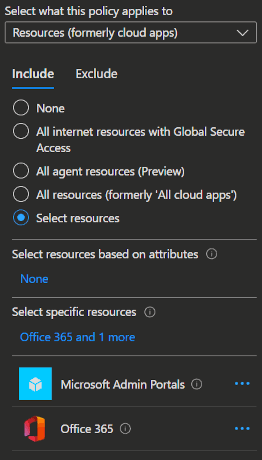
- Under Target resources select
Microsoft Admin PortalsandOffice 365. (You can also select any other browser-based resource you want to protect.)
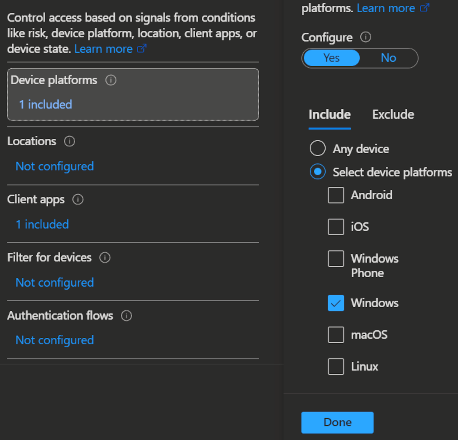
- Under Conditions -> Device platforms select
Windows.
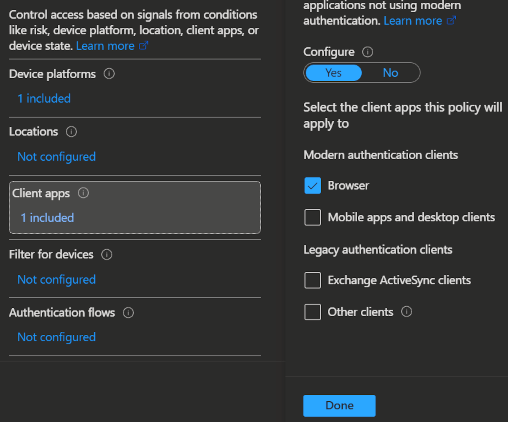
- Under Conditions -> Client apps select
Browser.
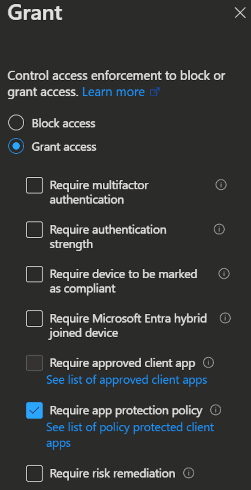
- Under Grant select
Grant accessandRequire app protection policy.
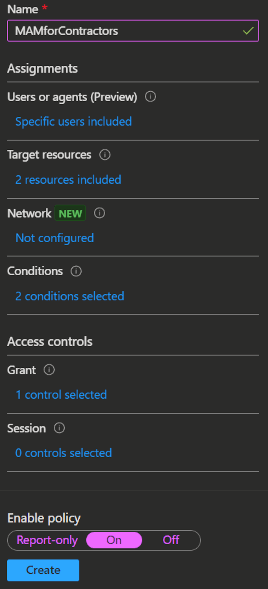
- Lastly set the policy to
Onand clickCreate.
⭐ Usage scenarios
MAM enrollment
To use the new work profile feature you only need to have the previously created polcies assigned to the contractor group on the organizations side.
On the user side, the contractor needs to activate a setting from their side to get the new experience.
- Open Microsoft Edge and open
edge://flags.
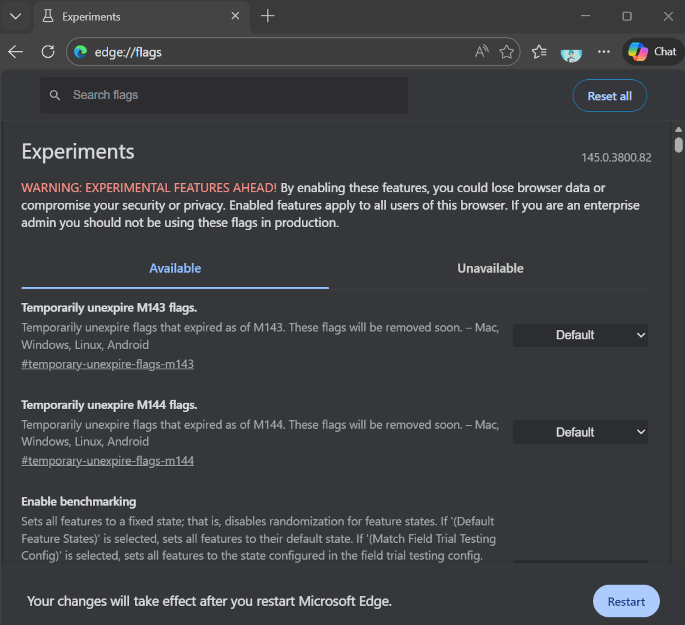
Enable the following flags and restart the browser.
#edge-allow-mam-on-mdm- (This setting is needed when the contractor's device is already enrolled with his own organizations MDM.)

After Edge restarted, open your resource of choice (here portal.office.com) and sign in.
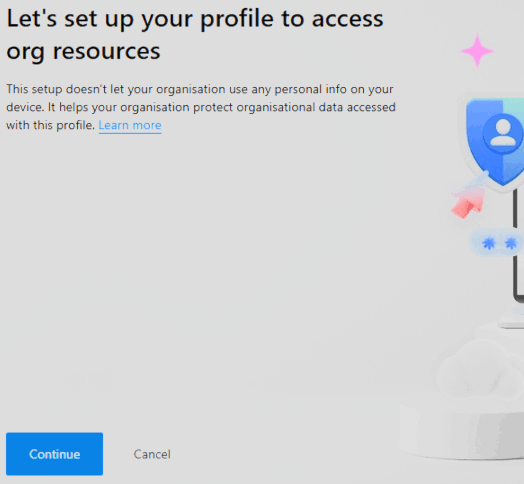
In the sign in process the system will ask you to log in to a separate Edge work profile. This happens so the profile can be managed by the MAM policy.
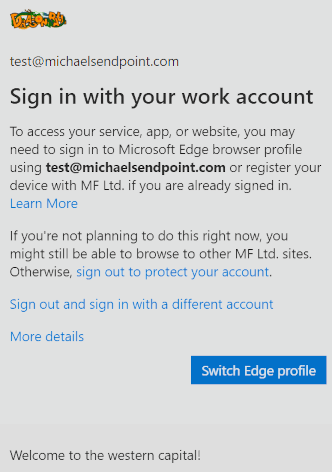
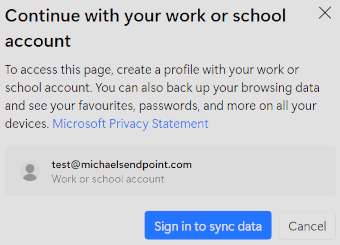
- Clicking
Switch Edge profiletriggers a pop-up to select and confirm your preferred account. Here you clickSign in to sync dataand log in to the Edge work profile.
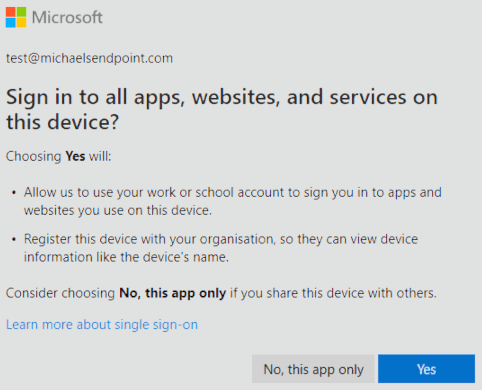
- In the sign in flow you will be asked if you want to sign in to all apps or only this app.
Important
You need to select Yes, because the Edge work profile can not be managed otherwise and this feature will not work.
info
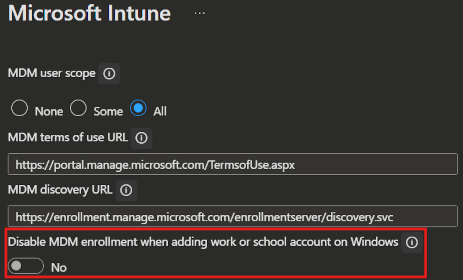
If you have not disabled the Disable MDM enrollment when adding work or school account on Windows setting
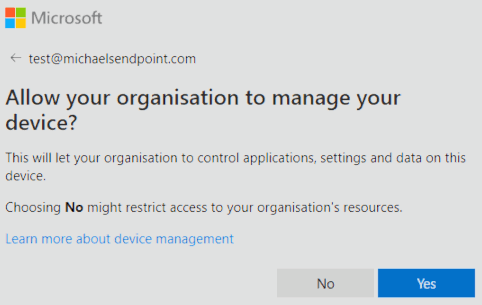
your contractor will also get the question if he wants to enroll his device, which he should answer with No.
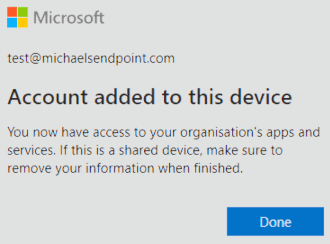
- After that, you will get a success message and the MAM policies will apply.
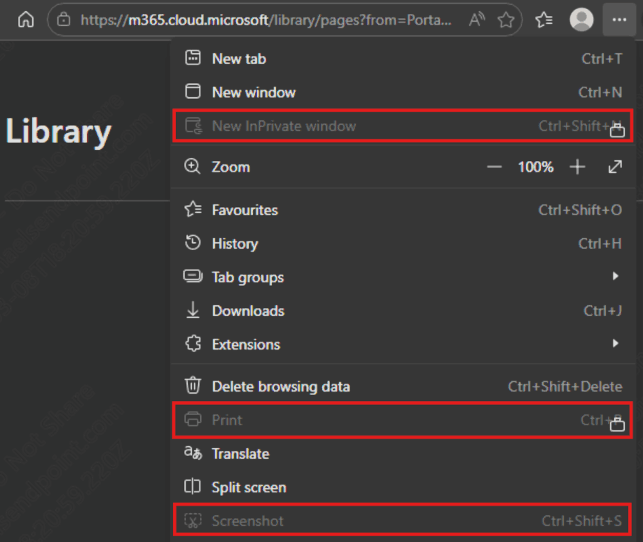
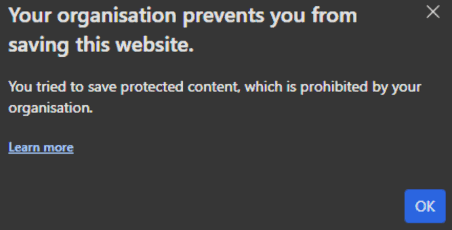
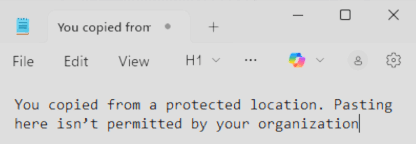
- In the Screenshot below you see that the app protection policies we configured do now apply to the office resource.
What can the organization see of the contractors device?
- Windows registers the device in Entra ID, where it will be listed with minimal information.
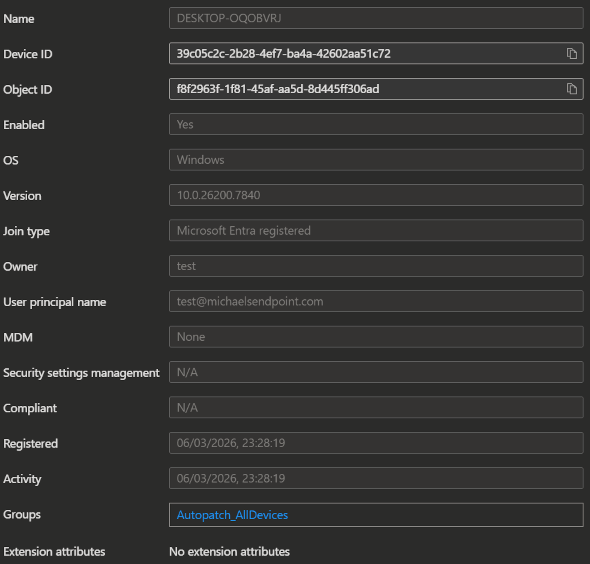
- The device will not be listed in the Intune or Defender portal
To find information about the contractors sessions you can:
- use the sign in logs and the conditional access policy
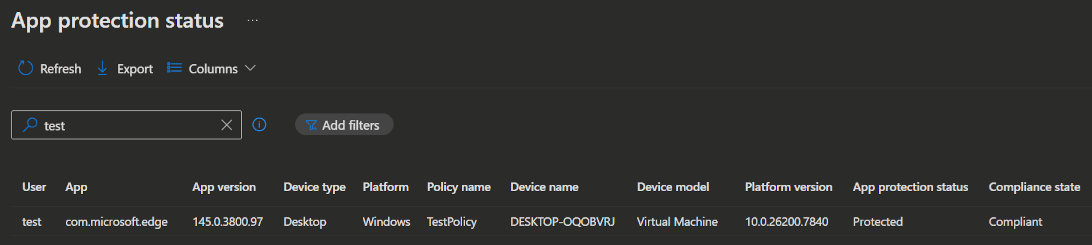
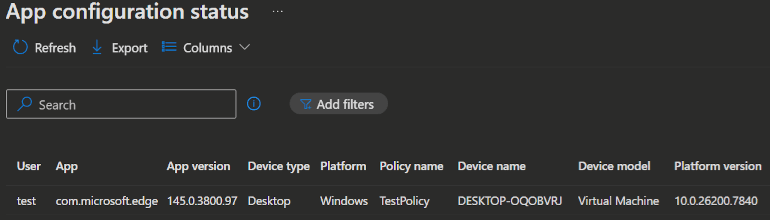
- or use the special App protection status and App configuration status reports in Intune (Intune -> Apps -> Monitor)
Downloads to OneDrive
To additionally force downloads to be saved in OneDrive for Business, you can make the following settings:
- First you need to go to Intune, to the App Protection policy we just created and make sure
Send org data tois set toNo destinations.

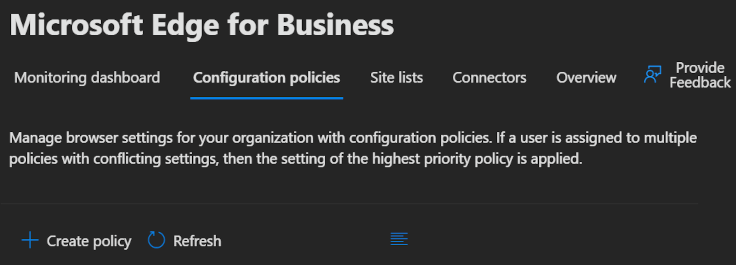
- After that we need to create an Edge policy. To do that, open the M365 admin portal -> Settings -> Microsoft Edge select the Configuration policies tab and click
➕ Create policy.
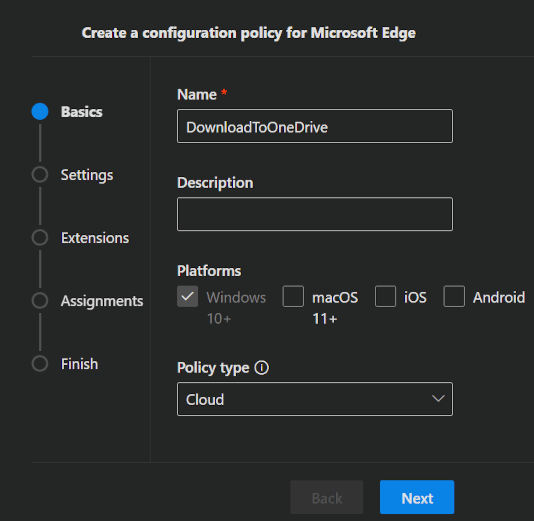
- Enter the Name and Description for your policy, and make sure to select
Windows 10+as Platform andCloudas Policy type, before clickingNext.
- Click
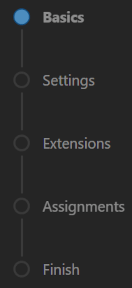
Nextin the Settings and Extensions section, until you come to the Customization Settings.
INFO
If you do not see the Customization Settingssection, you create the policy completly without settings in it and assign it to the contractor group. After that, when you open the policy again, you will see the Customization Settings section, select it and make the needed settings.
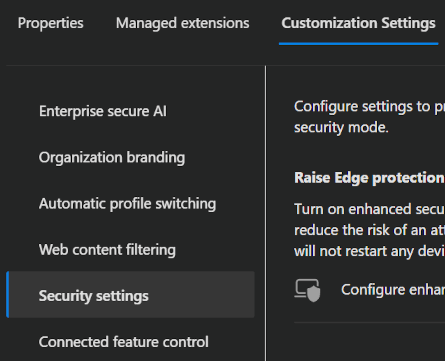
- In the Customization Settings tab, navigate to Security Settings and enable the
Protected Downloadssetting.

After you set this up, files downloaded in Edge by your contractors are redirected to the Microsoft Edge Downloads folder in OneDrive for Business, which is tenant-managed and enforces organizational compliance.
INFO
Be aware, for this to work, you need to assign the contractors a license that includes OneDrive for Business.
Watermarking
You can also force watermarking in the protected Browser session for your contractors. With that, you can make sure that you even got visual leak control.
To set this up, you can follow the same steps as described in the Downloads to OneDrive section, but instead of enabling Protected Downloads you need to enable Enable watermarking protection.

You ca see the effect in the screenshot below.
(I adjusted the Screenshots contrast a bit, so the watermarking is better visible in the screenshot) 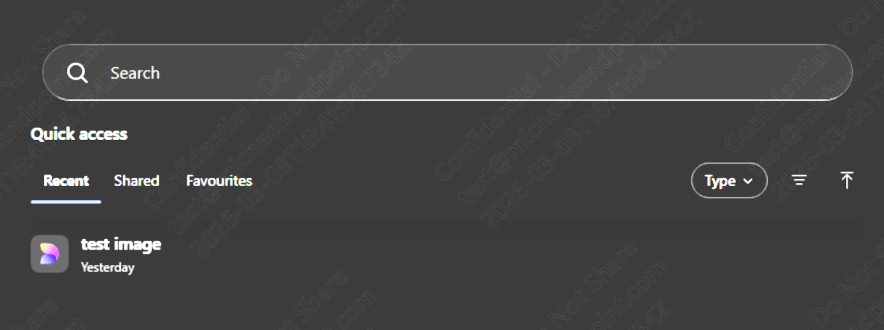
💡 Conclusion
Managing external contractors and third-party vendors presents a significant security challenge, you need to grant them access to sensitive resources while maintaining strict data protection boundaries. Implementing MAM (Mobile Application Management) with Microsoft Edge for Business solves this elegantly by enforcing security controls at the application profile layer rather than requiring device enrollment. This approach allows you to protect your organization's data and resources without the friction of device management, without exposing your resources to unmanaged devices or providing the contractor with a separate device. By combining app-level policies and conditional access, you create a secure work profile that sits isolated on the contractor's device, ensuring organizational compliance while respecting device ownership and maintaining a seamless user experience.
Preview Limitations
- Users can't access data protected by Conditional Access policies when using devices managed by another tenant with the same Conditional Access settings active.
- To enroll MAM policies on an externally managed device, it mustn't have any Endpoint DLP policies applied at the device level.
References